Where did the data go? Now you'll know.
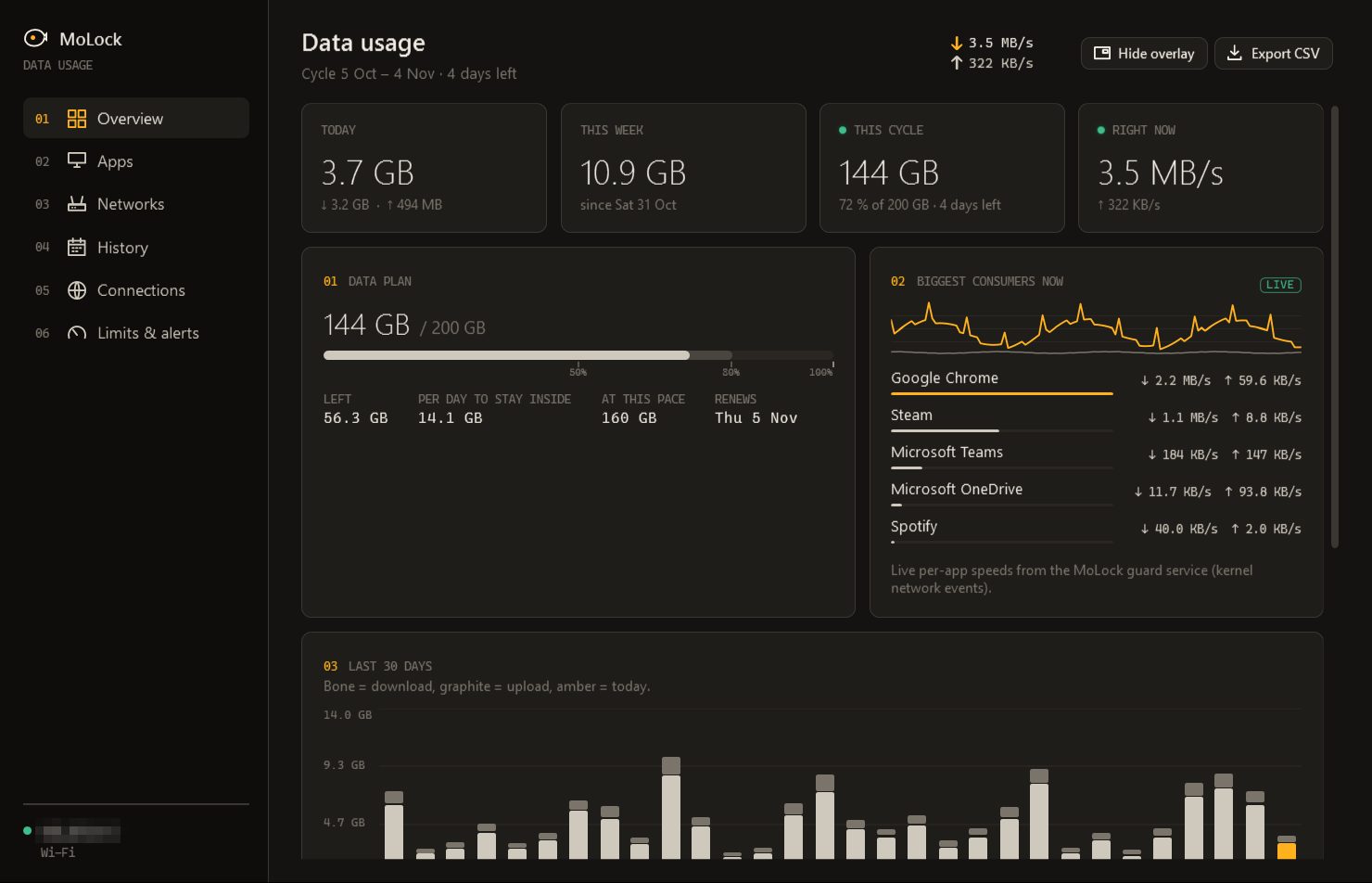
MoLock counts this PC's internet use per app and per network — Wi-Fi, cable, mobile data or a phone hotspot — for today, the week and your billing cycle. Tell it your plan and renewal day, and it shows what's left, how much you can use each day, and where your current pace will land.
New in 3.1FreeFree · works offline · 400 days of history on your PC
- History on your PC400DAYS
- Imported from Windows30DAYS
- Alert steps by default3
- Connection lists uploaded0
01 / 09How it works
Describe your plan once. Every screen speaks in it.
The monitor is on by default and works without an account. Open Data usage from MoLock's Settings.
- 01Step 1/4
Enter your package
Type the gigabytes your plan includes and the day it renews, from 1 to 31. No cap? Leave it empty and simply watch.
- 02Step 2/4
Choose which networks count
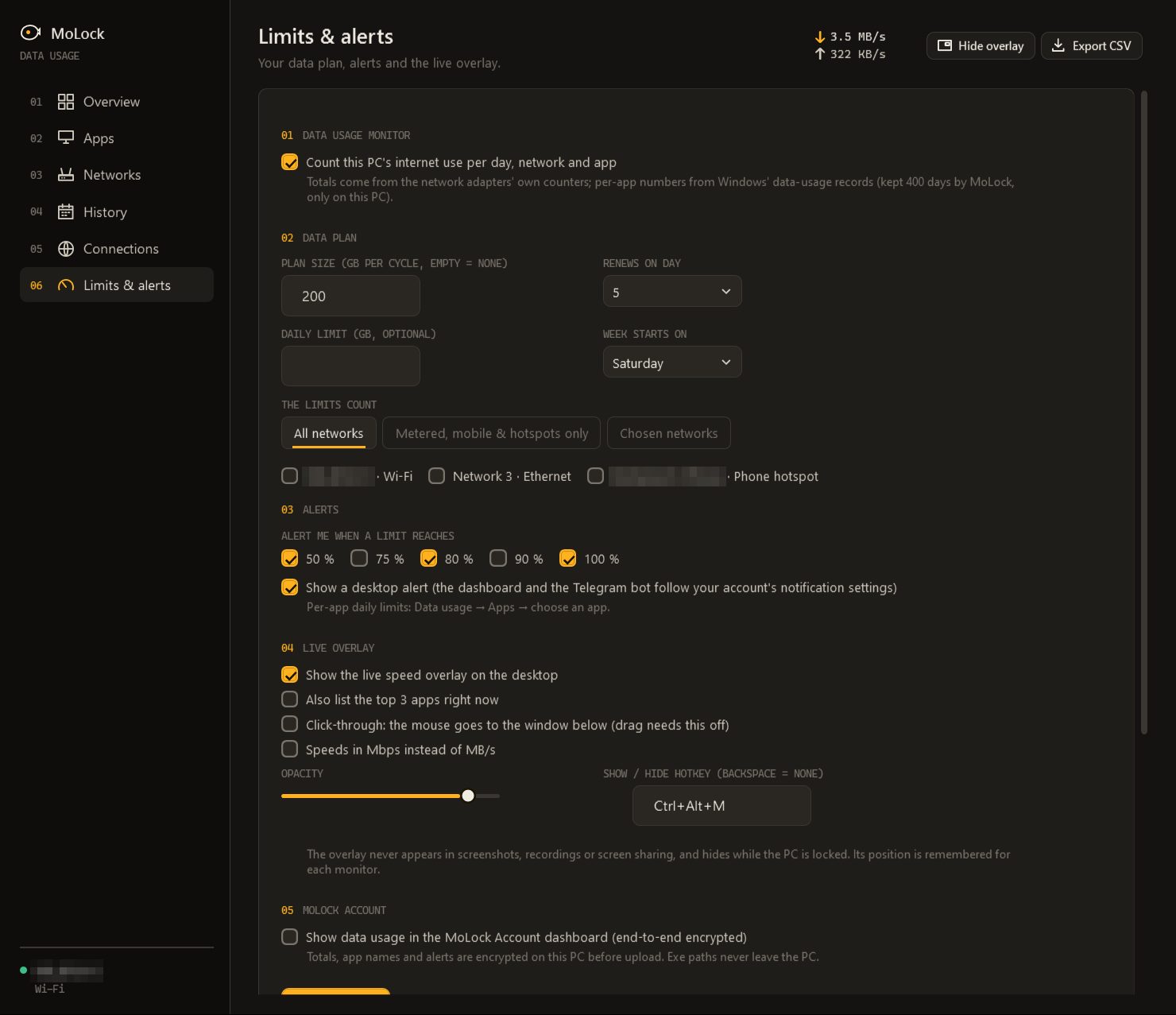
All networks, only metered ones — mobile data and phone hotspots count as metered — or the networks you pick by name.
- 03Step 3/4
Pick your alerts
50, 80 and 100 % by default, each once per cycle — plus an optional daily limit and daily limits for single apps.
- 04Step 4/4
Read the plan bar
What's left, the daily amount that keeps you inside, where this pace ends and the days until renewal.
02 / 09What it does
Every app, every network. In plain numbers.
Two sources work together: the network adapters' own counters for exact totals, and Windows' own data-usage records for each app.
Usage per app
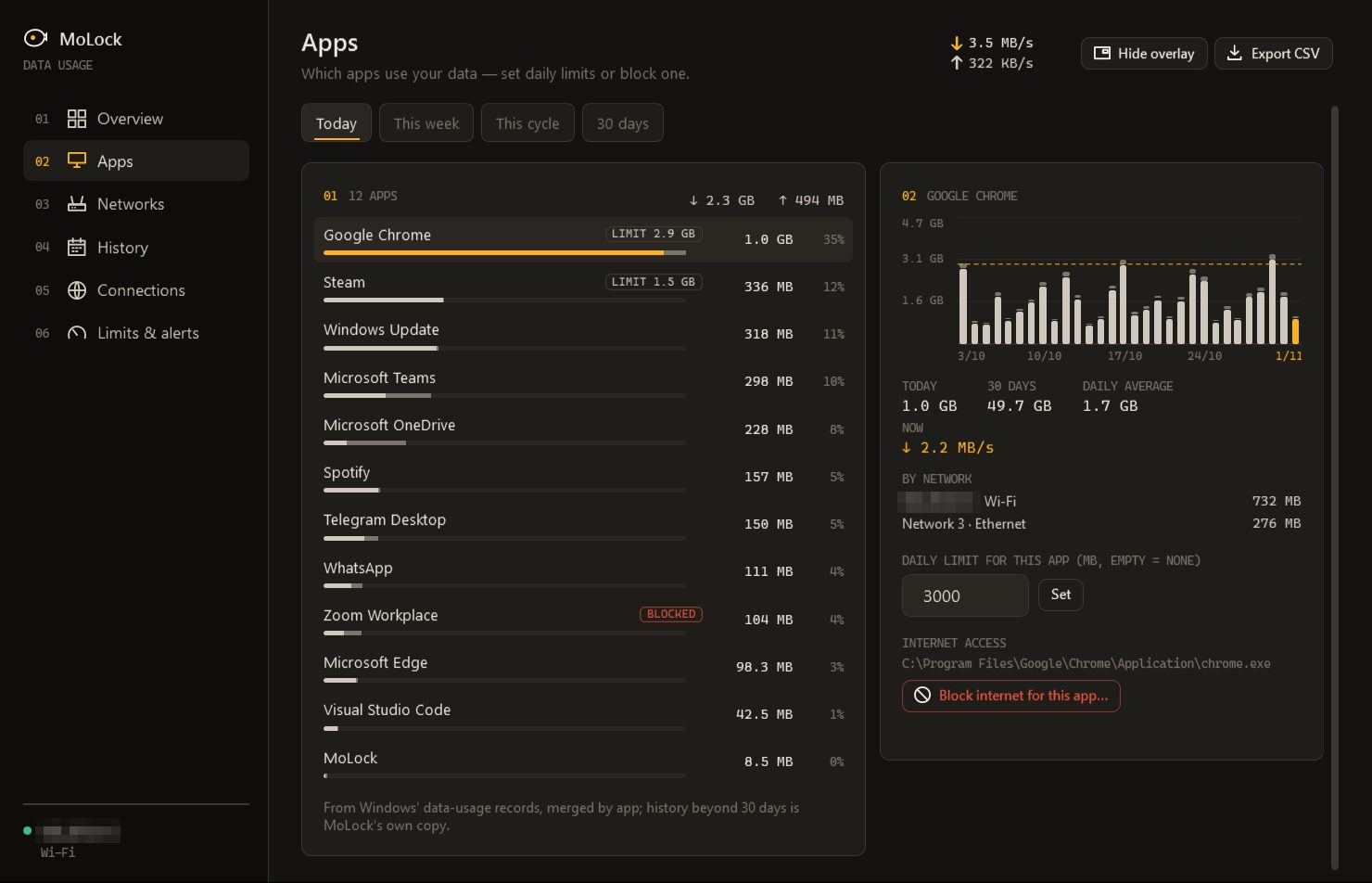
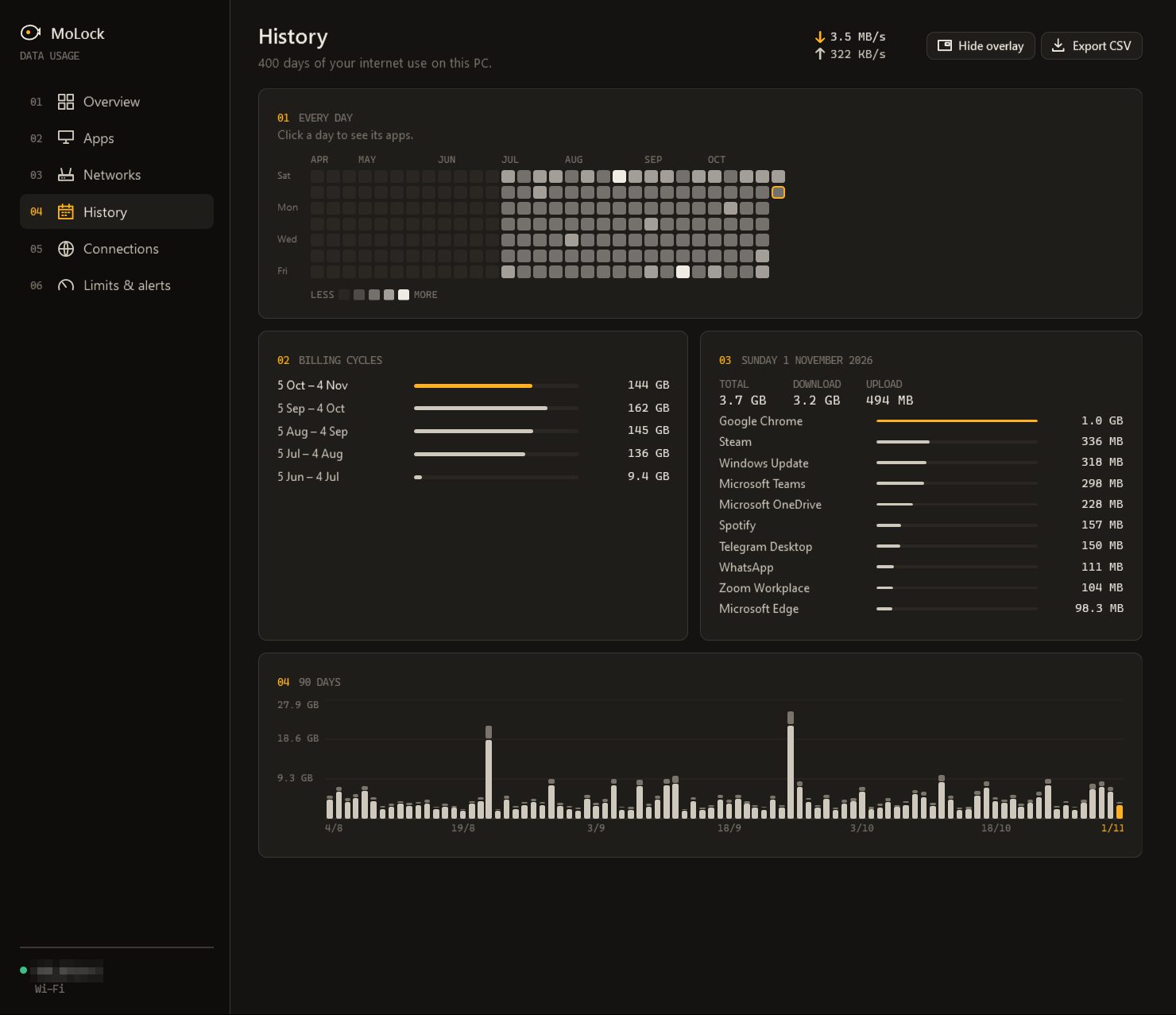
Every program that used the internet, biggest first — today, this week, this cycle or 30 days.
Usage per network
Home Wi-Fi, office cable, a mobile modem and phone hotspots counted apart; a VPN is counted once.
Plan and renewal day
Your monthly plan, a daily budget and a projection of where the cycle will end.
Alerts that come early
A calm desktop alert at 50, 80 and 100 %, or up to six steps of your own.
A daily limit for one app
Give a hungry app an allowance in megabytes; you're told once that day when it passes it. Nothing is cut off.
Block an app's internet
One click adds a Windows Firewall rule for that program; Unblock removes it just as easily.
Data saver tips
Suggestions when something stands out — Windows Update, cloud sync, video quality, game updates.
Connections
Which app is talking to which server right now, with the server's name where it publishes one.
03 / 09Plan & alerts
Warned at 80 %. Not after 100.
Your provider's message tends to arrive once the damage is done. MoLock divides what's left by the days left, so you can adjust in the second week — not in the last.
- Per day to stay insideIt rises after a light day and falls after a heavy one — the number most people end up watching.
- An honest projectionIf this pace points past your plan, a suggestion tells you by how much.
- Your renewal dayAny day from 1 to 31; in short months 29, 30 and 31 simply mean the last day.
- Alerts on your channelsOn a linked PC, the same alerts can reach your dashboard and the bot, following your notification settings.
04 / 09The live overlay
One glance. Never in the way.
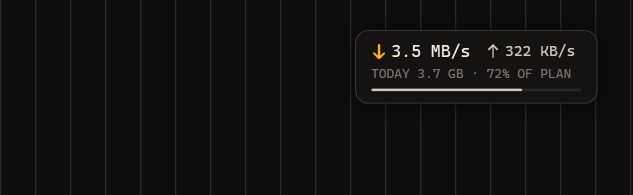
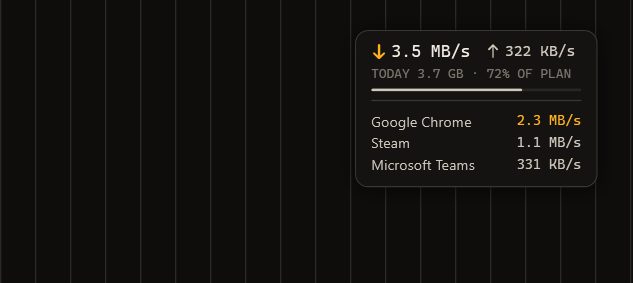
Turn on a tiny always-on-top meter: download and upload speed right now, today's total and how much of your plan is used.
- Ctrl+Alt+MShow or hide it with a hotkey, from the tray, from Settings or from the dashboard.
- Click-throughClicks pass to the window beneath it. Turn it off to drag the meter elsewhere; its place is remembered.
- Top 3 appsOptionally list the three apps pulling the most right now.
- Out of every captureNever in screenshots, recordings or screen sharing — and hidden while the PC is locked.
05 / 09Privacy
Counted on your PC. Kept there.
Your history, program paths and connection lists stay on this PC. If it's linked to your account, the dashboard receives only encrypted totals, app names and alerts — and you can turn that off.
An encrypted dashboard view
Totals, app names and alerts are sealed on the PC before upload, and only your signed-in browser opens them.
Paths and connections stay home
Program paths, which contain your Windows user name, and the list of remote addresses never leave the PC.
No location databases
Server names come only from what each server publishes about itself. No paid lookup service is used.
Reaches your dashboard
- Today, week and cycle totals
- App names and their usage
- Plan alerts and your plan settings
Stays on your PC
- Program paths and your user name
- The Connections list
- Server addresses and names
To store and deliver
- That a sealed update arrived, and when
- Its size
- Which PC sent it
06 / 09Dashboard & bot
Your usage on your phone. Block an app from afar.
On a linked PC, the dashboard shows today, the week and the cycle against your plan, a 30-day chart and a calendar of every day's use.
- Today, week and cycle at a glance, the plan bar with your alert steps, and a card for each network.
- Block or unblock an app on the PC. When an app passes its daily limit, the alert carries a Block app button.
- Change your plan, renewal day, alerts and the overlay from the dashboard — the PC follows.
07 / 09Limits
Exactly what it does. And what it doesn't.
This PC only
Phones, TVs and other computers on your router use your plan too, and MoLock can't see their traffic. To see who's on your Wi-Fi, use Network guard.
Your provider's meter is the one that bills
Providers count and round in their own way, so expect small differences.
Totals include local copies
The adapter counters also see traffic inside your home, such as copying files to another PC.
Some things can't be blocked
MoLock never blocks itself or core parts of Windows. A block is a real firewall rule and stays until you unblock it.
08 / 09Read more
In-depth guides. In plain words.
Control your internet data: see every app, stay in your plan
When the internet comes in gigabytes, the hard part is not paying for it, it is knowing where it went. MoLock 3.1 counts your data per app and per network, keeps you inside your plan, and stays quiet until it matters.
Who's on my Wi-Fi? Network guard and your router
A slow evening, a neighbour who might know your password, a device name you have never seen. Here is what MoLock's network guard can see on your home network, what it can do through your router, and where its view honestly ends.
Screen time without guilt: focus that sticks
Most screen-time tools greet you with a number that makes you feel bad, so you stop looking. Here is a calmer approach: measure honestly, decide what you want more of, and let the PC protect the hours that matter.
09 / 09Questions
Data usage monitor
Does it count my phone and the other devices at home?
No — it counts this PC only, plus devices connected to a mobile hotspot this PC shares. To see who's on your Wi-Fi, use Network guard.
Why is MoLock's number different from my provider's?
Providers count and round in their own way, and the adapter counters also include copies inside your home. Use MoLock to see where the data goes and to stay comfortably inside your plan — your provider's meter is the one that bills.
How do I stop an app from using the internet — and undo it?
On the Apps page, choose the app and press Block: MoLock adds an ordinary Windows Firewall rule that stays until you press Unblock. You can also block or unblock from the dashboard. MoLock never blocks itself or core parts of Windows.
Does the live meter show up in screenshots or video calls?
No. The meter is kept out of screenshots, recordings and screen sharing, and it hides while the PC is locked. Show or hide it with Ctrl+Alt+M.
Does any of my usage leave my PC?
Everything works offline and stays on your PC. If the PC is linked to your account, only totals, app names and alerts — encrypted on the PC — reach your dashboard, and you can turn that off. Program paths and connection lists never leave the PC.
Is the monitor free, and does it need an account?
It's free on every plan, on by default and works without an account. It keeps 400 days of history on your PC; you only need a MoLock Account to see it from your phone.
Free · no ads
Try it on your PC today.
Windows 10 & 11 · works without an account; the dashboard is optional and free