One dashboard. Every PC, every feature.
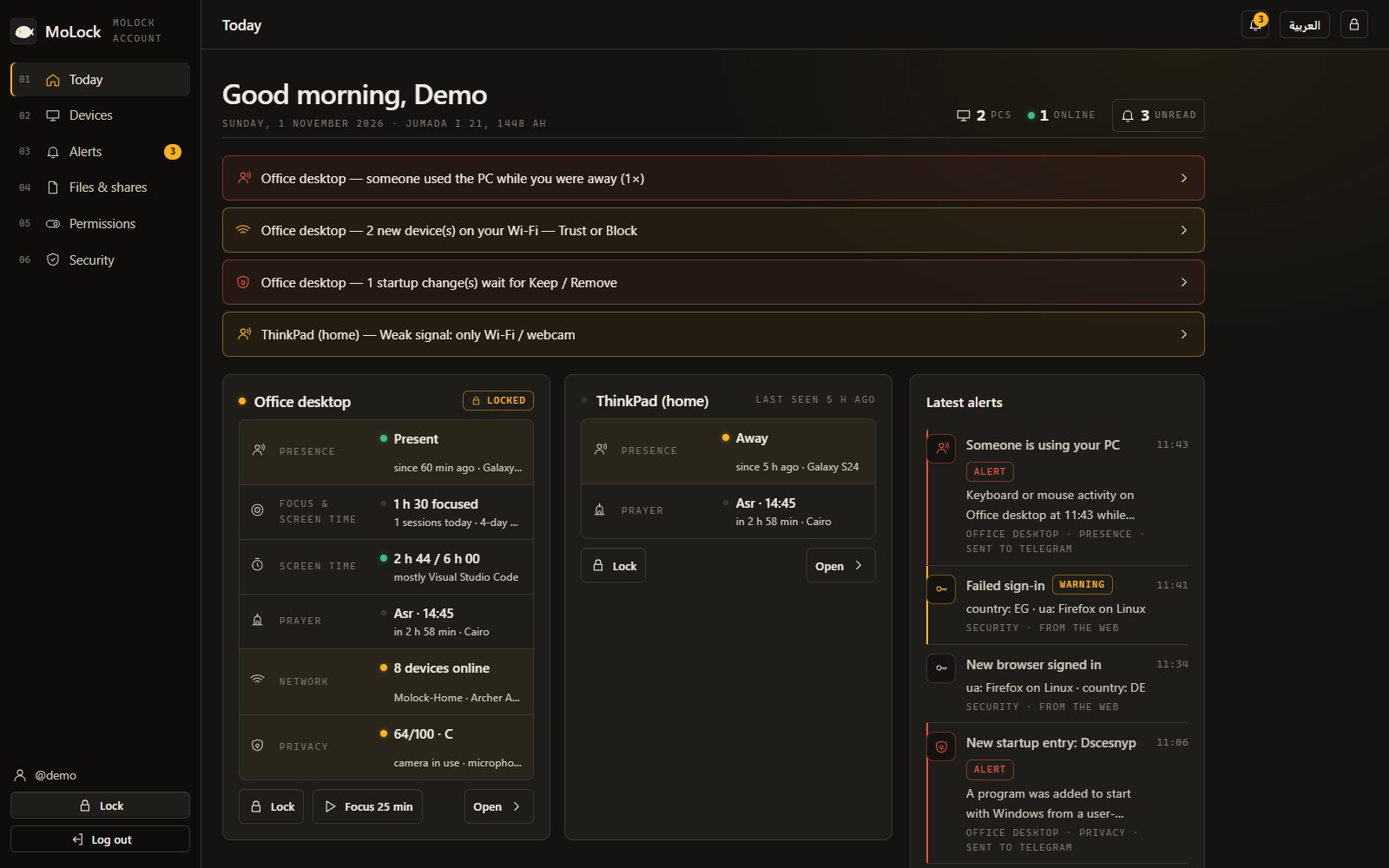
Your account now lives at 7ot.app/me — and with 3.0 it also holds your plan and serials, your email, your family and your alert channels. Since 2.9 the account dashboard is the reference for everything — every feature's state, history and settings — and the PC and the bot follow it. Link your PCs to a MoLock Account and control them from any browser or from the official bot @MoLockOfficialBot — even while a PC is off. Take over its full desktop, or lock it, take a photo, switch on Lost mode, approve an unlock from your phone. Your notes and photos stay end-to-end encrypted, and every sign-in and action is reported to you.
01 / 14What it does
Your PCs at hand. Wherever you are.
The account is optional and free, with Premium for those who need more. MoLock fully protects your PC without it — the account brings your PCs together and puts them in reach from anywhere.
A page for every feature
New in 2.9: presence, focus, privacy, prayer and network — state, history and settings.
All your PCs
Status, lock state, battery, health and last seen — for every linked PC.
Remote desktop
New in 2.9: screen, mouse, keyboard and files from any browser, phones included.
Instant actions
Lock, photo, screenshot, siren, message, restart or shut down — delivered in moments.
Lost mode
A contact message on the lock screen, regular photos and the approximate location.
Approve from your phone
Someone at your PC asks to unlock; you allow once or deny.
Notes & clipboard
Notes, reminders and sticky notes, plus clipboard both ways between phone and PC — encrypted.
Activity log
Every sign-in, every action and every remote session — with time and browser.
Files & links
Move files between phone and PC, and share them with encrypted, expiring links.
02 / 14Dashboard first
One reference for everything. The PC and the bot follow it.
In 2.9 the account dashboard becomes the home of every feature: see it, change it and decide how its alerts reach you.
- A page for every featurePresence, focus & screen time, privacy guard, prayer times and network guard: their live state, up to 400 days of history and their settings.
- What you change, the PC appliesChange a setting from your phone and it reaches the PC at once if it is online, or waits up to 7 days until it connects. The PC keeps working fully offline.
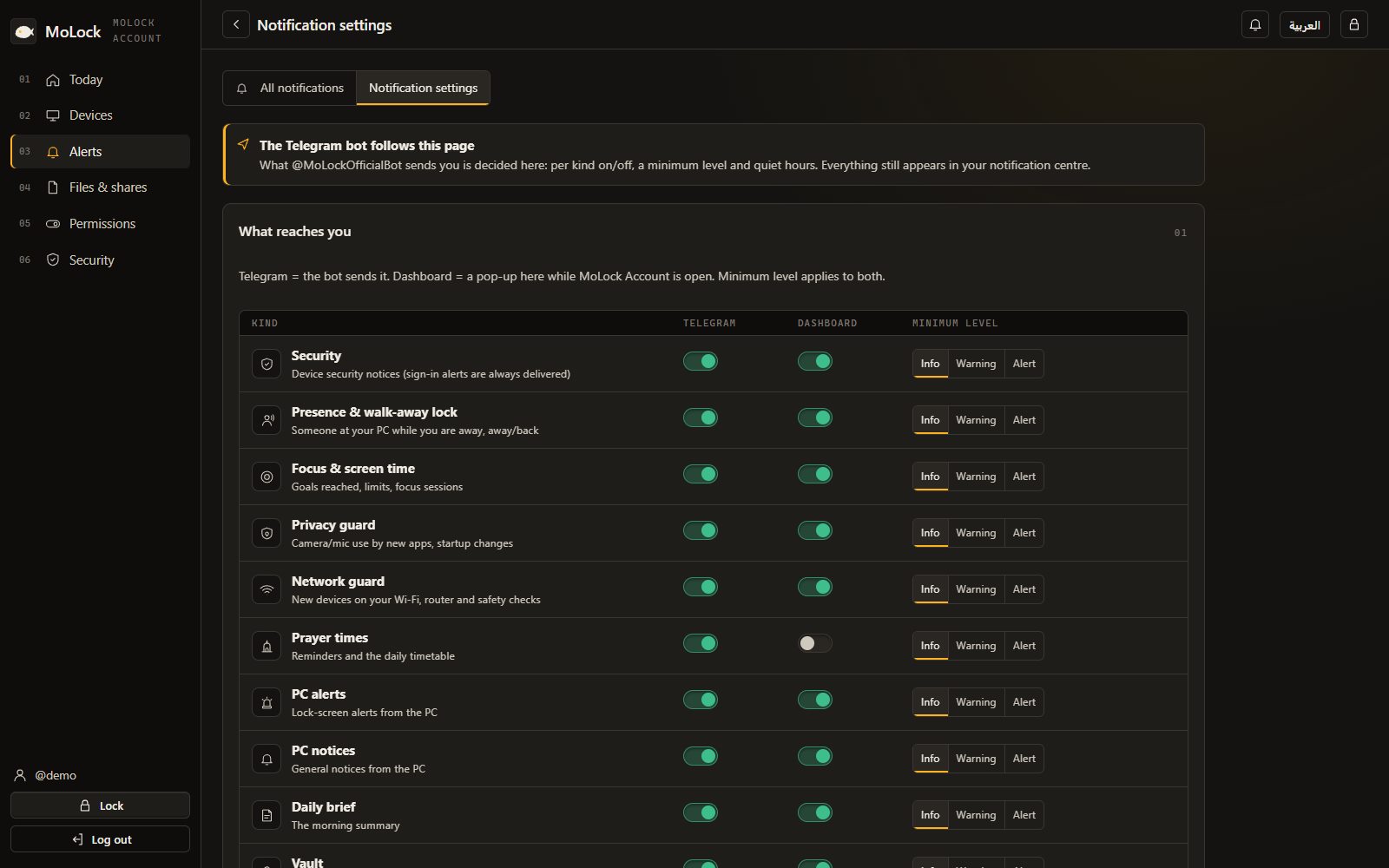
- The bot follows the dashboardPer-kind notification preferences (bot on/off, minimum level) and quiet hours decide what the bot sends. Its buttons do exactly what the dashboard's do, plus "Open in dashboard".
- One notification centreEvery alert from every PC in one place — including those held back from Telegram by quiet hours.
- End-to-end encryptedFeature data is sealed on your PC with your account key; the server stores what it cannot read, and admins see counts only.
Walk-away lockFocus & screen timePrivacy guardPrayer timesNetwork guard
03 / 14New in 3.0
Your plan, mail and family. In the same dashboard.
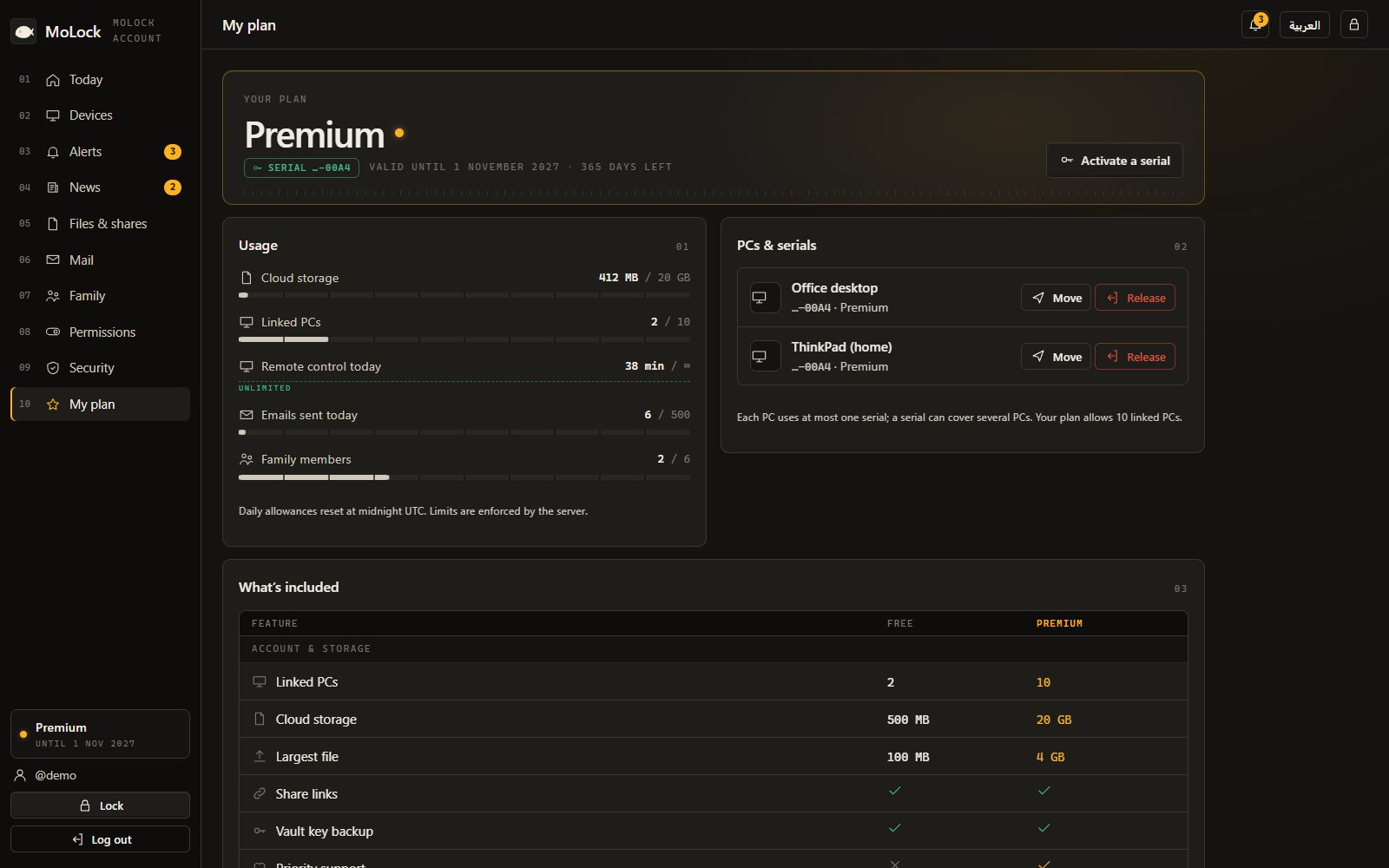
Open 7ot.app/me: the Free plan covers up to 2 PCs and 500 MB, and Premium raises that to 10 PCs and 20 GB. Suspending an account never stops local protection on your PC.
Plan & serials
Free or Premium, your usage (storage, PCs, mail today), entering a serial and moving PCs between serials or releasing them.
Mail at /me/mail/
The same name@7ot.app inbox as in the app: read, compose, attach — your browser unseals the messages.
Family at /me/family/
Members, child profiles and time left, and one-tap "more time" requests — up to 6 members with Premium.
Alert channels
Bot, web, push and email per alert kind, quiet hours, and browser push on each device you choose.
04 / 14Signing in
Strong security. You barely notice it.
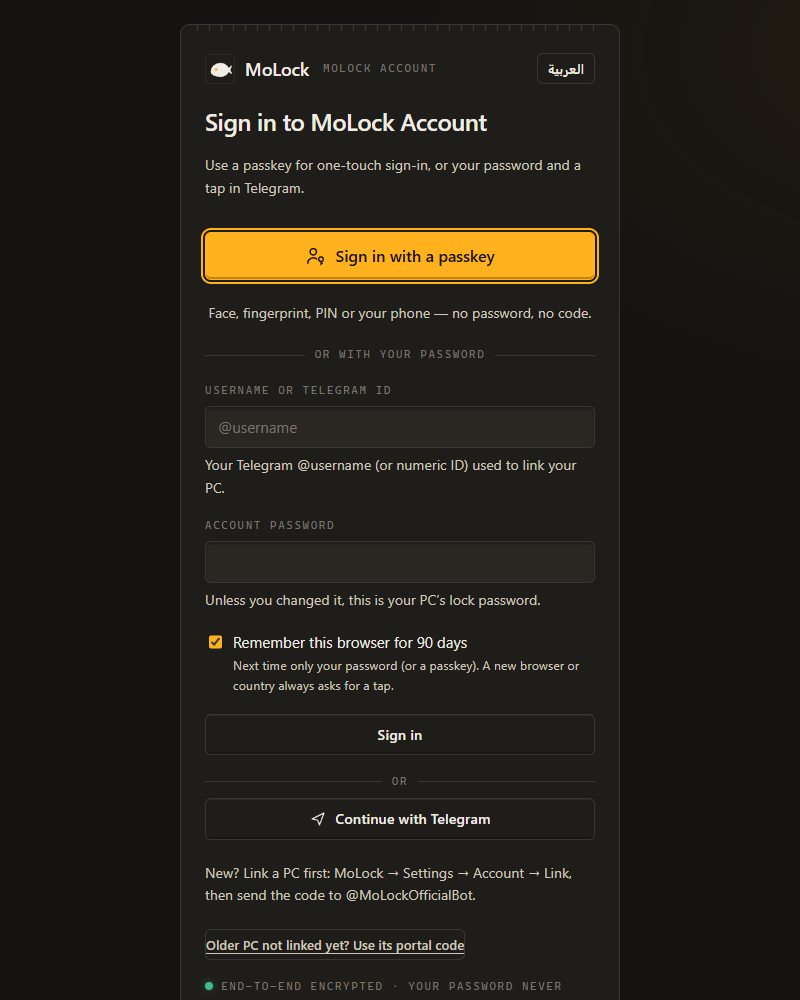
No text messages, no codes to copy every time: a passkey with your fingerprint, or one tap in the Telegram you already use — and more is asked only when the risk is real.
- PasskeysSign in with your phone's or PC's fingerprint, face or PIN — no password, no code. A passkey only works on the real MoLock site, so a fake page can't fool it. Up to 10, each named and removable.
- One-tap Telegram approvalAfter your password you get a "Sign-in request" with the browser, city and time, and ✅ It's me / ⛔ Not me. The browser continues on its own; Not me blocks the attempt and offers Change password. The 6-digit code stays as a fallback.
- Remembered browsersTick "Remember this browser" and it skips the second step for 90 days. A new browser or a new country? You are asked again. The list lives on the Security page, each with Forget.
- Step-up only for sensitive actionsChanging your password, removing a passkey, unlinking a PC, exporting or deleting data, ending all remote sessions and new recovery codes — confirmed with a passkey or a tap, at most once every 15 minutes.
- Recovery codes10 one-time codes, shown once — keep them away from your devices for the day you lose your phone.
- Sign-in alerts always arriveA sign-in from a new browser, a passkey added or removed, a recovery code used — never muted by quiet hours or preferences.
Secure sign-in without the hassle: passkeys and one-tap approval
- 🔐 Sign-in request
Chrome on Windows · Cairo, Egypt · 12:04
If this isn't you, tap Not me.
Fallback code: 482913✅ It's me⛔ Not me - ✅ Approved — signed in from a new browser.
- Your MoLock sign-in code: 482 913
Valid for 5 minutes. If this wasn't you, ignore it. - ✅ Signed in to your account · browser on Android · CairoThis wasn't meSessions
05 / 14Linking
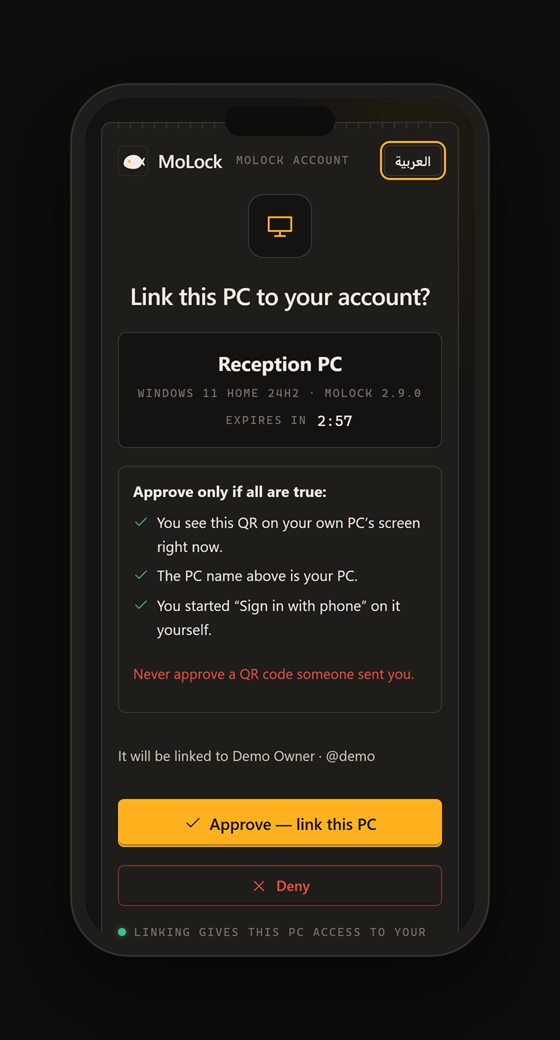
Link a PC in seconds.
One short code and nothing else. It works once and expires within minutes, so it is useless to anyone who sees it later.
Open Settings → Account
On your PC, running 2.7 or later. A link code like ABCD-EFGH appears — valid for 10 minutes, single use.
Send it to the official bot
Open @MoLockOfficialBot in Telegram and send
/link ABCD-EFGH— or type the code into your account if you are signed in.Confirm your password
Your first link creates the account with your lock password (or a stronger one if it is shorter than 8 characters). Later PCs ask for the account password once.
Done
You receive: "Your PC is now linked to your account". From now on it appears in your account and in
/devices.
New in 2.9: link by QR. The app shows a code valid for 3 minutes; scan it with your phone while signed in and tap Approve — nothing to type. Link codes keep working as before.
/start- Welcome to MoLock. Link this chat to your account, then send the link code shown in your PC's Settings.
/link ABCD-EFGH- 🖥 «DESKTOP-MO» is now linked to your MoLock account.My devicesOpen account
06 / 14Two bots, two jobs
The official bot and your own bot.
The personal bot you created at setup stays exactly as it is, with every command. The official bot @MoLockOfficialBot adds what a bot running on your PC cannot: it answers while the PC is off, brings your PCs together and sends sign-in codes.
| Feature | Official bot | Your own bot |
|---|---|---|
| Who runs it | MoLock — one bot for everyone | You — your own bot |
| Works while the PC is off | Yes | No |
| Account sign-in codes | Yes | No |
| All your PCs in one list | Yes | One PC per bot |
| Lock, photo, screenshot, siren, locate | Yes | Yes |
| 80+ commands (files, screen, power…) | No | Yes |
| Recognises you by | Your Telegram account | The chat you linked |
07 / 14Remote desktop
Your full desktop. In your browser.
From 2.9, every PC card has a Remote button that opens MoLock Remote: see the screen, use the mouse and keyboard and move files — from a computer or a phone, end-to-end encrypted.
- No second approvalSigning in with your password and Telegram code is the permission — which is why every session is always visible.
- Session logWhen each session started, from which browser and approximate country, how long it lasted, how it ended and whether it was recorded.
- "End all sessions"One button ends every open session on every PC at once — just like the End session button in the official bot's message.
- A switch per PCTurn full control off for a particular PC from your account, or in that PC's own Settings. It is on by default once linked.
- Phone → PC clipboardSend text or a link from the Clipboard section straight to the PC's clipboard — no session needed.
DESKTOP-MOE2EEEnd
EscTabCtrlAltWin⇧←↑↓→
Remote sessionsEnd all sessions
- NowDESKTOP-MOChrome · Android · Egypt08:41RECLive
- Yesterday 21:10DESKTOP-MOEdge · Windows34 minEnded in browser
- Mon 09:02LAPTOP-SARASafari · iPad6 minEnded at the PC
- Sun 18:47DESKTOP-MOSamsung Internet30 minIdle
Every session is logged here and announced by the official bot
ClipboardE2EE
Send to DESKTOP-MO's clipboard
https://maps.app.goo.gl/x7Qe…
Send to PC
Delivered · paste with Ctrl+VFrom your PC
- Order no. 2026-11-48212 min ago
- 7ot.app/en/remote/10 min ago
- A sensitive item was not savedLooks like a password
08 / 14Quick actions
Quick actions. Done in moments.
Commands reach an online PC in moments. If it is off, they wait and run the moment it connects. Every action is logged in your account and announced by the official bot: "📸 Photo taken from the web".
Lock
Locks the screen at once.
Photo
A camera photo, uploaded encrypted and shown in your account.
Screenshot
What is on screen right now — encrypted too.
Siren
A loud sound for as many seconds as you choose.
Message
Text shown on the PC's screen for as long as you set.
Restart or shut down
With a delay before it happens.
Locate
The approximate location on a map.
Lock the vault
If you left the MoLock Vault open.
DESKTOP-MORemote actions
- Lock
- Photo
- Screenshot
- Siren
- Message
- Restart
- Shut down
- Lost mode
- Locate
Every action is logged and announced by the official bot
86Security score
- Windows SecurityOn
- FirewallOn
- Drive encryptionOff
- Free space41 GB
- Temporary files3.2 GB
- Startup apps9
Clean temporary filesOpen Windows Security
09 / 14Lost mode
Lost your PC? One switch does it.
Lost mode bundles what you need in a stressful moment: a lock, a note for the finder, regular photos and an approximate location — until you switch it off.
- T+0:00On
You switch on Lost mode
From your account, with a contact message and the photo interval you want.
- T+0:01Lock
The PC locks and shows your message
A clear banner on the lock screen tells a finder how to reach you.
- T+0:02Photo
The first photo
Stored encrypted in your account; you get a notice with a link.
- T+0:03Locate
Approximate location
Whenever the PC is online. If it is off, you see when it was last seen.
- T+…Back
You get it back
Switch Lost mode off; the PC stays locked until you unlock it with your password.
13:41Sunday, 1 November
If you found it, please call 010 1234 5678 — thank you for your honesty.
This PC is taking photos and reporting its location to its owner.- 📍 Lost mode is on for «LAPTOP-SARA»
Photo every 5 min · your message is on the lock screen - 📸 New photo from «LAPTOP-SARA» · view it in your account.Open account🚨 Siren
- 📍 Approximate location updated · Giza
Never try to recover a stolen PC yourself. Take the photos and the location to the authorities. Read: what Lost mode does, minute by minute.
10 / 14Approve unlock
Someone needs your PC? Don't give them your password.
The lock screen has a "Request access from the owner" button. The request reaches your Telegram with a photo of who is at the PC — you choose "Allow once" or "Deny".
- Expires in 2 minutesAnd at most 3 requests per 10 minutes per PC — no spam.
- Once, only onceThe PC unlocks once, and the unlock is logged as approved by you.
- Your choiceOn by default once the PC is linked — and you can hide the button in Settings.
13:41Sunday, 1 November
Request access from the ownerWaiting for approval · 1:42
- 🔐 Someone is asking to unlock «DESKTOP-MO»
The request expires in 2 minutes✅ Allow once❌ Deny👁 View photo - ✅ «DESKTOP-MO» was unlocked once with your approval · logged.
11 / 14Files & links
Share a file. Keep the key.
The file is encrypted on your PC or in your browser with a random key, and the key lives only in the link — in the part no browser ever sends to a server.
- An expiryFrom 1 hour to 30 days, or delete after the first download.
- An optional passwordA second layer, in case the link reaches the wrong person.
- A download limitAfter that, the link stops working.
- Between your phone and PCPrivate, end-to-end encrypted transfers that land in a MoLock folder inside Downloads.
- Through the official botSend a file up to 20 MB and it is saved in your files with a share link. These are stored encrypted by the service but not end-to-end — they already passed through Telegram — and they are clearly labelled.
Share linkend-to-end encrypted
7ot.app/s/7Hq2Xk#k=Vb3pQe…9sLw
Reaches the service: the file number only
The key: stays in the link, never sent
Expires in 7 daysPassword3 downloadsDelete after first download
12 / 14Security, plainly
What is encrypted, and what is seen.
Your privacy does not rest on a promise: your content is encrypted before it leaves your PC, and its keys never reach the service.
YOUR PC
Encrypted here
- Notes, reminders, clipboard
- Attempt photos & screenshots
- The key never leaves
MOLOCK SERVICE
Stores, cannot read
- Sees: type, time, size
- Never sees: text or photos
- Never knows your password
YOUR BROWSER
Decrypted here
- After your password + Telegram code
- On any device
- Every sign-in reported
Keys that can't be handed to a fake site
A passkey is bound to the MoLock site itself and its secret never leaves your phone or PC. If a cloned copy ever shows up, it is suspended at once and the bot tells you.
An extra step only when it matters
A new browser, a new country or a sensitive action asks for a passkey or a tap. Otherwise nothing interrupts you.
No silent sign-ins
Every new sign-in, every attempt you refused with Not me and every recovery code used is always reported — even during quiet hours.
Readable only by you
- Notes, to-dos and reminders
- Sticky notes and clipboard items
- Attempt photos, and photos/screenshots taken remotely
- Remote sessions: screen, typing and files
- Vault keys
- Feature data: presence, screen time, focus, privacy and network
- Share-link files and private transfers
Never leaves your PC or browser
- Your account and lock passwords
- Encryption keys in usable form
- The key of any share link
- Your passkeys' private secrets, and your router password
- Your files and what you type on your PC
The little it needs to work
- Your Telegram username and user ID
- Your PC names, status and last seen
- That an item exists, its type, time and size
- For each sign-in: time, result, approximate city, browser type
- Notification preferences, passkey names and remembered browsers
- The log of remote actions on your account, and for each remote session: its time, browser and data volume
13 / 14Limits & guarantees
Plain numbers. Honest promises.
- 5mina sign-in code stays valid
- 90daysa remembered browser skips the second step
- 2GBfile storage per account · files up to 100 MB
- 24ha synced clipboard item lives by default (pinned: 30 days)
Nothing in the account can lock you out
The account never changes your lock password or keeps you out of your PC. Any unlock from the account needs your signed-in session and is always reported to you.
Every PC has its own secret key
Your PC signs every request with a key that never leaves it (kept in its security chip when there is one), so a stolen token alone cannot impersonate your PC.
Every change is announced
A new account password, a newly linked PC or a sign-in from a browser — you hear about it.
Unlinking is instant
From the account, the bot or the PC: commands to that PC stop at once.
If you forget the account password
Nobody can recover it — not even the developer. Your data on your PC is not lost, and you can set a new password from MoLock on your PC.
14 / 14Questions
About the account
What is MoLock Account?
One account for every PC that runs MoLock. Open it from any browser to see each PC's status (locked or unlocked, online or offline) and control it remotely: lock, camera photo, screenshot, siren, an on-screen message, restart or shut down, locate and Lost mode. It also holds your notes, to-dos, reminders, sticky notes, the unlock history with photos, your files and share links. The account is tied to your Telegram account and guarded by the official bot, @MoLockOfficialBot, which sends your sign-in codes and reports every sign-in and every action. Take the tour.
Do I need an account, and is it free?
The account is free (with an optional Premium plan for more room) and entirely optional. MoLock works fully without it: locking, intruder photos, alerts, your personal Telegram bot and the tools. The account adds what a single PC can't do on its own: controlling several PCs from one place, reaching your data even while the PC is off, Lost mode, approving an unlock from your phone and share links. No email address is needed — your Telegram account is enough.
How do I sign in to my account?
Enter your Telegram username and your account password, and the official bot, @MoLockOfficialBot, sends you a 6-digit code that is valid for 5 minutes. Type it in and you're in. Instead of the code you can also use the Telegram login button. Tick "Trust this browser" to stay signed in for 30 days; otherwise the session ends after 12 hours. The bot reports every sign-in, successful or failed, and the sessions list lets you end any session or sign out everywhere.
What's the difference between the official bot and my personal bot?
The official bot, @MoLockOfficialBot, is run by MoLock — one bot for everyone that recognises you by your Telegram account. It works even when your PC is off, sends your account sign-in codes, lists your PCs with quick-action buttons, receives files and reports every sign-in and action. Your personal bot is the one you created yourself; it runs through MoLock on your PC with the full command set (camera, screen, files, power and more) and answers whenever your PC is on. Both keep working side by side; neither replaces the other. Official bot commands.
How do I link a PC to my account?
Open MoLock Settings → Account to see a link code such as ABCD-EFGH. It is valid for 10 minutes and can be used once. Send /link ABCD-EFGH to the official bot, or type the code on the account page while signed in. Within seconds the bot confirms that the PC is now linked to your account. If you don't have an account yet, it is created when you link your first PC. Step-by-step guide.
What is my account password?
By default it is the same as your PC's lock password, so there's nothing new to remember. If your lock password is shorter than 8 characters, MoLock asks once for a stronger account password. You can change it at any time on the account page or in the app, and the official bot reports every password change and every PC linked to your account. The password itself is never sent to the service.
Can the account unlock my PC, or lock me out of it?
Nothing in the account can lock you out: your lock password and recovery code always work as before. An unlock from the account requires your signed-in session (password plus bot code) and is always reported to Telegram. "Approve unlock" requests sent from the lock screen expire after 2 minutes, with at most 3 requests per 10 minutes per PC, and each approval unlocks the PC once and is logged.
What is Lost mode?
If your PC is lost or stolen, turn on Lost mode from your account or the official bot. The PC locks at once, the lock screen shows a message with how to reach you for whoever finds it, a camera photo is taken at the interval you choose, and the approximate location is sent whenever the PC is online. If the PC is off or offline, the command runs as soon as it connects. Switch it off with one tap once you have it back. Lost mode, minute by minute.
How private are share links?
The file is encrypted on your PC or in your browser before upload, with a random key that lives only inside the link (the part after the # sign). That part never reaches the service, so nobody without the link can open the file. You choose how long it lasts (1 hour to 30 days) and can add a password, limit the number of downloads or delete the file after the first download. Files you send to the official bot are stored encrypted by the service but not end-to-end, because Telegram already had them — and they are clearly labelled that way.
How much storage do I get for files?
Each account has 2 GB. A single file can be up to 100 MB when uploaded from the account page or the app, and up to 20 MB when sent to the official bot. Files stay until you delete them, and share links disappear on their own when they expire.
What does "dashboard first" mean?
The MoLock Account dashboard is the reference for every feature: each one has a page with its live state, history and settings, and what you change there is applied by the PC. The Telegram bot follows the dashboard — your notification preferences and quiet hours decide what it sends, and its buttons do exactly what the dashboard's buttons do.
What is a passkey, and do I need one?
A passkey lets you sign in with your phone's or PC's fingerprint, face or PIN — no password and no code. It only works on the real MoLock site, so it can't be phished. It is optional; your password with one-tap Telegram approval keeps working.
How does one-tap approval work?
After your password, the official bot sends "Sign-in request — Chrome on Windows · Cairo, Egypt" with ✅ It's me and ⛔ Not me. Tap It's me and the browser continues on its own. Not me blocks the attempt and offers to change your password. The 6-digit code is still there as a fallback.
Why am I sometimes asked to confirm again?
A remembered browser skips the second step for 90 days. MoLock asks again only when the risk is real: a new browser or a new country, or a sensitive action such as changing your password, removing a passkey, unlinking a PC or deleting data — at most once every 15 minutes.
Free · no ads
Try MoLock today. It's free.
Windows 10 & 11 · No admin rights · Arabic & English
Download MoLock — free