Who's on my Wi-Fi? Network guard and your router
A slow evening, a neighbour who might know your password, a device name you have never seen. Here is what MoLock's network guard can see on your home network, what it can do through your router, and where its view honestly ends.
Mahmoud Mohamed · 10 min read
Why the question comes up
Most people ask "who is on my Wi-Fi?" for one of three reasons. The internet is slow in the evening and nobody at home is doing anything heavy. The Wi-Fi password was given to a guest, a cousin or the neighbour's son two years ago and never changed. Or the router's own page, opened once out of curiosity, showed a list of cryptic names like android-7f3a and ESP_1C2D that nobody recognises.
Usually the answer is harmless: a smart TV, a printer, a phone that changed its name, a plug that connects to an app. Sometimes it is not. Either way, the useful thing is to know, in plain words, and to be able to act when something does not belong. That is the job of the network guard in MoLock 2.9, and you can find its overview on the Network page.
What a network scan can see — and what it can't
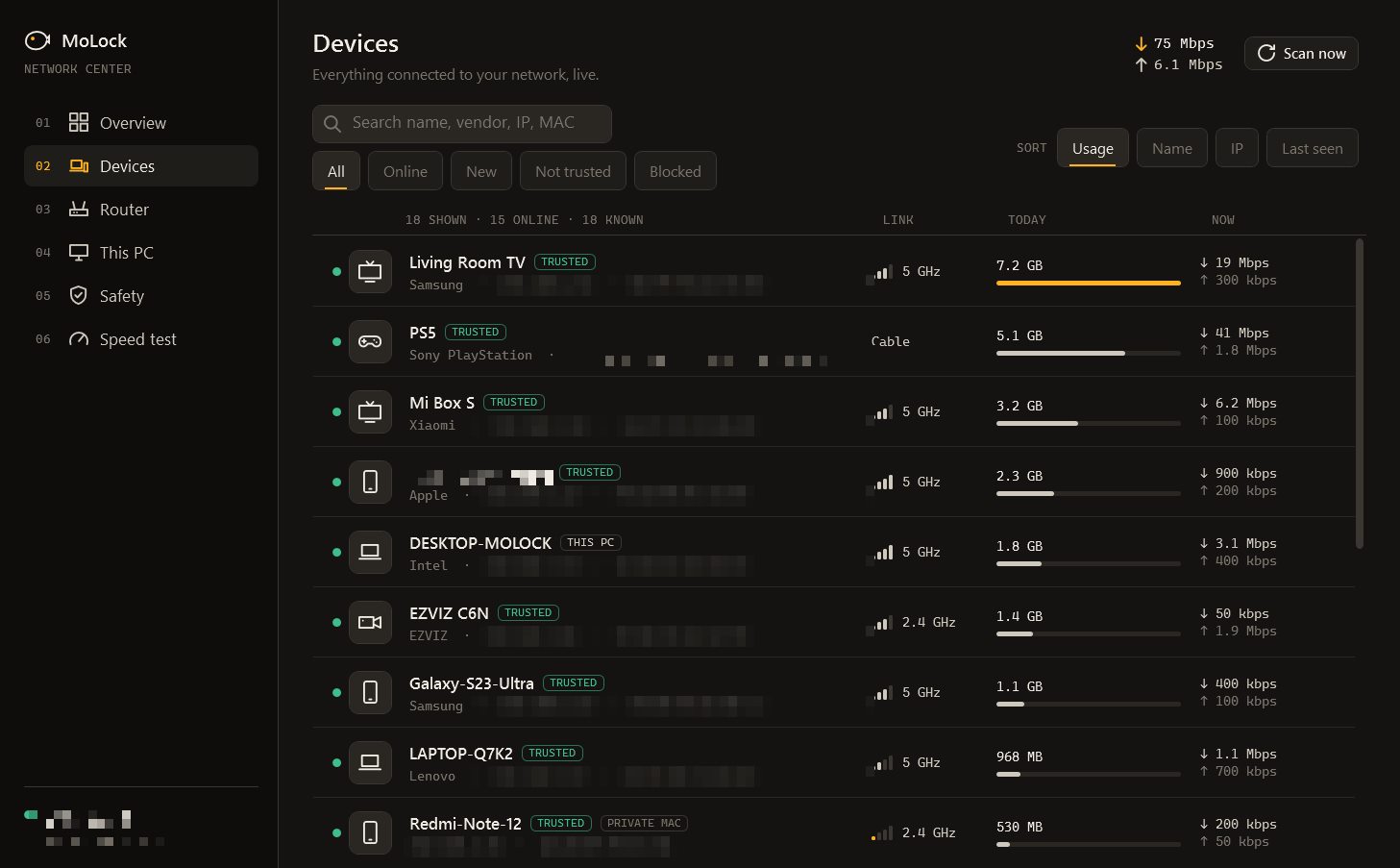
When you press Scan, MoLock asks the devices on your local network to identify themselves and builds a list from the replies. For each device it shows what it can work out:
- A name. Many devices announce a friendly name on the network ("Living room TV", "Mona's iPhone"). When MoLock is connected to your router, it also uses the names the router has recorded.
- A maker. Every network adapter carries a code that points to the company that made it. MoLock looks it up in a manufacturer list kept on your PC, offline. It is a best guess: a phone may show the maker of its Wi-Fi chip rather than the brand on the box.
- A device type. An icon for phone, laptop, TV, printer, camera, console or smart plug, inferred from the name, the maker and what the device offers on the network.
- Trusted or new. Devices you have marked as yours carry a trusted label; anything else is clearly marked as new.
The limits matter just as much. A scan only sees devices that answer: a phone asleep in a pocket, a device that ignores such requests, or a guest network that the router keeps separate may not appear every time. And modern phones often use a different private address on each network, so a family phone can show up as "new" once, after a reset or a settings change. Before you block something unfamiliar, check whether someone at home just reconnected.
Trusted devices and new-device alerts
Once your own devices are trusted, MoLock can watch for newcomers. When a device it has never seen joins the network, you get an alert on the PC and, if you allow it, from the official Telegram bot. The message carries three buttons:
- ✅ Trust — it is yours or a welcome guest. The device is labelled trusted and stops raising alerts.
- ⛔ Block — it should not be there. MoLock asks your router to block it, which works when the router is connected and supported (see below).
- Open in dashboard — see the device's details first, then decide.
- ⚠️ DESKTOP-MO · New device on your Wi-Fi
Unknown · Xiaomi (best guess)
Joined Home Wi-Fi at 21:14✅ Trust⛔ BlockOpen in dashboard - ✅ Block — the device is blocked on the router
The bot buttons do exactly what the dashboard buttons do. Each one works once, and the message is edited to show the result, so a chat history full of old alerts never leaves a stale button that could be pressed by mistake. You can also send /network to the bot at any time for a menu with 🔍 Scan, 📋 Summary and Open in dashboard. Only the PC's owner can use it.
How loud these alerts are is your choice. In the dashboard's notification preferences you decide whether network alerts reach the bot at all, whether they show on the web, and the minimum level that gets through. During quiet hours, only alert-level messages are delivered.
Connecting MoLock to your router
A scan from your PC sees who answers. Your router sees everything that passes through it. Connecting the two is what turns a list of names into answers about usage, and what makes blocking possible.
You enter the router's admin address — the one printed on its label or in its manual — with its admin username and password, once. MoLock stores them on this PC only, encrypted with your Windows account, so another Windows user on the same machine cannot read them. They are never uploaded: not to your MoLock Account, not to the dashboard, not to the bot. Everything that talks to the router happens from your PC, on your home network.
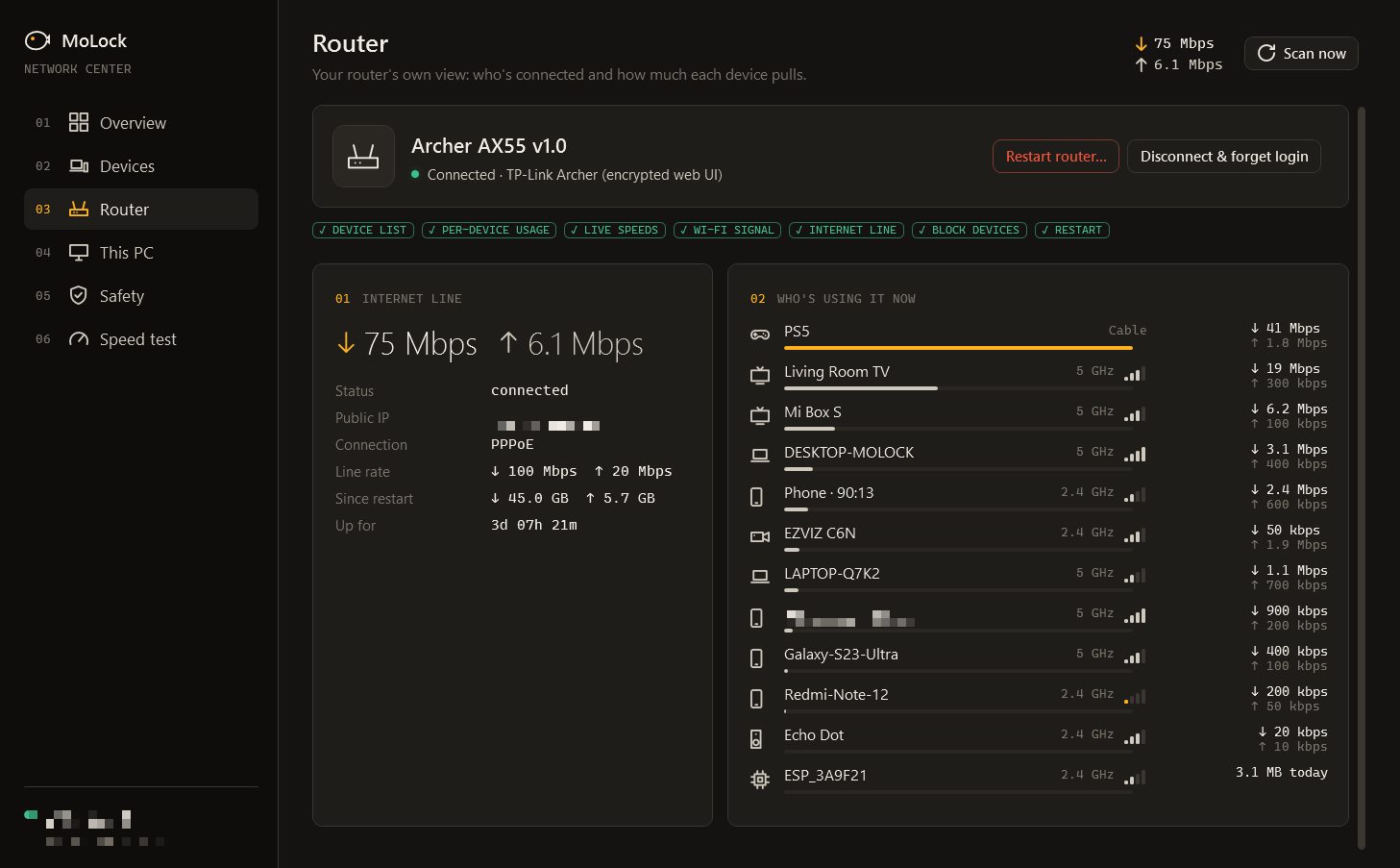
What you get depends on the router, and MoLock tells you which case you are in:
| Your router | What MoLock can do |
|---|---|
| A supported TP-Link, Huawei or ZTE model, including many of the routers internet providers install in Egypt and the region | Read the list of connected devices and the traffic of each one; block and unblock a device; restart the router |
| Another router with its standard status feature switched on | Show the total traffic going through the router |
| Anything else | A clear "not supported for this model" — the scan and alerts still work |
We would rather show "not supported" than pretend. Router makers change their admin pages between models and firmware versions, and a tool that guesses can do more harm than good. If your model is not supported, nothing breaks; you simply keep the scan, the alerts and the safety checks.
When the internet feels slow
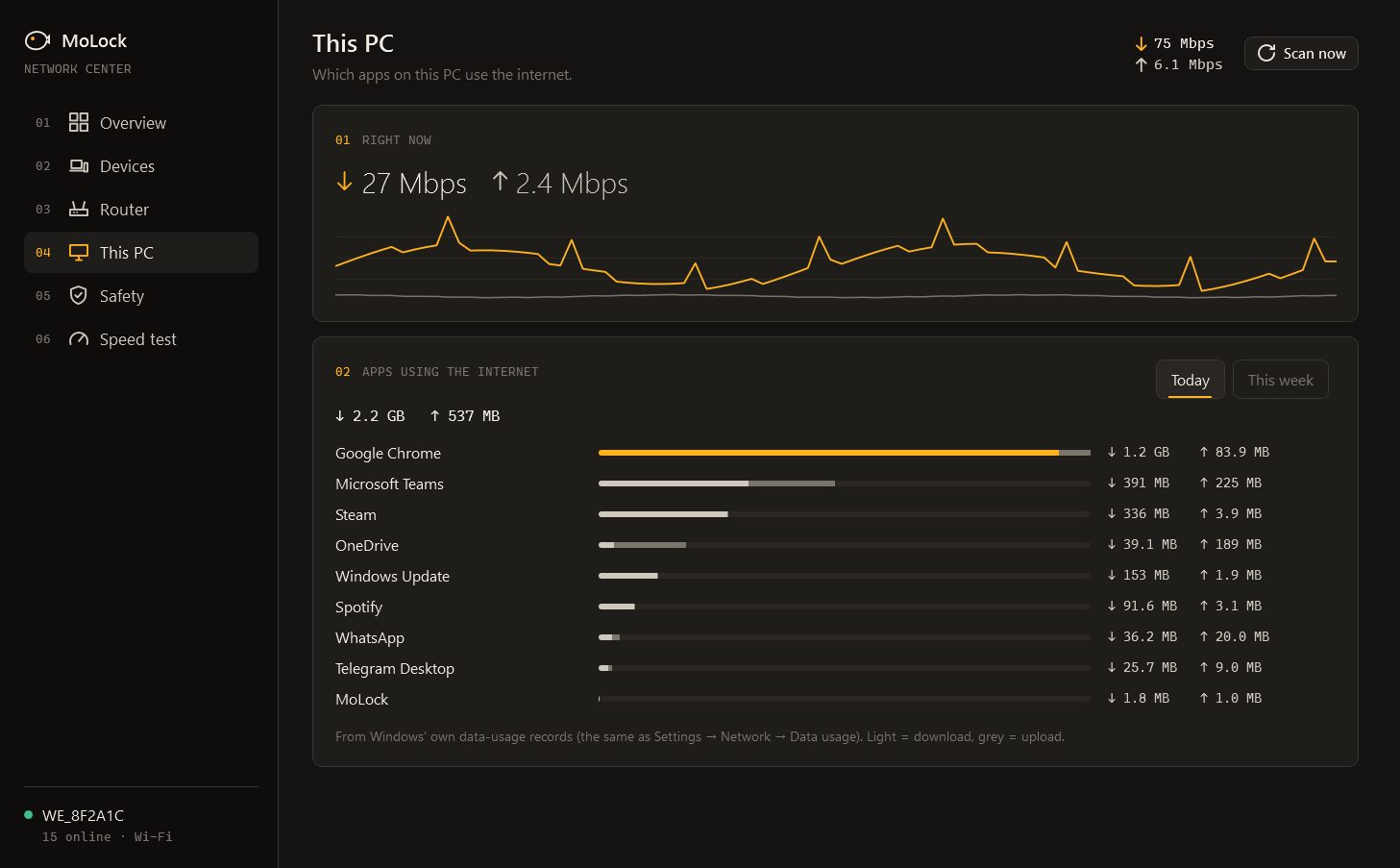
"Somebody is eating the internet" is a common suspicion and sometimes a true one. Before blaming the neighbours, it helps to measure. The network guard gives you three views that, together, usually explain a slow evening:
- Usage per device from a supported router: a console downloading a large update or a TV streaming in the highest quality is often the whole story.
- This PC's usage per app: a backup tool, a cloud folder syncing a video, or a Windows update can quietly take most of your connection.
- A speed test from this PC, so you can compare what you get with what your plan promises.
A tip from experience: run the speed test twice, once close to the router and once from where you usually sit. If the first is fine and the second is not, the problem is the Wi-Fi signal in your room, not your provider and not your neighbour. If both are slow, a restart of the router — one button on supported models — is the classic first step, followed by a call to your provider.
Wi-Fi safety away from home
Home is the network you control. The café, the hotel, the airport and the client's office are not. The Wi-Fi safety checks look at the network you are on and flag the tricks that matter most:
- Open or old-encryption networks. No password, or protection old enough to be easily broken. Most websites encrypt their own traffic today, but an open network still lets anyone nearby join and makes the tricks below easier.
- A fake copy of a network (known as an "evil twin"): a second access point using the same name as a network you trust, hoping your laptop joins it instead.
- A device pretending to be the router (known as ARP spoofing): something on the network claims the router's identity so your traffic passes through it first.
- Tampered address lookups. When your PC asks "where is this website?", the answer can be changed to send you somewhere else. MoLock checks that the answers look right.
- Sign-in pages (captive portals), like a hotel or café asking for a room number. MoLock recognises them, so you know why every page is being redirected, and you can decide how much to trust that network.
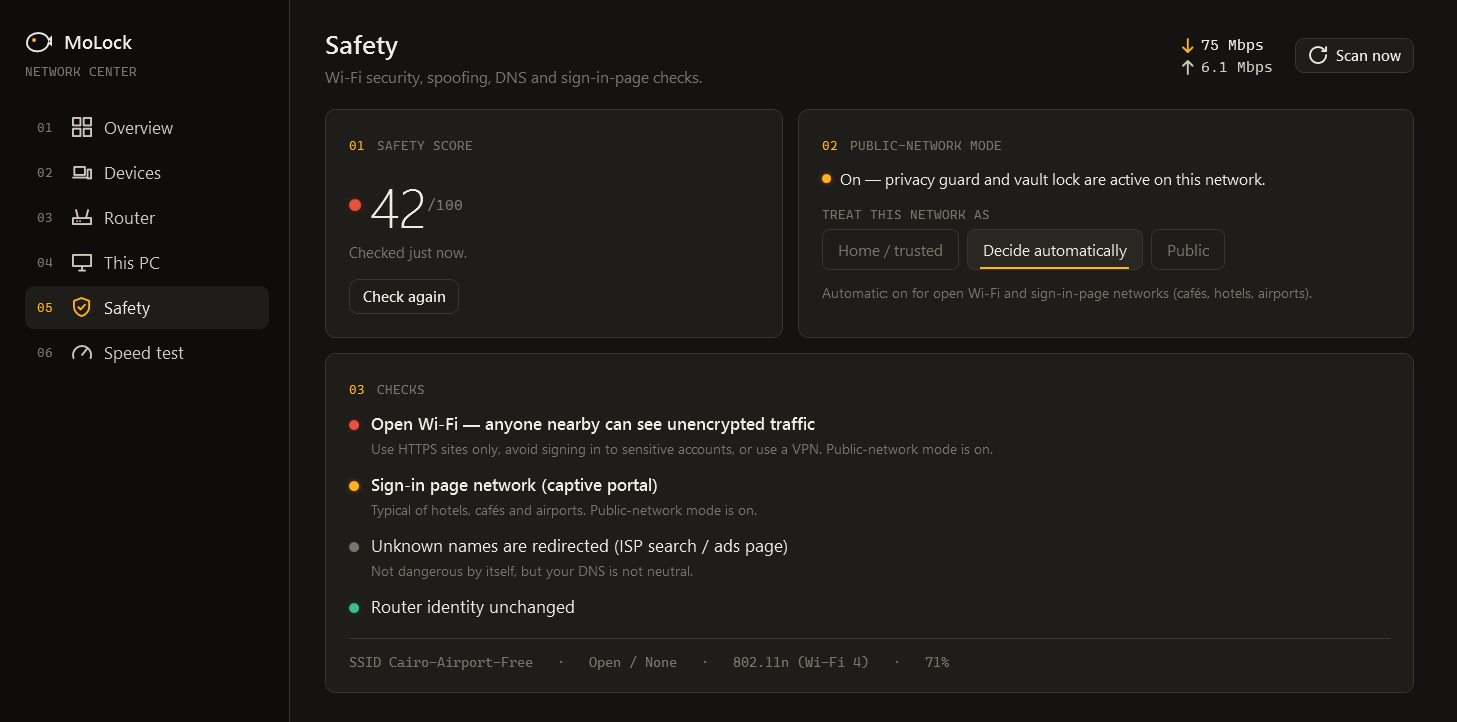
On a network you don't control, switch on public-Wi-Fi mode. In one step it turns on the privacy guard and locks the MoLock Vault, so private files stay sealed and sensitive windows are protected from the people at the next table. Turn it off again when you get home.
Router hygiene: five habits that matter more than any app
MoLock can show you what is happening. A few minutes in your router's settings does more to prevent problems in the first place:
- Change the default admin password. The password for the router's admin page is not the Wi-Fi password, and on many routers it is still the one printed on the label or a well-known default. Anyone on your network who tries it can change everything.
- Use WPA2 or, better, WPA3. In the wireless settings, pick the newest protection your devices support, and a long Wi-Fi password that is not your phone number or your family name.
- Update the firmware. Router makers fix security holes too. Look for an update option in the admin page, or ask your provider whether they update the router for you.
- Give guests their own network. Most routers offer a guest network that keeps visitors apart from your PCs and printers. Share that password instead of your main one.
- Change the Wi-Fi password when you lose track. If you can't remember who has it, it is time. Reconnecting your own devices takes ten minutes; MoLock's trusted list makes it easy to check that everything is back.
The network guard tells you who is there. A new Wi-Fi password decides who stays.
What leaves your PC
A network list is personal: it says which devices are in your home and when they are online. The network page in your dashboard shows the current state, alerts and history charts, kept for up to 400 days, and like every MoLock 2.9 feature its data is end-to-end encrypted: sealed on your PC with your account key, stored by the service in a form it cannot read. Settings you change in the dashboard are sent to the PC, and if the PC is off they wait and arrive when it connects. Everything also works offline on the PC, without an account.
The router's admin password never makes that trip. It stays on your PC, protected by your Windows account. The privacy policy lists everything MoLock keeps and for how long.
How to set it up
- Update and open the network guard. Install or update MoLock from the download page, then open the network section on your PC.
- Run a first scan. Give each device you recognise a clear name and mark it trusted. Leave anything uncertain for now.
- Connect your router. Enter the admin address, username and password from the router's label or manual. MoLock tells you whether your model is supported, gives totals only, or is not supported.
- Choose your alerts. In the dashboard's notification preferences, decide whether new-device alerts go to the bot and at what level, and set your quiet hours. Link Telegram from the Telegram page if you haven't yet.
- Fix the basics. Change the router's admin password, check the Wi-Fi protection, look for a firmware update and set up a guest network.
If you are also thinking about the camera, the microphone and the people looking over your shoulder, read the privacy guard article. And since the dashboard is where your network history lives, it is worth protecting it well: passkeys and one-tap approval make that easy.