Screen time without guilt: focus that sticks
Most screen-time tools greet you with a number that makes you feel bad, so you stop looking. Here is a calmer approach: measure honestly, decide what you want more of, and let the PC protect the hours that matter.
Mahmoud Mohamed · 8 min read
Why screen-time apps get ignored
Almost everyone who has installed a screen-time tool knows the pattern. The second week brings a large number and an arrow pointing the wrong way. By the third, you dismiss the summary unread, and the tool keeps counting for nobody.
The problem is rarely the measuring. It is what the tool does with the measurement:
- It reports a verdict, not a picture. "Seven hours on screen" says nothing about whether those hours were a report you were proud of or an evening lost to video. Work and distraction get added together and then judged together.
- It counts time you were not there. A video left paused while you had lunch, a browser open while you were on a call: if the tool only watches which window is in front, your absences inflate the total, and you stop trusting it.
- It punishes instead of helps. A hard limit with an "ignore for today" button teaches one skill very well: pressing "ignore for today".
The fix is not a stricter tool. It is a more honest one, and a kinder one: numbers you can trust, goals you chose, and help at the moment you need it rather than a scolding at the end of the week.
The point of measuring your day is to plan a better one, not to grade the last one.
Measure honestly before you change anything
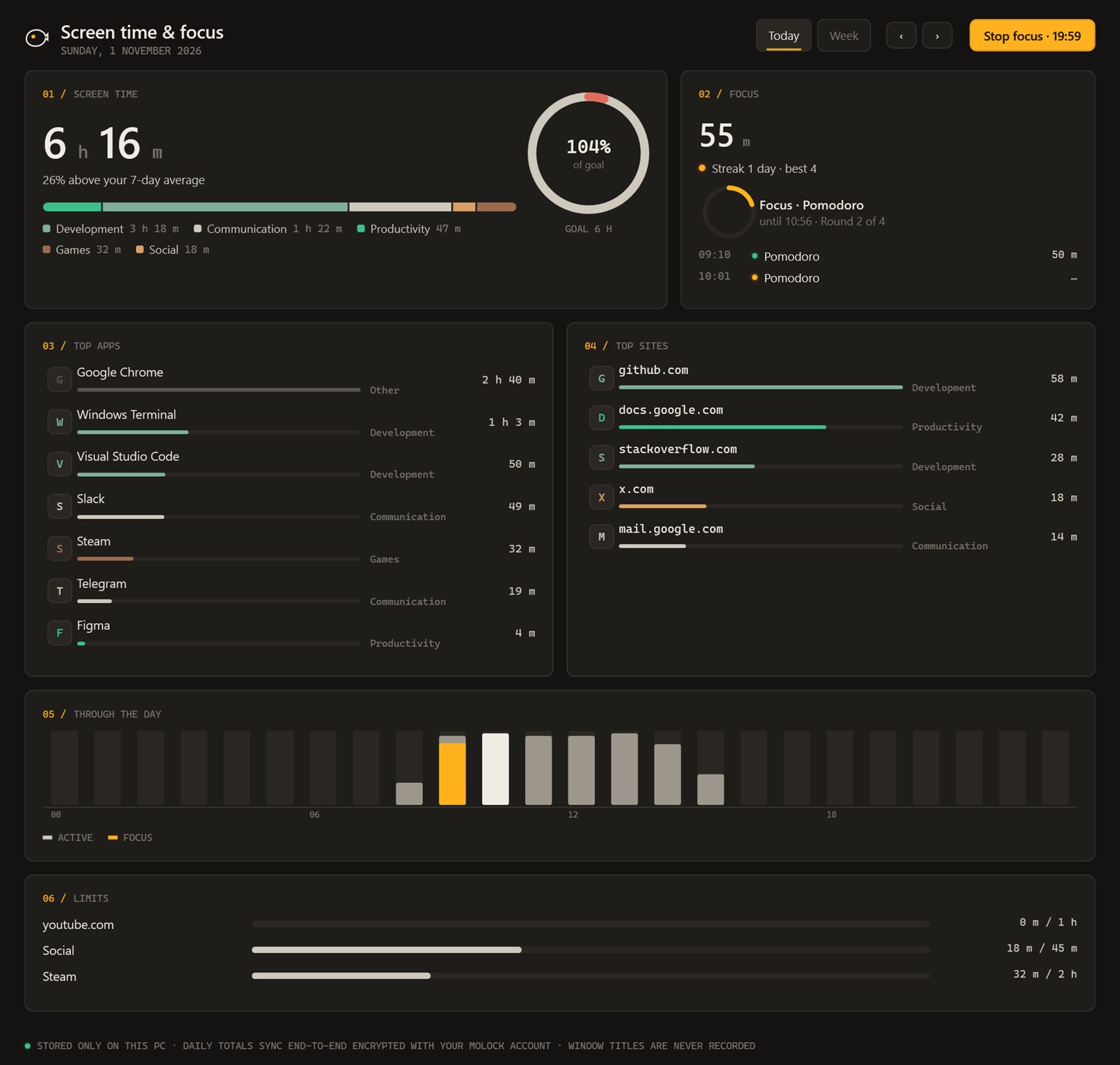
MoLock's screen time records how long you use each app, each website and each category. For websites it notes only the site's domain, taken from the browser tab, so you see a site's name and not the pages you read on it. Time is grouped into categories, so a day spent in documents and a day spent in video sites look different at a glance, even if the totals match.
Just as important is what it leaves out. MoLock detects when you are idle, and time away does not count. The video paused over lunch, the PC left on during prayer or a meeting: none of it is added to your day. The result is a smaller number than many tools show, and a truer one.
Before setting any goal, give yourself one ordinary week of simply watching. Do not change anything; just look at the dashboard's hourly bars at the end of each day. Patterns you never noticed tend to appear: the half-hour after lunch that always goes to the same site, the late evening that drifts, the morning hours that are already productive and need protecting more than fixing. That week describes the person you are, not the one you plan to be.
Goals and limits are not the same thing
Most tools only offer limits: a ceiling on something you want less of. Limits are useful, but on their own they make the whole exercise about restriction. MoLock lets you set both:
- A goal is something you want more of. For example, two hours of focused work on weekdays, or time in a learning app each evening.
- A limit is a ceiling. For example, an hour of video sites on a workday, or a cap on a category that tends to swallow your evenings.
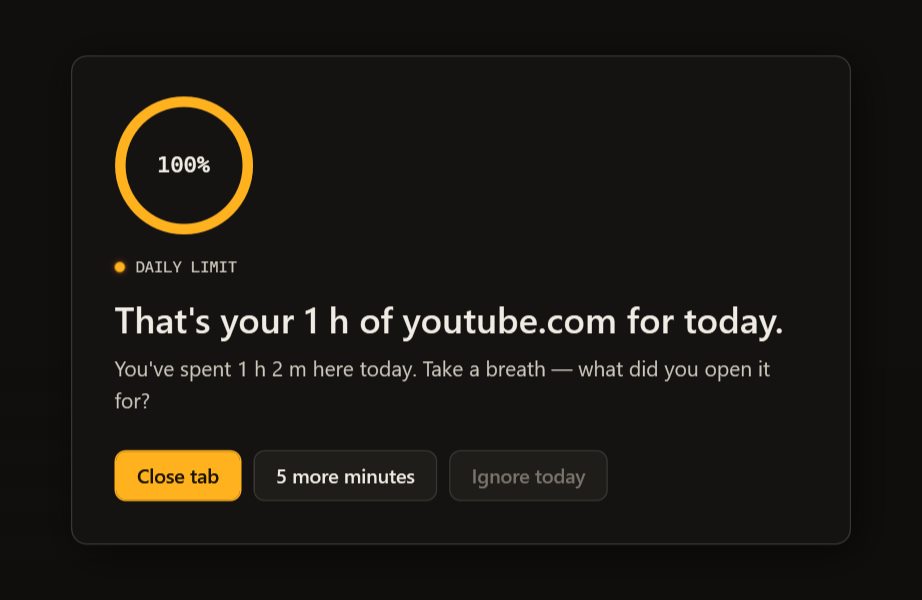
As you approach a limit, MoLock gives you a gentle nudge: a quiet note that you are close, so the choice is yours while it is still easy to make. There is no hard punishment unless you ask for one. If you want a limit to actually stop you, you can choose blocking for it; otherwise it simply informs.
A few habits make goals stick, with or without MoLock:
- Start with one goal and one limit. Five targets at once is a recipe for ignoring all five.
- Set the first limit close to what you really do. Your observation week tells you the number. Meeting a realistic limit for a fortnight does more than failing an ambitious one daily, and you can lower it later.
- Lead with the goal. "More deep work" gives the day a direction. "Less video" only gives it a fence.
Focus sessions: protect the hour, not the whole day
Goals describe the week. Focus sessions protect the next hour. MoLock offers three kinds:
- Pomodoro, the classic rhythm of a short work block followed by a short break, repeated. The traditional block is 25 minutes, which is a good place to start if long stretches feel hard.
- Deep work, a longer, uninterrupted block for writing, studying or anything that needs your full attention.
- Custom, for a rhythm of your own.
During a session, MoLock can block the apps and sites you have marked as distracting, and it quiets notifications so that the session stays a session. When you reach for a blocked site out of habit, you do not get an error page or a warning in red. You get a calm card.
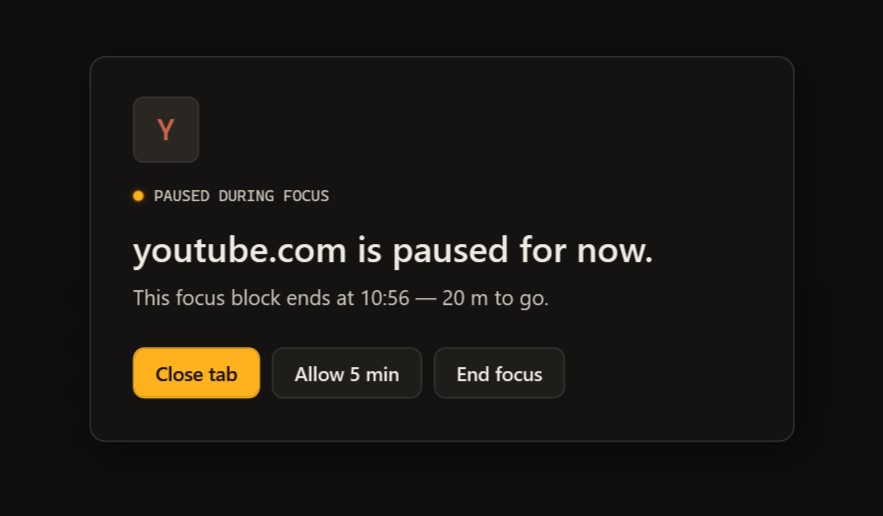
The 5 more minutes button is there on purpose. Most visits to a distracting site are reflexes, not decisions, and a brief pause that shows how much of the session is left is often enough to turn the reflex back into a decision. If you genuinely need the site, you can have it, without fighting your own tool.
Let a schedule decide
The best focus session is the one you do not have to talk yourself into. With schedules, sessions start by themselves, for example on weekdays from 9 to 12. A schedule turns focus from a daily act of willpower into the shape of your morning. A practical touch: place natural breaks between sessions, such as prayer times or a walk, so that the pause is part of the plan rather than an interruption of it.
Keep it in view: widgets, your phone and a weekly look back
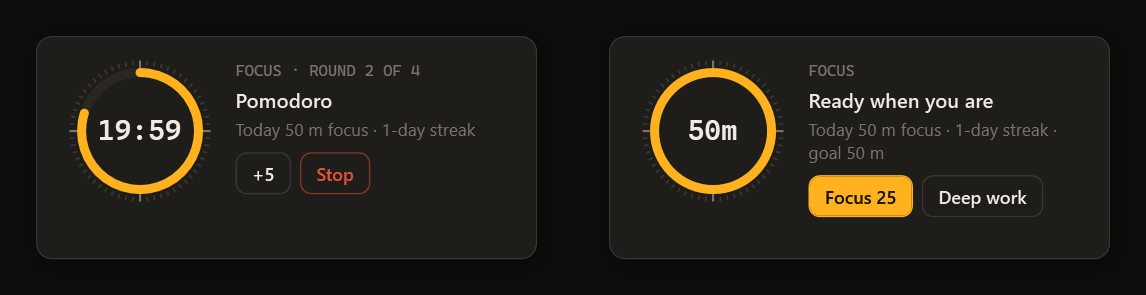
A session you cannot see is easy to forget. The desktop focus widget shows a ring counting down, the name of the session, such as Deep work, and how many distractions it has blocked so far. A lock-screen widget shows the same at a glance when you come back to the PC, so you know whether you are mid-session before you even unlock.
You can also start and stop sessions from your phone, either from the dashboard in any browser or from the Telegram bot. Send /focus and the bot opens a menu with ▶ 25 min, ▶ 50 min, ⏹ Stop, 📋 Summary and Open in dashboard. Only the PC's owner can use these buttons.
Once a week, the bot sends a weekly report. The dashboard keeps the charts behind it, with history for up to 400 days.
- 📊 DESKTOP-MO · Your week
Screen time 31 h 20 (9% less)
Focus sessions 11 · 7 h 05
Top: Work 62% · Social 14% · Video 11%
Goals met on 4 of 5 days▶ 25 minOpen in dashboard
Read the report like a coach, not a judge. Look for one thing that went well and should stay, and one small thing to adjust next week. A busy deadline week is supposed to look different. If you would rather not receive the report on Telegram, you can switch it off in the dashboard's notification preferences, along with quiet hours for everything else.
What leaves your PC, and what never does
Screen time is intimate data. The sites you visit and the hours you keep say a lot about a person, so MoLock keeps the detail on the PC and sends only what the dashboard needs to draw its charts.
| Leaves the PC, end-to-end encrypted | Never leaves the PC |
|---|---|
| Daily time per app | Screenshots of any kind |
| Daily time per site, as a domain only | Your keystrokes |
| Daily time per category | The contents of your windows |
| Daily focus totals | Full page addresses |
The honest limits
- It measures this PC. Time on your phone or another computer is not part of these numbers.
- A domain is not a page. Because MoLock records only the site's domain, a lecture and an hour of unrelated clips on the same video site look the same. That is the price of not recording full addresses, and we think it is worth paying.
- A category is a judgement about a site, not about you. The same site can be work for one person and leisure for another. Treat categories as a starting point for your own reading of the week.
- Blocking is a speed bump you set for yourself. It is designed to help you keep your own plan, with an honest way out. It works best when you chose it, not when it is imposed.
Setting it up
- Let it watch for a week. Turn on screen time in MoLock on the PC or on the focus page of your dashboard, and change nothing for seven days.
- Set one goal and one limit. Base them on your week, not on an ideal. Choose blocking for the limit only if a nudge is not enough.
- Mark your distractions. Pick the apps and sites to pause during focus sessions.
- Choose a session type. Pomodoro if long stretches are hard, deep work if you already have the stamina, or a custom rhythm.
- Add a schedule. Put your best hours on autopilot, for example weekdays from 9 to 12.
- Place the widgets and pick your reports. Turn on the desktop and lock-screen widgets, and decide in the dashboard whether the weekly report comes to Telegram.
Everything works offline on the PC as well; changes made in the dashboard reach the PC when it connects, for up to 7 days. The focus page shows every option on one screen. And when you step away from the desk between sessions, Walk-away lock, done right explains how MoLock can lock the PC behind you.