Who's on your Wi-Fi? Now you know.
MoLock shows every device on your network with a name, a maker and a type, and tells you the moment a new one joins — with Trust and Block buttons. Connect it to your router once and it can show how much each device uses and block one on supported models. Plus Wi-Fi safety checks for cafés, hotels and airports.
New in 2.9Free · router features on supported models · router password stays on your PC
9 devices online · Home Wi-FiScan
- This PCDESKTOP-MOTrusted1.8 GB
- Living-room TVSamsungTrusted6.4 GB
- Sara's phoneAppleTrusted2.1 GB
- PlayStation 5SonyTrusted9.7 GB
- Unknown deviceXiaomi (best guess)New740 MB
TrustBlockUsage today, from the router
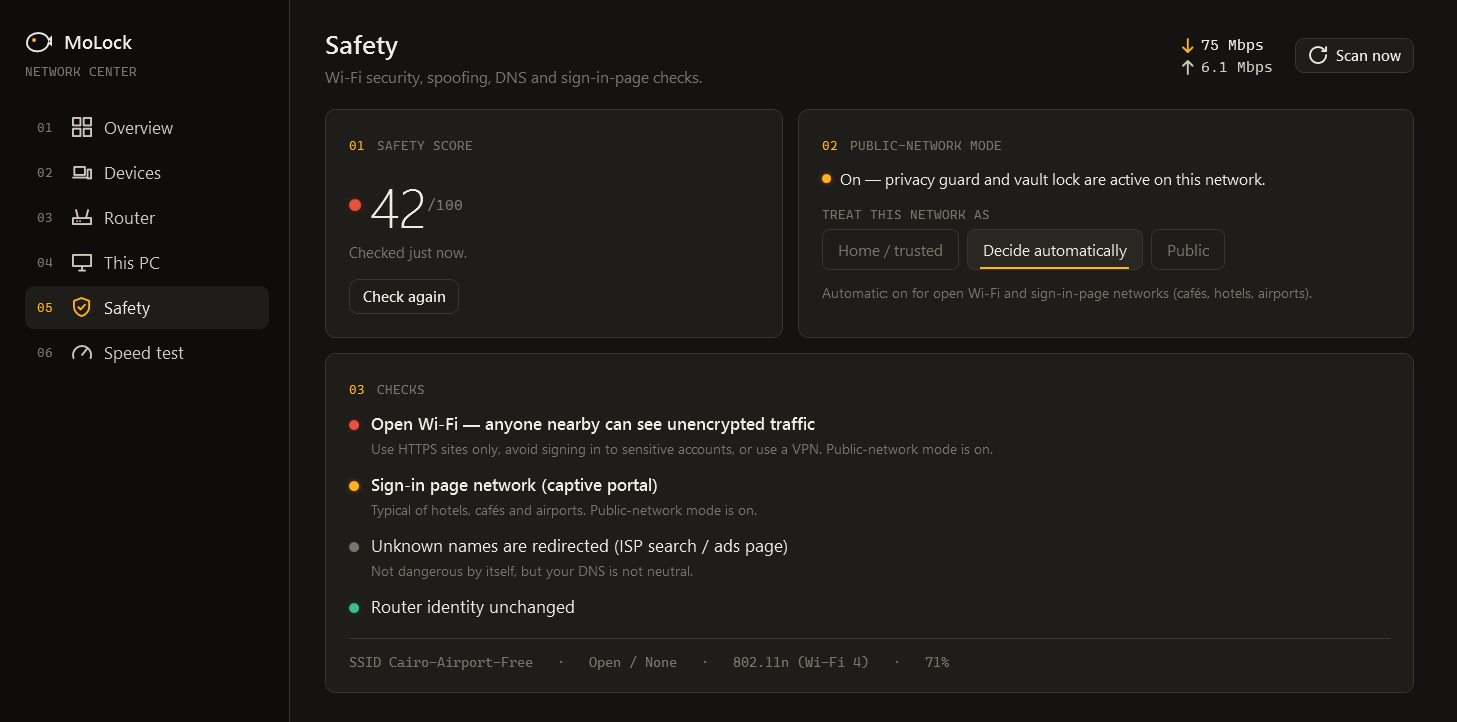
Wi-Fi safety1 warning
- Modern Wi-Fi encryptionPassword-protected
- Router identity unchangedNo device is impersonating it
- Website lookups look rightNo tampering detected
- A second network with your nameStronger signal · open — don't join it
Public Wi-Fi modeTurns on the privacy guard and locks the vault
- Router families3+ ANY
- Wi-Fi safety checks5
- Router passwords uploaded0
- Cost0FREE
01 / 08How it works
Scan, label, connect. Then just get alerts.
The scan works on any network. The router connection is optional and adds usage and blocking where the model allows it.
- 01Step 1/3
Scan your network
MoLock lists the devices that answer: names they announce, a best-guess maker and a device-type icon.
- 02Step 2/3
Trust what's yours
Label the TV, the console and the family phones once. From then on, only newcomers raise an alert.
- 03Step 3/3
Connect the router (optional)
Enter the router's admin address and password once. They stay encrypted on this PC; MoLock reads devices and usage and can block on supported models.
02 / 08What it does
Your network, finally readable. From the PC or your phone.
Router admin pages are built for engineers. MoLock turns the same information into names, icons and two buttons.
Who's connected
Every device that answers, with names, makers and type icons.
New-device alerts
Trust or Block, on the PC, in the dashboard or straight from Telegram.
Usage per device
From supported routers: who used how much today and over time.
Block and restart
Block or unblock a device and restart the router, where the model supports it.
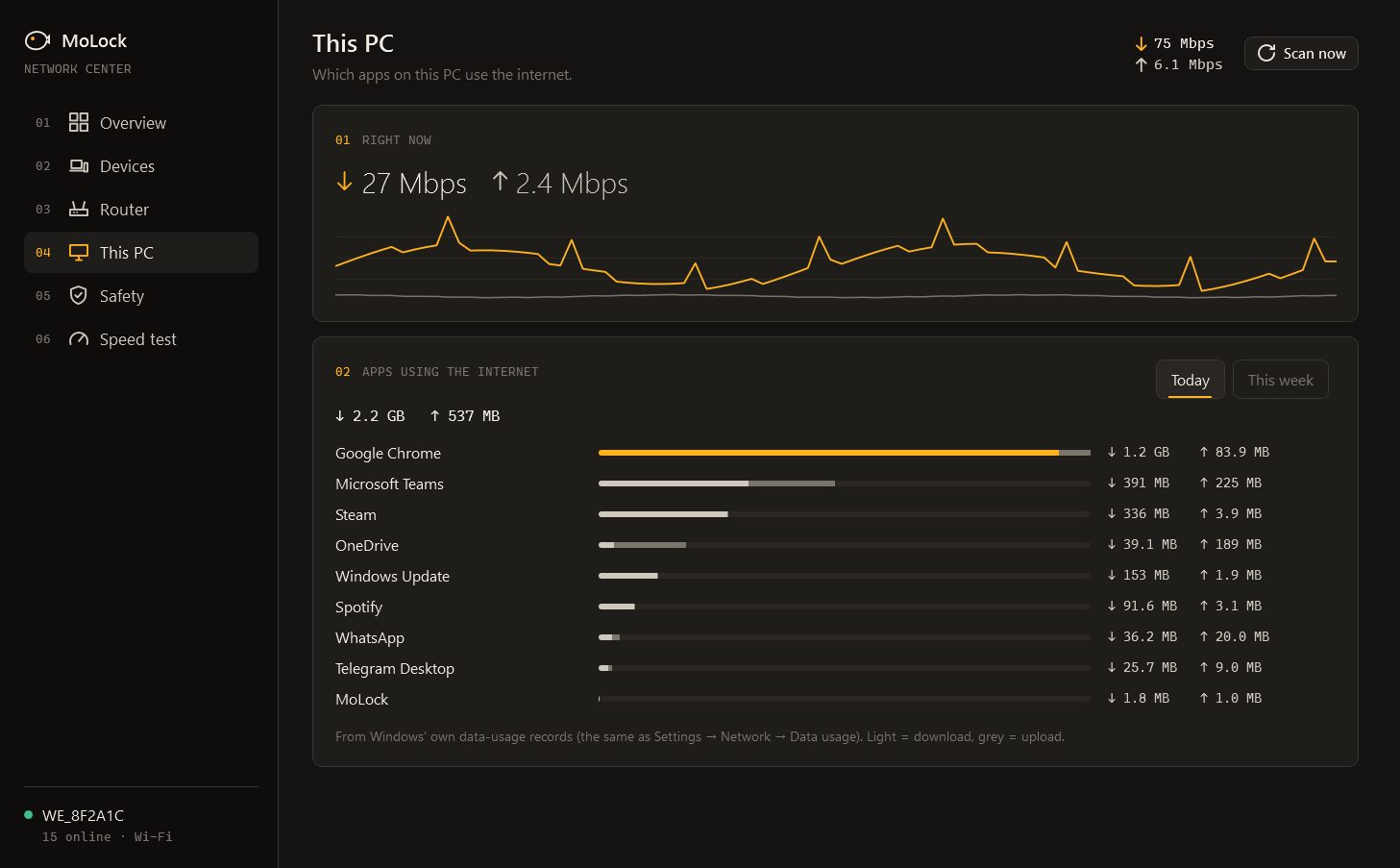
This PC's apps
Which apps on this PC use the most data.
Wi-Fi safety
Open networks, fake look-alike networks, router impersonation, tampered lookups and sign-in pages.
Public-Wi-Fi mode
One switch turns on the privacy guard and locks the MoLock Vault.
Speed test
Download, upload and response time, kept in the history.
03 / 08Router support
Honest about routers. Model by model.
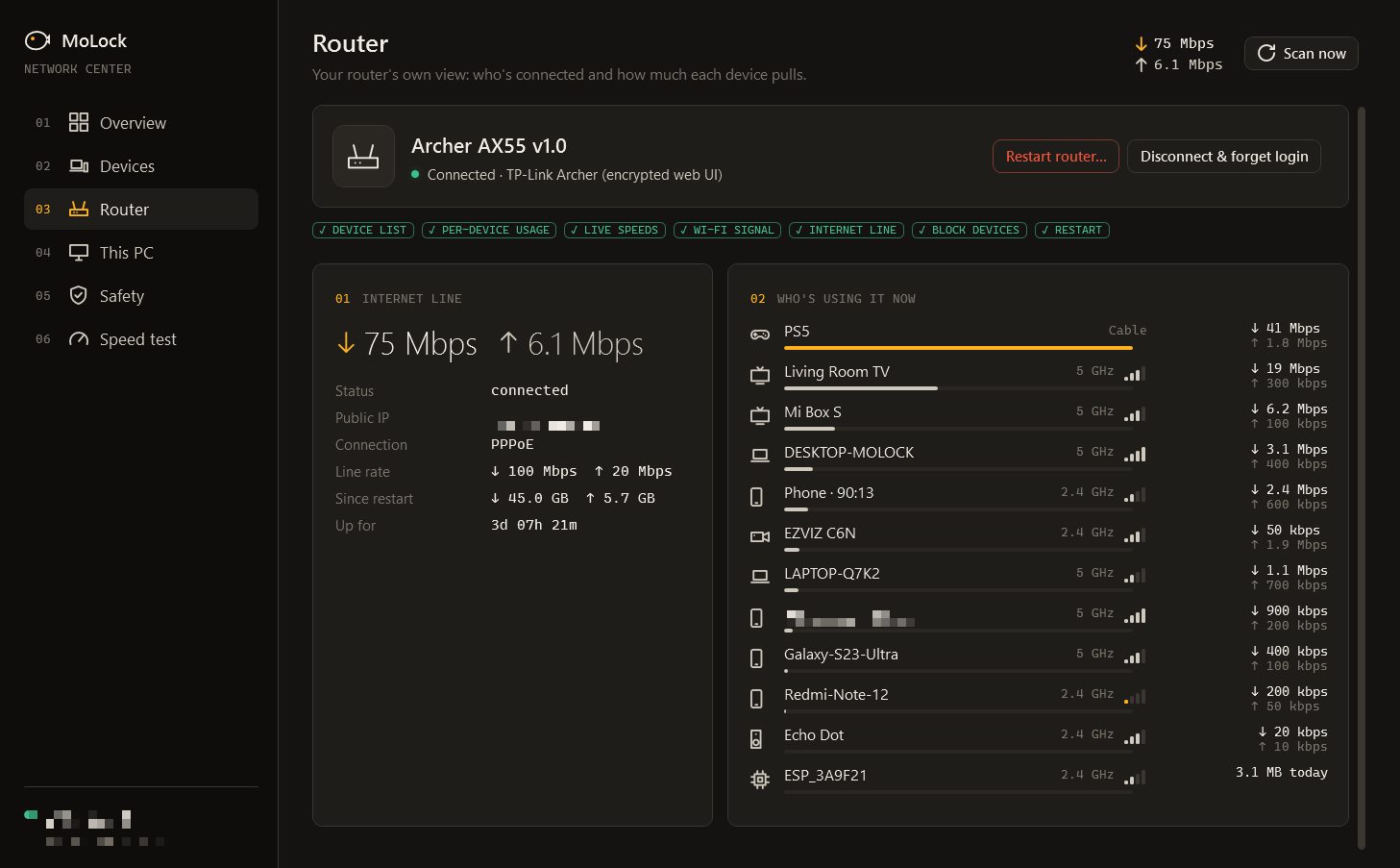
Every router speaks its own language. MoLock has adapters for common TP-Link, Huawei and ZTE routers — including the ISP routers used in Egypt and the region — and says clearly when a model isn't supported.
- Supported modelsConnected devices, per-device usage, block/unblock and restart.
- Any other routerTotal traffic through the router's standard status feature, when it is turned on.
- Not supported? You'll knowA clear "not supported for this model" — the scan and alerts keep working.
04 / 08Privacy
The router password never leaves this PC.
Your router's admin password is stored encrypted on the PC, protected by your Windows account. It is never uploaded — not to the dashboard, not to us.
Credentials stay local
The dashboard can ask the PC to block a device; only the PC talks to the router.
Encrypted device list
Device names, usage and alerts reach the dashboard end-to-end encrypted.
No browsing inspection
MoLock counts how much each device uses, not what anyone looks at.
Reaches your dashboard
- Device names, makers and labels
- Usage totals per device and per app
- Wi-Fi safety results
Stays on your PC
- Your router password
- Sites anyone visits
- Your Wi-Fi password
The little that sync needs
- That an update arrived, and when
- Its size and which PC
- Sealed data it cannot read
05 / 08Dashboard & bot
A new device at 21:14? Block it from the sofa.
New-device alerts reach Telegram with Trust and Block buttons — exactly the dashboard's buttons. The dashboard's network page keeps the device list, usage history and speed tests.
/network🔍 Scan · 📋 Summary · Open in dashboard- Every feature has a page in the dashboard: its live state, its history and its settings — and the PC follows what you change.
- Notification preferences and quiet hours decide what the bot sends; each button works once and the message is updated with the result.
- ⚠️ DESKTOP-MO · New device on your Wi-Fi
Unknown · Xiaomi (best guess)
Joined Home Wi-Fi at 21:14✅ Trust⛔ BlockOpen in dashboard - ✅ Block — the device is blocked on the router
06 / 08Limits
Exactly what it does. And what it doesn't.
Blocking depends on the router
Block, unblock and restart work only on supported models; other routers get totals at most.
Phones that change their address
Many phones use a private address per network, so a known phone may show up as "new" once.
Makers are a best guess
The maker comes from an offline list and can be wrong for some devices.
Quiet devices
A scan only sees devices that answer; the router connection fills the gaps.
07 / 08Read more
In-depth guides. In plain words.
Who's on my Wi-Fi? Network guard and your router
A slow evening, a neighbour who might know your password, a device name you have never seen. Here is what MoLock's network guard can see on your home network, what it can do through your router, and where its view honestly ends.
Privacy guard: cameras, microphones and shoulder surfers
The webcam light tells you that something is watching, not who. MoLock's privacy guard answers the real questions — which app, when, and was that supposed to happen — and adds a quiet defence against the person sitting next to you.
10 everyday privacy habits for Windows users
Privacy is rarely lost in one dramatic moment. It leaks out through small gaps: an unlocked screen, a photo that carries your home address, a link that never expires. Here are ten habits that close those gaps.
08 / 08Questions
Network guard
Which routers are supported?
Common TP-Link, Huawei and ZTE routers — including the ISP routers used in Egypt and the region — for connected devices, per-device usage, blocking and restart. Other routers can show total traffic when their standard status feature is on. If a model isn't supported, MoLock says so, and the network scan and alerts still work.
Is my router password uploaded anywhere?
Never. It is stored encrypted on your PC, protected by your Windows account. Only the PC talks to the router; the dashboard and the bot can only ask the PC to do something, such as block a device.
Why does my own phone show up as a new device?
Many phones use a different private address on each Wi-Fi network. The first time it joins, it looks new — tap Trust once and it stays labelled.
Free · no ads
Try it on your PC today.
Windows 10 & 11 · works without an account; the dashboard is optional and free