Help, on your terms. One link, one session.
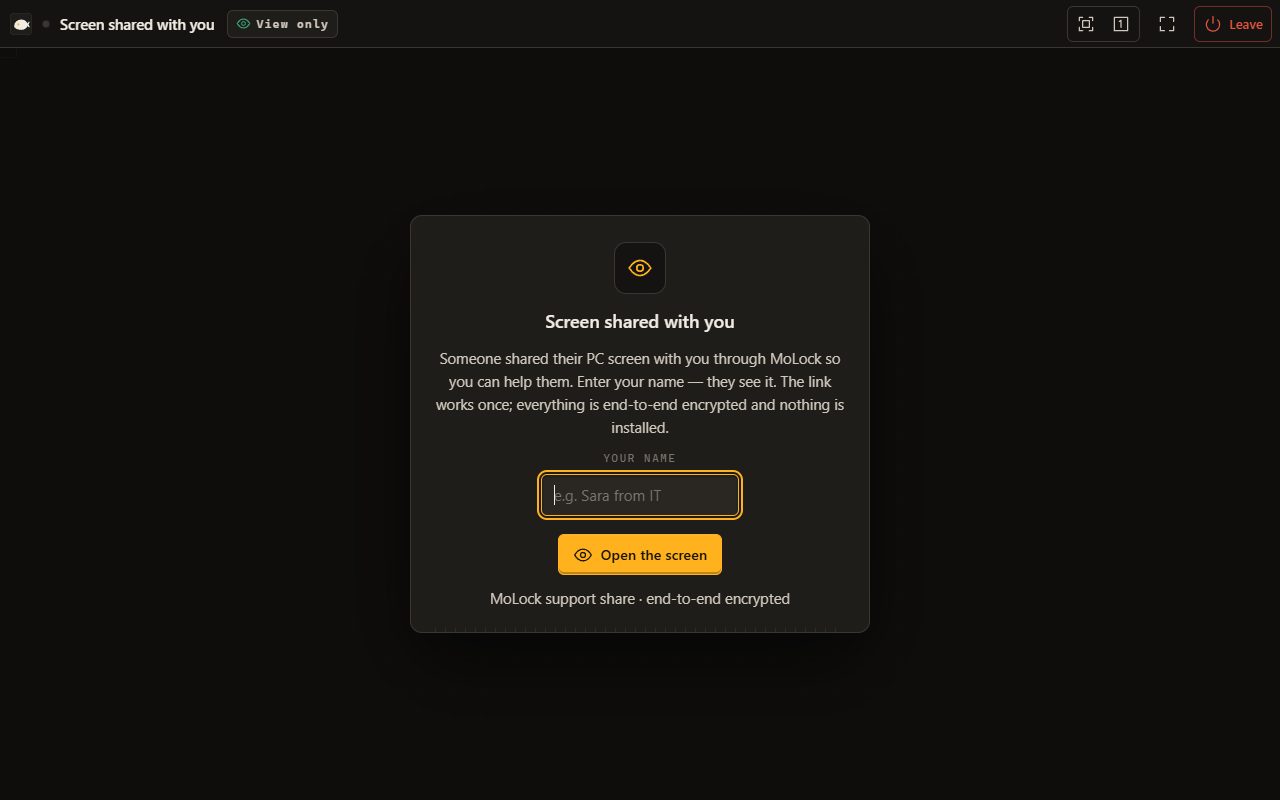
When you need a second pair of eyes, create a one-time support link from the MoLock icon in the tray. Your helper opens it in a browser, types their name and sees your screen — no account, nothing to install. View-only by default, sealed end to end, and one click ends it. In 3.1 the picture is smoother too, with about a third of the data.
New in 3.1FreeFree · needs a MoLock Account; uses your plan's remote control
Create a one-time link for the person who helps you — no account needed.
- View onlyThey see the screen, nothing more
- Let them ask for controlI'm asked every time
7ot.app/support/#k7Qm…Copy link
End-to-end encrypted · files, clipboard and unlocking are never available to a helper
Control requestSara asks to control your mouse and keyboard
Allow this timeDeny
- Longest link60MIN
- Uses per link1
- Apps for your helper0
- Video data vs tiles1/3TARGET
01 / 09How it works
You start it. You end it.
A support link only exists because you created it, on your own PC. Your PC must be linked to your MoLock Account with Remote turned on.
- 01Step 1/4
Open the tray menu
Right-click the MoLock icon next to the clock and choose “Share my screen for support…”. Nobody can start it from the other side.
- 02Step 2/4
Choose the time and control
10, 30 or 60 minutes. Leave it view-only, or tick “Let them ask to control my mouse and keyboard (I'm asked every time)”.
- 03Step 3/4
Send the link privately
MoLock makes a one-time link that starts with 7ot.app/support/. Send it in a private chat to the person you chose.
- 04Step 4/4
See who is watching
Your PC shows their name and the time left — “Sara is watching your screen · 24:10 left” — with End sharing one click away.
02 / 09What it does
Safe by design. Simple by default.
Support links were built with phone scams in mind, so the safe way is also the easy way.
You start it
A link exists only after you create it on your PC. There is no code to read out and nothing a caller can trigger.
Short and fixed
10, 30 or 60 minutes. When the time is up, sharing stops on its own.
One link, one use
Good for a single session. Forwarded or reopened later, it leads nowhere.
Nothing to install
Your helper opens the link in a browser and types a name — no account, no download.
View-only first
Your helper sees the screen and tells you where to click. For most problems, that is all it takes.
Control only with your yes
If you allowed requests, each one asks you first. If you didn't, there is nothing to ask.
Never on offer
Files, clipboard, unlocking MoLock and recording are never available to a helper.
The owner is told
The account owner is notified about support sharing, so a link made on a family PC doesn't go unnoticed.
Create a one-time link for the person who helps you — no account needed.
- View onlyThey see the screen, nothing more
- Let them ask for controlI'm asked every time
7ot.app/support/#k7Qm…Copy link
End-to-end encrypted · files, clipboard and unlocking are never available to a helper
03 / 09Your helper's side
A name and a browser. Nothing more.
Your helper needs no MoLock, no account and no app — just the link you sent and a modern browser, on a computer or a phone.
- They type their nameYour PC shows it straight away. If it isn't the person you sent the link to, you know at once — press End sharing.
- They see your screen, liveEverything on it. Close banking tabs and private documents first, and don't type passwords while someone is watching.
- They can ask — you answerWith requests allowed, every request to take the mouse and keyboard waits for your yes or no on the PC.
- The key stays in the linkThe part after the # never reaches the server, so the MoLock service carries only sealed data it cannot read.
04 / 09Smoother video
Real video. About a third of the data.
MoLock 3.1 changes how your screen travels — for support links and for your own MoLock Remote sessions alike.
- Made by the graphics chipWhen the PC's graphics hardware can do it, the screen becomes an H.264 video stream — the kind your browser plays every day — and the PC stays responsive.
- Same sharpness, less dataThe aim is equal quality with about a third of the data of the older picture tiles — a real difference on phones and slow connections.
- Automatic fallbackIf a browser can't play the video, MoLock switches to picture tiles by itself. Nobody has to choose a setting.
- Same end-to-end encryptionVideo or tiles, the stream travels inside the same seal; the service in between can read neither.
- A faster path, when available3.1 can open the faster direct path on more networks. When it can't, the encrypted relay carries the session as before.
Stream qualityHardware video
- Picture tiles (before)3×
- H.264 video (3.1)1×
≈ 1/3the data, same qualityAutofalls back to tilessame encryption
Design target; varies with the screen and network
05 / 09Privacy
Sealed end to end. The key lives in the link.
A support link looks like 7ot.app/support/# followed by a long run of characters. The part after the # carries the key, and browsers never send it to the server — so only your PC and your helper's browser can open the stream.
The key in the link
Whoever holds the link holds the key — send it only in a private message to the person you chose.
A blind service
The MoLock service knows a session took place, to end it on time and notify you. It cannot see your screen.
Four things never shared
Files, clipboard, unlocking MoLock and recording are not available to a helper, whatever is ticked.
Seen only at the two ends
- Your screen, as video or picture tiles
- Mouse and keyboard — only after you approve control
- Control requests and your answers
Stays in the link
- The key after the # in the link
- Your screen in readable form
- Your files, clipboard and passwords
To run and end the session
- That a support session took place, and for which PC
- When it started, its time limit and when it ended
- How many links were made recently, to refuse too many
06 / 09Dashboard & bot
You stay informed. The off switch is yours.
Support links run through MoLock Remote on your PC, so your MoLock Account is where you hear about them and decide whether they are possible at all.
- The account owner is notified about support sharing — a link made on a family PC never goes unnoticed.
- Remote can be switched off per PC from your account. Without Remote, no support link can be made on that PC.
- Reaching your own PC is still MoLock Remote: sign in at 7ot.app/me/ and connect, with your account's full powers.
Control requestSara asks to control your mouse and keyboard
Allow this timeDeny
07 / 09Limits
Exactly what it does. And what it doesn't.
Your helper sees what you see
Encryption keeps the service out, not the person you invited. Show nothing you wouldn't show them in person.
Their device is theirs
MoLock doesn't record the session, but nothing stops someone from photographing their own screen.
Needs a linked PC with Remote on
Support links work only on a PC linked to a MoLock Account with Remote turned on. Nobody can create one for you from outside.
Limited on purpose
Each link works once and only until its time is up, and too many links in a short time are refused — wait a little and try again.
08 / 09Read more
In-depth guides. In plain words.
Get help with your PC safely: one-time support links
Someone you trust can look at your screen and help, without an account, without installing anything and without getting the keys to your PC. Here is how support links work, and the few rules that keep scammers out.
How MoLock Remote keeps your screen private
A remote session carries your whole screen, every key you press and the files you move. Here is how MoLock Remote seals all of it between your browser and your PC — and the short list of things the service can still see.
Control your PC from your phone: the MoLock Remote guide
MoLock Remote puts your whole Windows desktop in your phone's browser — screen, mouse, keyboard, files and clipboard. This guide walks through the first session, every gesture, the keyboard tricks and the settings that matter on mobile data.
09 / 09Questions
Remote support links
What is a support link, and how is it different from MoLock Remote?
A support link lets someone you trust see your screen for a short time to help you; you create it yourself from the MoLock icon in the tray. MoLock Remote is for you, reaching your own PC with your account's full powers. One golden rule: never create a link because someone called you and asked for it — real help is something you ask for.
Does my helper need MoLock or an account?
No. They open the link in any modern browser, on a computer or a phone, type their name and see your screen — no account and nothing to install. On your side, the PC must be linked to your MoLock Account with Remote turned on.
Can my helper control my PC or take my files?
The link is view-only by default. If you ticked “Let them ask to control my mouse and keyboard” when you created it, each request waits for your yes on the PC. Files, clipboard, unlocking MoLock and recording are never available to a helper, whatever is ticked.
How do I stop sharing?
Press End sharing on the pill that shows who is watching and the time left. Their view stops at once, any control you granted is gone and the link can't be used again. Sharing also stops on its own after the 10, 30 or 60 minutes you chose, and each link works only once.
Can the MoLock service see my screen during a support session?
No. The session key lives in the part of the link after the #, which browsers never send to the server, so the service only carries end-to-end sealed data. It knows that a session took place, to end it on time and notify the account owner. Because whoever holds the link holds the key, send it privately to the one person you chose.
What changed in the picture with 3.1?
When your PC's graphics hardware can do it, the screen travels as an H.264 video stream instead of picture tiles, aiming for the same quality with about a third of the data — for support links and MoLock Remote alike. If a browser can't play the video, MoLock falls back to tiles automatically, inside the same end-to-end encryption.
Free · no ads
Try it on your PC today.
Windows 10 & 11 · works without an account; the dashboard is optional and free