MoLock user guide: set up, lock and control your PC from Telegram
Everything you need to set up MoLock 2.7 and control your PC from Telegram, in short steps that use the same button names you see in the app. Install MoLock and set everything up in one flow, from your password and look to linking your private bot. From then on you can lock your PC from your phone and receive a photo alert the moment someone approaches it, keep notes and reminders, link your PCs to your MoLock Account to control them from any browser, and use the new tools: right-click image compression, screen capture and recording, the advanced clipboard and the encrypted Vault. Return here whenever you need to recover a forgotten password, update or uninstall.
- 01Download & install
- 02First-run setup wizard
- 03Link your private Telegram bot
- 04Set up your private portal
- 05MoLock Account: link and control your PCs
- 06Use the MoLock tools
- 07Notes, to-dos & reminders
- 08Everyday use
- 09Unlocking: every way in
- 10Forgot your password or something is stuck
- 11Updates
- 12Uninstall MoLock
- 13Bot commands
Download & install
MoLock runs on Windows 10 and 11 (64-bit). Since 3.0 it installs to the protected Program Files folder with one administrator approval, adds Desktop and Start-menu shortcuts and needs no additional software; your data stays in your own Windows profile. Since 2.6 the installer sets up everything in one flow: your password and recovery code, the lock-screen look, your monitoring style and your Telegram bot.
Download the zip
Download the latest version from the download page. You receive one ZIP file that contains the complete app.
Extract the files
Right-click the file → Extract All. Do not run the app from inside the zip; extract it to a folder of your choice first.
Run MoLock.exe
Open the MoLock folder and double-click
MoLock.exe(or Install MoLock.bat). The setup window opens in English or Arabic.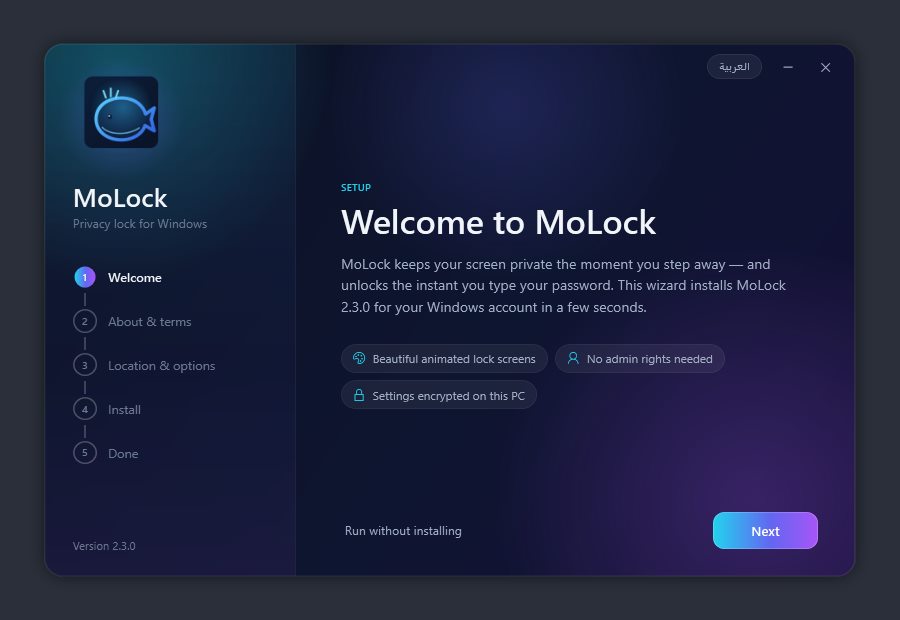
If SmartScreen appears
Windows may report that it "protected your PC" because it has not seen the app before. Click More info, then Run anyway.
Review the terms and exactly what is shared
On About & terms, tick "I understand and accept". The same page has a Device stats & privacy box that lists exactly what is sent to the developer when stats are on: device name, Windows version, CPU, RAM, graphics, screens and disk size, app version and language, MoLock's own CPU and memory use, and the number of locks and wrong attempts in the last 24 hours. MoLock never sends your password, photos or evidence, your files, what you type, your Telegram messages or your Windows user name. A switch on the same page turns sharing off entirely.
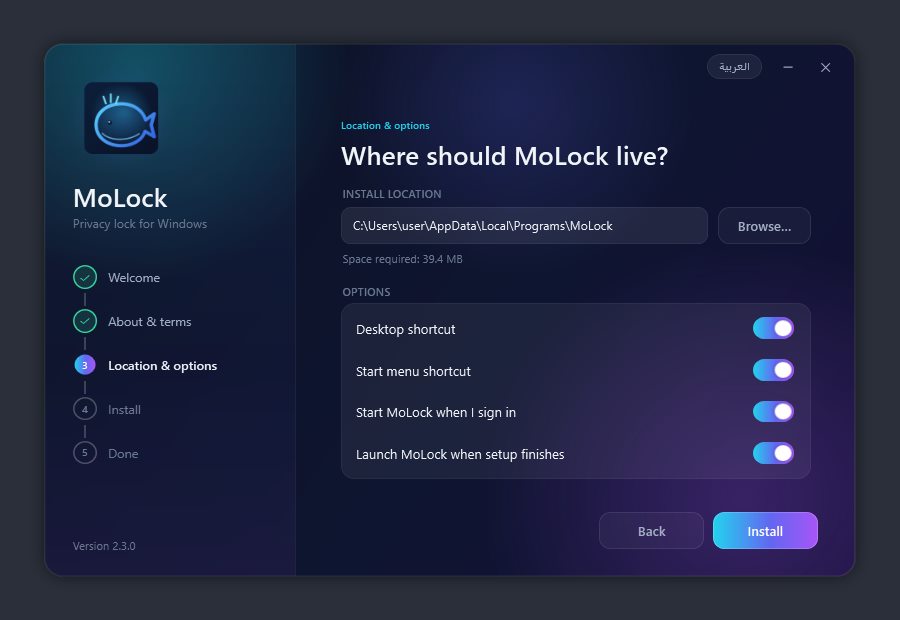
Choose the location & options
On Location & options, the suggested folder works as is. You can also add a desktop shortcut, a Start menu shortcut and "Start MoLock when I sign in".
Set your password and save the recovery code
Enter a password of at least 4 characters and confirm it. Choose something you can type quickly: the lock screen has no input box, you simply start typing. Your recovery code is shown next. Write it down or store it somewhere safe now; it unlocks the screen if you ever forget your password.
Choose the lock-screen look
Choose the look of your lock screen in one click, each option with a live preview: Simple (calm, minimal and the lightest on your PC, ideal for older hardware), Professional (the MoLock Signature look with the most useful widgets and subtle motion, recommended) or Dynamic (an animated scene, colourful widgets and a glowing clock). This is only a starting point. Every detail can be changed later in Settings.
Choose your monitoring style
Decide what MoLock captures and when it alerts you: for example a photo or video on a wrong password, a photo alert when someone approaches the locked PC, and tamper alerts when someone tries to close the app. Pick the style closest to you now and fine-tune any detail later in Settings → Intruder & alerts.
Link Telegram (now or later)
The Telegram step links your private bot during installation, following the steps in the bot section. Short on time? Click Skip for now and finish linking later from Settings.
Install and finish
Click Install. Within seconds you will see "MoLock is ready". Click Finish and the app opens for the first time.
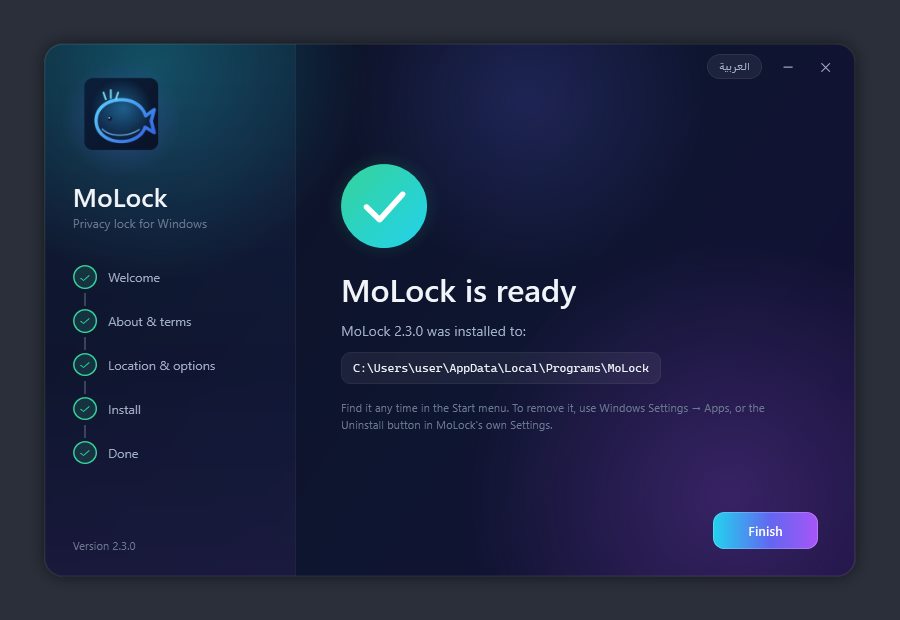
Prefer not to install? On the first page, click Run without installing and MoLock runs directly from the folder as a portable app. Installing a newer version over an older one keeps your password and settings.
First-run setup wizard
The first time you open MoLock, a short 9-step wizard guides you through setup in about two minutes. Choices you already made in the installer (password, look, monitoring and Telegram) carry over, so you can simply review them and continue. Every choice can be changed later in Settings, and you can run the wizard again from Settings → Password → Run setup wizard.
Choose your password
On the Security step, enter a password of at least 4 characters and confirm it. Choose something you can type quickly: the lock screen has no input box and no username. You simply start typing.
Save your recovery code
Your recovery code appears directly below. Write it down or store it somewhere safe now, because it will not be shown again. If you ever forget your password, this code unlocks the screen.
Style: Simple, Professional or Dynamic
The Look & feel step shows the three styles with a live preview. If you chose one during installation, it is already selected; keep it or switch. Later, Settings → Appearance lets you choose any theme and fine-tune its effects.
Check camera, microphone & location
On the Access step, click Check next to each item. If one is blocked, MoLock opens the correct Windows privacy page; turn the toggle on and check again. Do not run MoLock "as administrator", as that can block the camera and microphone.
When should MoLock lock?
Set how many seconds of inactivity pass before the screen locks (0 = off), then choose whether to lock as soon as you sign in, start with Windows, and not treat you as away while a film or game is running full-screen.
Protection & start mode
Keep Keep MoLock alive on so the app restarts itself if anyone closes it, along with Require my password to open Settings or exit MoLock. Then choose whether to lock the screen as soon as MoLock starts, or run in the background and lock only when you step away.
Evidence & documentation
Choose photo or video (with or without sound) and its length in seconds, then decide when to capture: when someone touches the mouse or keyboard while the PC is locked, when a wrong password is typed (including what was typed), and when the PC is unlocked.
Telegram
This is where you link your private bot so alerts and evidence reach your phone (steps in the next section). If you linked it during installation, it is already connected. You can also skip this step and complete it later from Settings → Intruder & alerts.
You're all set
The final step summarises your choices: password, style, Telegram and evidence. It also includes the Share device stats with the developer switch, with a clear list of what is and is never sent, so you can decide with full information. Click Finish to save.
Trying MoLock for the first time? In the "When should it lock?" step, set the auto-unlock safety net to 120 seconds so the screen unlocks itself after two minutes while you get familiar with it. Set it back to 0 afterwards.
The wizard's first page shows the emergency shortcut, which unlocks the screen if anything ever goes wrong. Note it and keep it private. You can change or disable it in Settings → Locking.
Link your private Telegram bot
This bot belongs to you alone: you create it, and it responds only to your own chat. It delivers your alerts and photos and gives you Telegram remote control of the whole PC. There are no IDs to look up and no fields to fill in: the setup wizard guides you step by step (during installation, on first run or later from Settings), and the whole process takes about two minutes.
Open @BotFather from the wizard
On the Telegram step, click Open @BotFather. This opens @BotFather in Telegram: the official tool for creating bots, marked with the blue verified tick.
Send /newbot and choose a name
Send
/newbot. BotFather asks for a name for the bot; choose any name you like, for example "My MoLock".Choose a username ending in "bot"
Next, BotFather asks for a unique username that must end in bot, for example ahmed_pc_lock_bot. If it is taken, try another.
Copy the token and paste it into the wizard
BotFather replies with a token that looks like 123456789:AAH…. Copy it, return to the wizard, click I have the token and paste it (pasting BotFather's entire message also works), then click Check. The wizard verifies the token and displays your bot's name.
Press Start in your bot
Click the wizard's Open button for your bot, then press Start in Telegram (or send
/start). The wizard waits about two minutes; if the time runs out, click Wait again."Is this you?" → confirm
The wizard shows your Telegram name and asks Is this you? Click Yes, that's me. From that moment, only this chat can control the PC. If it is not you, click Not me and try again.
A test message and a complete guide
Within seconds, Telegram delivers a test message and a complete guide: commands grouped by topic, examples to try right away, and Open the control panel, All commands and Updates buttons. Send
/startor/guideat any time to receive the guide again.Or link it later from Settings
Skipped this step, or want to link a different bot? Open Settings → Intruder & alerts and click Link my bot step by step… for the same guided flow used during setup. To control the PC from the chat, keep "Allow commands from this chat" on, then send
/menuto open the control panel.
There is nothing to memorise: /menu opens a button-based control panel and /help lists every command by group. Each command, with an example reply, is documented on the commands page.
The token is a secret. Anyone who has it can operate the bot, so never share it or show it in a screenshot. MoLock accepts commands only from the one chat you confirmed and ignores everyone else. If the token is ever exposed, send /revoke to @BotFather and link the new token from Settings.
Set up your private portal
Your portal is a private page you open from any browser to see your notes, to-dos and reminders, plus a history of every attempt to unlock your PC with its photo. Everything in it is encrypted on your PC before it leaves, and only your portal password unlocks it. The portal is entirely optional. Learn about the portal.
Set your portal password
Open Settings in MoLock, go to the portal options and set a portal password. MoLock may offer to use your lock password, or you can choose a different one. Pick something you will remember, because nobody can recover it for you.
Find your portal address and code
MoLock shows your portal address in Settings: this website's
/me/page followed by your personal code, which looks like XXXXX-XXXXX. You can also get them at any time from your bot with/portal.Open it in any browser and sign in
Open the address on your phone, tablet or any computer and enter your portal password. The password never leaves your browser, and a session lasts up to 12 hours.
What you'll see
Your notes, to-dos and reminders, which you can edit, with changes reaching your PC within moments. And the unlock history for the last 30 days (the newest 300 attempts): wrong password, correct unlock, secret quick unlock, unlock from Telegram, recovery code, duress or tampering, each with the time and, when there is one, the photo.
Every sign-in reaches your Telegram
Your bot reports every portal sign-in, allowed or denied, with the time, the approximate location and the browser type. Five wrong passwords lock the portal for 15 minutes.
Turn the history upload on or off
The unlock history is uploaded only while "Keep an encrypted history in my portal" is on. It is on by default once you set a portal password, and nothing is uploaded before then. Turn it off in Settings whenever you like.
Forgot the password, or want to sign out everywhere?
Nobody can recover a portal password, not even the developer. Your PC still holds your data, so simply set a new one in MoLock on your PC. Changing the password signs out every portal session at once, which is also the quickest way to shut anyone out if you see a sign-in you don't recognise.
Since 2.7 the portal is part of MoLock Account: once your PC is linked, you sign in with your account password plus a code from the official bot, and all your PCs are in one place. Until you link the PC, your existing portal password keeps working as before. Link your PC to your account.
Nothing in the portal can lock or unlock your PC, and a service outage never affects locking. What the service can and cannot see.
MoLock Account: link and control your PCs
MoLock Account brings all your PCs together in one place you open from any browser, guarded by the official Telegram bot, @MoLockOfficialBot. The account is free and optional; MoLock works fully without it. Since 2.7 the personal portal is part of it.
Start a chat with the official bot
Open Telegram, search for @MoLockOfficialBot and tap Start (or send
/start). This bot is run by MoLock and is separate from your personal bot; it recognises you by your Telegram account, so no email address is needed.Show the link code on your PC
Open Settings in MoLock → Account. A link code such as ABCD-EFGH appears; it is valid for 10 minutes and works once. If it expires, simply ask for a new one.
Send the code to the official bot
Send
/link ABCD-EFGHto the official bot, or type the code on the account page if you're signed in. Within seconds the bot confirms the PC is linked to your account. If it's your first PC, the account is created automatically.Confirm your account password
By default your account password is the same as your lock password. If it's shorter than 8 characters, MoLock asks once for a stronger one. When you link another PC to an existing account, it asks for the account password once on that PC. The bot reports every linked PC and every password change.
Sign in from any browser
Open the account page, enter your Telegram username and password, then the 6-digit code from the official bot (valid for 5 minutes), or use the Telegram login button. Choose "Trust this browser" only on your own devices to stay signed in for 30 days; otherwise the session ends after 12 hours.
Control your PCs remotely
From the account, or with
/devicesin the official bot, pick a PC and an action: Lock, camera Photo, Screenshot, Siren, an on-screen Message, Restart or Shut down, or Locate. Commands arrive instantly when the PC is online, otherwise they run as soon as it connects. Photos and screenshots appear encrypted in your account, and the bot reports every action.Approve an unlock from your phone
If someone you trust needs your PC while it's locked, they press "Request access from the owner" on the lock screen. The official bot sends you the request with Allow once, Deny and View photo buttons. Approval unlocks the PC once and is logged; requests expire after 2 minutes, with at most 3 every 10 minutes.
Lost your PC? Turn on Lost mode
On the PC's page in your account, turn on Lost mode, enter how to reach you and choose how often a photo is taken. The PC locks, your message shows on the lock screen for whoever finds it, and photos plus the approximate location reach you whenever it's online — visible on the map in Find my PC. Switch it off with one tap once you have it back.
Share a file with an encrypted link
From your account, or by right-clicking a file → Share link, choose how long it lasts (1 hour to 30 days) and optionally add a password or a download limit. The file is encrypted before upload and its key lives only inside the link, so send the whole link to the person you choose. Each account has 2 GB, with files up to 100 MB.
Review your sessions and security
Send
/securityto the official bot, or open Security in your account, to see open sessions and end any of them, or sign out everywhere with one tap. If you get a sign-in message you don't recognise, change your account password straight away.
The official bot works even while your PC is off: you can see your PCs' last status and your files, and your commands run as soon as a PC connects. Your personal bot stays exactly as it was, with its full command set whenever the PC is on. Tour MoLock Account.
Nothing in the account can lock you out of your PC: your lock password and recovery code always work. Every unlock from the account requires your signed-in session and is reported to Telegram.
Use the MoLock tools
Everyday tools built into MoLock that run on your PC only when you use them: right-click tools, screen capture and recording, an advanced clipboard, sticky notes, a PC health check and an encrypted vault. You can switch off any tool you don't need in Settings.
Compress a photo with a right-click
Right-click a photo (or several) and choose MoLock → Compress. Move the quality slider to see the expected size before saving, then save. The compressed copy is saved next to the original, so nothing is lost. The same menu also resizes, converts between formats, removes location data and combines images into a PDF.
Convert video and audio
Right-click a video or audio file to convert it to another format, compress it for sharing, or turn a short clip into a GIF.
Protect or shred a file
From the MoLock menu on any file: Encrypt with password to keep or send it safely, Shred to delete it for good so it can't be recovered, and Check fingerprint to confirm the file hasn't changed during a download or copy. Careful: shredding can't be undone.
Capture the screen with PrintScreen
Press PrintScreen and choose a region, a window or the whole screen. Add arrows, text and highlights, blur anything sensitive such as names or numbers before sharing, then copy, save or create a share link. To give the key back to Windows, do it in Settings.
Record the screen as video or GIF
In the capture tool choose Record, select the area you want and start. When you're done, save it as an MP4 video for longer walkthroughs or as a GIF for short clips you drop into chats.
Use the advanced clipboard
Open the clipboard history with the keyboard shortcut you set in Settings to paste anything you copied earlier, and pin what you use often as ready-made snippets. It can also clean formatting, change letter case and fix the keyboard layout when you typed Arabic with the English layout on, or the other way round. Sensitive items, such as those copied from a password manager, are never stored.
Stick a note on the desktop
Create a sticky note from the MoLock tray menu, choose its colour, size and place, keep it on top or collapse it, and add a reminder if you like. When your PC is linked to your account, notes sync encrypted and you can see them in the browser.
Check your PC's health
Open PC health to see a score from 0 to 100 and what affects it: free space, temporary files, apps that start with Windows, the status of Windows Security, the firewall and drive encryption, and pending updates. Follow the tips, and use Clean temporary files or Open Windows Security.
Create your encrypted Vault
In MoLock's Vault, create a vault and choose its password. Once open it appears as a drive in This PC that you use like any other drive; it locks automatically when MoLock locks, and you can lock it remotely from your account. MoLock shows a recovery key once: save it somewhere safe, because without the password and the recovery key the contents can never be opened. It also locks on sleep, on Win+L and after an idle time you choose.
Every file tool runs on your PC and uploads nothing, except a share link you create yourself. Tour the tools.
Notes, to-dos & reminders
Jot down notes, keep track of to-dos and set reminders that reach you on the PC and on your phone. Everything is saved on your PC first, so it works even without internet.
Open MoLock Desk
Open MoLock Desk, the new notes, to-dos and reminders window, from the whale icon next to the clock or from inside the app.
/deskgives you its summary on Telegram.Create a reminder
Type the reminder, pick its time and, if you like, a repeat (daily, weekdays, weekly or monthly) and a sound: chime, bell, soft, alarm or none.
It shows even on the lock screen
If a reminder is due while the PC is locked, it appears as a banner on the lock screen. The banner is view-only: it cannot be clicked and never unlocks anything, so the protection stays intact.
A copy on Telegram
Turn on sending the reminder to Telegram as well, so it reaches your phone even when you are away from the PC.
To-dos and notes
Add to-dos and tick them off when they are done, and keep your notes in the same place.
Edit from your portal or your bot
In your portal you can read and edit everything, and the changes reach your PC within moments. From Telegram:
/remind 18:30 Call mum,/remindersfor upcoming reminders with snooze, done and delete buttons, plus/todo,/noteand/notes. All commands.Works offline
Notes, to-dos and reminders work without a connection, and reminders still go off on time. When you are back online they sync with your portal automatically, encrypted on your PC before they leave.
Everyday use
After setup, MoLock runs quietly from the whale 🐳 icon next to the clock. This section covers every way to lock, pause and restyle the app, and how MoLock guards your PC while you are away.
Automatic lock when you step away
In Settings → Locking, set the idle time in seconds and, optionally, turn on Warn before idle lock: a small countdown appears in the corner, and any mouse movement cancels it.
Lock manually in a second
Right-click the whale icon → Lock now, or assign your own "Lock now" key in Settings → Locking → Global hotkeys. A Weekly schedule keeps the screen locked during the hours you choose.
Lock from your phone
From Telegram,
/locklocks immediately and/timer 5locks in 5 minutes. With a trusted USB key or Bluetooth phone, MoLock can also lock the moment you remove the key or walk away with your phone.Someone approached your PC? You know within a second
While the PC is locked, MoLock watches the webcam for movement in front of it (nothing is recorded until something moves). The moment someone approaches or touches the keyboard or mouse, Telegram delivers a photo in about a second with "👀 Someone approached your PC", how long the PC has been locked, and buttons: 📸 Another photo · 🎥 Video · 🔊 Siren (a loud alarm on the PC) · 🔒 OK. Lighting changes do not trigger an alert. In Settings → Intruder & alerts → Approach & motion detection you set the motion sensitivity (1–10) and the minimum time between alerts.
Instant camera
The moment the screen locks, the camera warms up in the background, so the first photo is taken without delay. With camera motion detection off, the camera switches off again after a few minutes (5 by default). The webcam light turns off reliably after a quick unlock, after an alert, and when you switch motion detection off from Telegram.
Tamper alerts
If someone enters a wrong password while trying to close MoLock, pause it or open Settings, or ends it from Task Manager, you receive an instant alert with a photo. Three wrong attempts lock the screen immediately, and if the PC was locked when MoLock was ended, it comes back locked. Signing out, updates and crashes never count as tampering. The option is in Settings → Protection → Tamper alerts.
Pause auto-lock
Whale icon → Pause auto-lock: from 5 minutes to 8 hours, "Until tomorrow morning", "Until I resume it", or a custom duration of up to 7 days. From Telegram:
/pause 2h, then/resume.Close MoLock without losing your bot
Closing MoLock stops the locking, but by default the app keeps running quietly in the background, so your Telegram bot keeps answering and
/resumebrings the protection back from your phone. If you prefer a clean exit, change the "When I close MoLock" setting from "keep running in the background" to "exit completely".Change the look & widgets
In Settings → Appearance, choose one of 35 animated themes and tune its effects (intensity, particle density, speed, accent colour, glow) with a live preview of the real lock screen. The same page sets the effect level: Auto (picks the right one for your PC), Light for older or modest PCs, Medium, or Heavy, recommended for PCs with a dedicated graphics card. Themes are now lighter on the processor: the default MoLock Signature theme uses about half as much, and the hacker themes are three to four times lighter. Animated GIFs also play correctly as a lock-screen background. In Widgets, add weather, prayer times, currencies, world clocks and more, each with its own size and position. Version 2.6 redesigned the themes and widgets in the new "Graphite & Amber" look. Browse them all on the themes page.
Review the evidence timeline
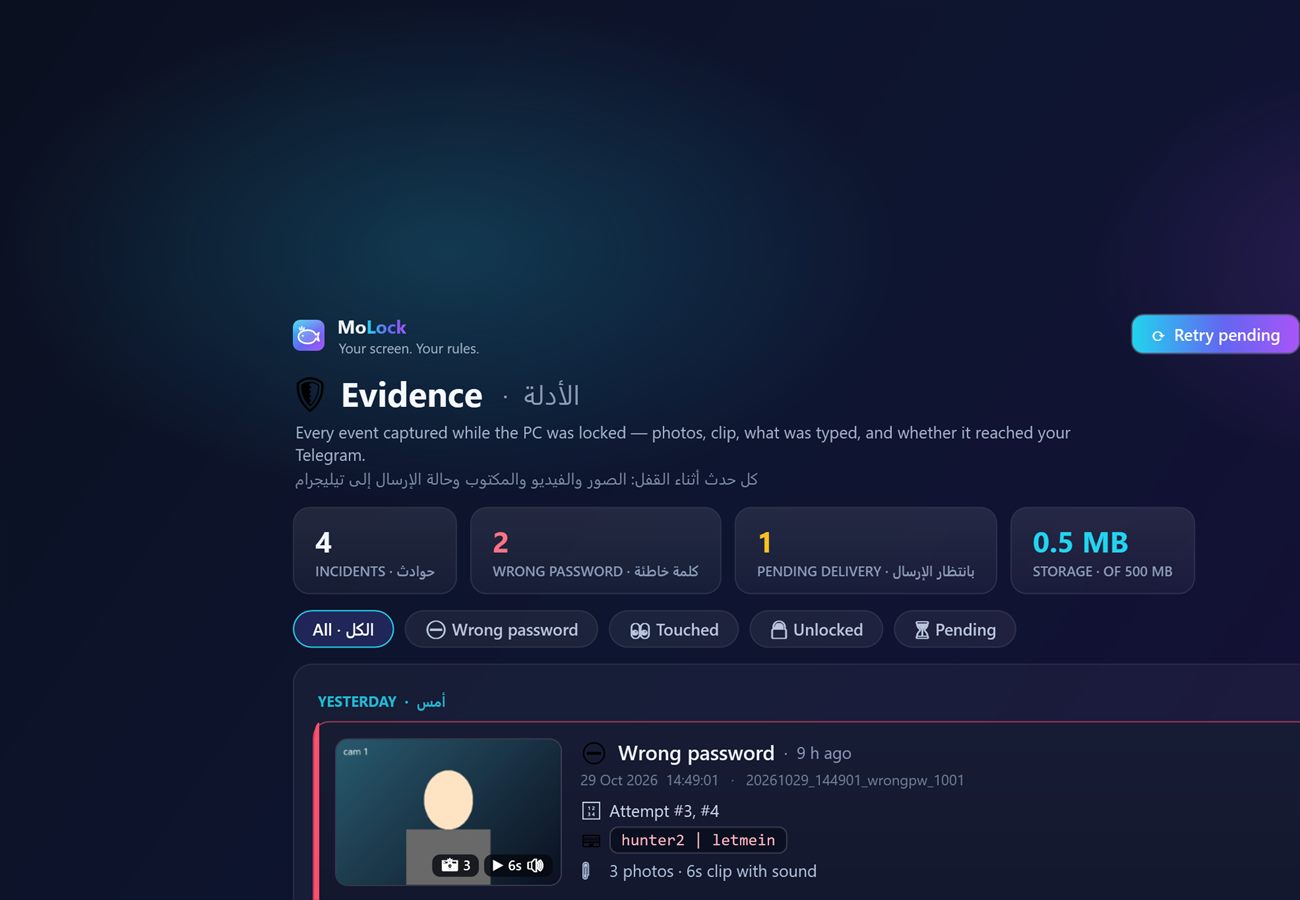
Whale icon → 🎥 Evidence timeline: every incident with thumbnails and its Telegram delivery status, with play, open and delete for each. You decide how many days and how much space to keep.
At home? In Settings → Protection → Trusted Wi-Fi networks, click "Add current network" and the screen will not idle-lock while you are on your own network. Manual lock, the schedule and other triggers keep working. You can also switch motion detection and tamper alerts on or off from your phone with /settings.
Unlocking: every way in
The primary method is simpler than you might expect: type your password. Alongside it are backup methods you can enable as needed.
Type your password anywhere
There is no input box and no button. Start typing your password at any moment and the screen opens as soon as it matches. Made a typo? Keep typing the correct password; MoLock matches the end of what you type. Only a subtle pulse is shown, never the password length.
Recovery code
Forgot the password? Type the recovery code you saved during setup on the lock screen, the same way. Generate a new one at any time in Settings → Password → Generate new recovery code.
One-time code from an authenticator app
In Settings → Password → Authenticator app, click "Set up / show QR" and scan it with an authenticator app such as Google Authenticator. You can then unlock with the one-time 6-digit authenticator code, which changes every 30 seconds.
USB key or Bluetooth phone
In Settings → Protection, choose a USB drive and click "Set up this drive as key" to unlock when it is plugged in, or choose a paired phone or watch to unlock while it is connected. Both can also lock the screen when removed or out of range.
Unlock button in Telegram
Turn on "Send an 'Unlock' button to Telegram while locked" in Intruder & alerts. Each time the PC locks, you receive a 🔓 Unlock this PC button. You can also send
/unlockat any time.Secret quick unlock
A hidden gesture, known only to you, on a corner of the lock screen that unlocks without typing. Choose and set it up yourself in Settings and keep it to yourself; nothing on the lock screen hints that it exists. Telegram notifies you every time it is used, so if anyone discovers it, you know right away. It stays off until you turn it on, and you can turn it off at any time.
Duress password
A second password, different from your real one, for situations where someone forces you to unlock. The screen opens normally so nothing seems unusual, while MoLock silently takes a photo, logs the event and sends you a 🆘 alert on Telegram. Turn it on in Settings → Password.
The duress password is a way to document an incident and quietly ask for help. It is not a substitute for your safety. In real danger, you matter more than any device: comply first, then take the evidence to the proper authorities.
Forgot your password or something is stuck
MoLock is designed so you are never locked out of your own PC. It provides several safety nets; work through them in this order.
Try the recovery code
Type the recovery code on the lock screen exactly as you would a password. Once you are in, set a new password in Settings → Password and generate a fresh code.
Reset it from Telegram, even while locked
Send your bot
/resetpasswordand choose Type my own (send it twice; your messages are deleted immediately and the strength is shown), Suggest a strong one, or New recovery code. The change applies to the locked screen at once, and even while MoLock is closed, as long as the background bot is running.The emergency shortcut
The shortcut shown on the first page of the setup wizard opens the screen instantly if anything stops responding. View, change or disable it in Settings → Locking → Emergency escape hotkeys.
Run MoLock Fix
If Task Manager says "disabled by your administrator", the mouse froze after Windows locked, or a copy of MoLock will not close, open the app folder and double-click
MoLock Fix.bat. Choose 1 (quick fix while MoLock keeps running: Task Manager, mouse, sound) or 2 (full repair: closes every part of MoLock and fixes everything, keeping the app and your data). Option 5 shows exactly what a mode would do before anything changes.Still stuck? Contact the developer
After a full repair, MoLock stays closed until you open it from its icon. If the problem persists, report it to the developer from Settings → About → Send feedback, or get in touch on WhatsApp or Facebook, and you will receive a reply.
MoLock blocks Task Manager and system keys only while locked and restores them the moment you unlock. The mouse and keyboard never freeze, even if Windows locks on top. MoLock Fix exists for rare exceptions and keeps a log of everything it does (option 6 opens the latest log).
Updates
Updates arrive automatically and quietly, and they cannot be forged. Since version 2.5, you can also update from your phone with a single command, even while the PC is locked.
Automatic, in the background
In Settings → About, keep "Update the app automatically in the background" turned on. The update downloads in the background and installs at a quiet moment, never on its own while the screen is locked. When it completes, you receive a "✨ MoLock updated" message on Telegram; if it does not go through, you are informed and MoLock tries again later.
Update from Telegram with /update
Send
/update(or tap 🆕 Update in the control panel). If a new version is available, you receive "🆕 New update available" with the new version, your current version, the size and what is new, plus buttons: ⬇️ Update now · 📝 Details · ✖ Not now. If you are up to date, the reply is "✅ You're on the latest version".Download progress, then verification
After Update now, a single message updates itself with the download progress. MoLock then verifies that the update is genuine and complete before installing it, restarts within seconds and sends "✨ Updated" as soon as it finishes.
PC locked? You choose
If the PC is locked when you ask, the bot offers a choice: ⚡ Install now (MoLock restarts and locks again right away) or ⏳ After unlock (it downloads now and installs as soon as the PC is unlocked). Likewise, restarting MoLock from Telegram while the PC is locked brings it back locked.
Signed updates, and your data stays put
Every update is digitally signed by the developer and checked by MoLock, so no one can deliver a fake update. If anything goes wrong, MoLock rolls back to the previous version. Your password, settings and evidence are never touched.
Check manually
Prefer to check on the PC? Go to Settings → About → ⟳ Check now. The same page lets you choose the update channel: stable or beta. From Telegram,
/versionshows the version you have installed.
News always appears in 📢 Announcements & updates on the whale icon, or send /news to your bot. Every announcement is digitally signed, so no one can push you a fake one.
Uninstall MoLock
If you decide to leave, removal is clean and the choice is yours: keep your data or remove everything.
From Windows Settings
Windows Settings → Apps → MoLock → Uninstall. Or from inside the app: Settings → Protection → Uninstall MoLock…, or Uninstall MoLock.bat in the app folder.
Confirm with your password
To ensure no one can remove the protection without your knowledge, uninstalling requires your MoLock password.
Choose: keep or remove
Keep my settings & evidence: your password, preferences, log and photos stay on the PC in case you return. Remove everything: deletes them as well, and this cannot be undone.
"Why are you leaving?" (optional)
Before you go, one tap on a reason (no longer needed, hard to use, something did not work, it slowed my PC…) helps improve the next version. No name and no files are sent, and you can skip this step.
Watch it finish
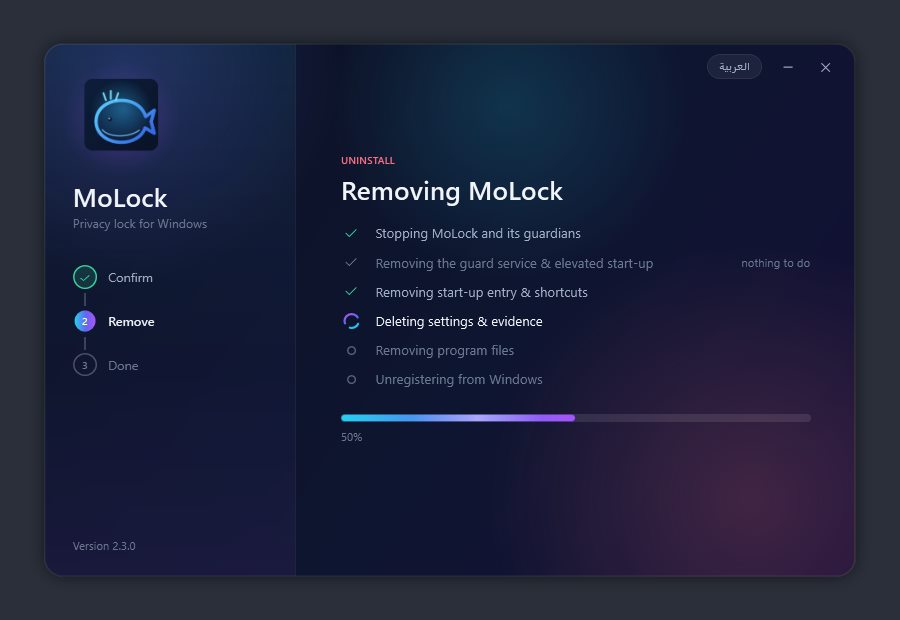
Each step is shown: stopping MoLock and its guardians, removing the guard service, start-up entries and shortcuts, settings and evidence (if you chose to), and the program files. Downloaded update files are cleaned up too. Uninstall removes only MoLock's own files; anything else in the same folder is left untouched.
Full clean-up with MoLock Fix
If the app itself will not open or is damaged, run
MoLock Fix.batand choose 3 (uninstall, keep your data) or 4 (uninstall and delete all data; it shows exactly what will be deleted and waits for your confirmation). Option 5 is a preview of what would happen without changing anything, and 6 opens the latest log.
"Remove everything" and option 4 in MoLock Fix permanently delete evidence photos and clips. If you need any of them, save them first from the Evidence timeline.
Looking for every bot command with examples? Open the command reference. Still have a question? Read the FAQ.