Control your internet data: see every app, stay in your plan
When the internet comes in gigabytes, the hard part is not paying for it, it is knowing where it went. MoLock 3.1 counts your data per app and per network, keeps you inside your plan, and stays quiet until it matters.
Mahmoud Mohamed · 10 min read
The bill that arrives before the warning
Many homes do not have unlimited internet. A monthly package of a hundred or two hundred gigabytes, a 4G router, a phone shared as a hotspot for a laptop: for millions of people this is simply how the internet works. And on a capped plan, the question is rarely “how fast is it?” It is “where did it all go?”
The answer is usually not you. It is the cloud folder that decided to sync a year of photos, the game launcher that downloaded a forty-gigabyte update overnight, the browser tab that played video in the highest quality while you were in the kitchen, or Windows sharing updates with other PCs you have never met. None of these asks first, and the provider’s text message that says “you have used 80 %” usually arrives when the damage is already done.
MoLock 3.1 adds a Data usage monitor that answers the question on your own PC, in plain numbers, before the bill does.
On a capped plan the question is rarely how fast the internet is. It is where it all went.
What MoLock counts, and where the numbers come from
The monitor is on by default and works without an account. Open it from Settings or from the Data usage… button in the Network Center. Its first page, Overview, answers the four questions people ask most: how much today, this week, this cycle, and right now.
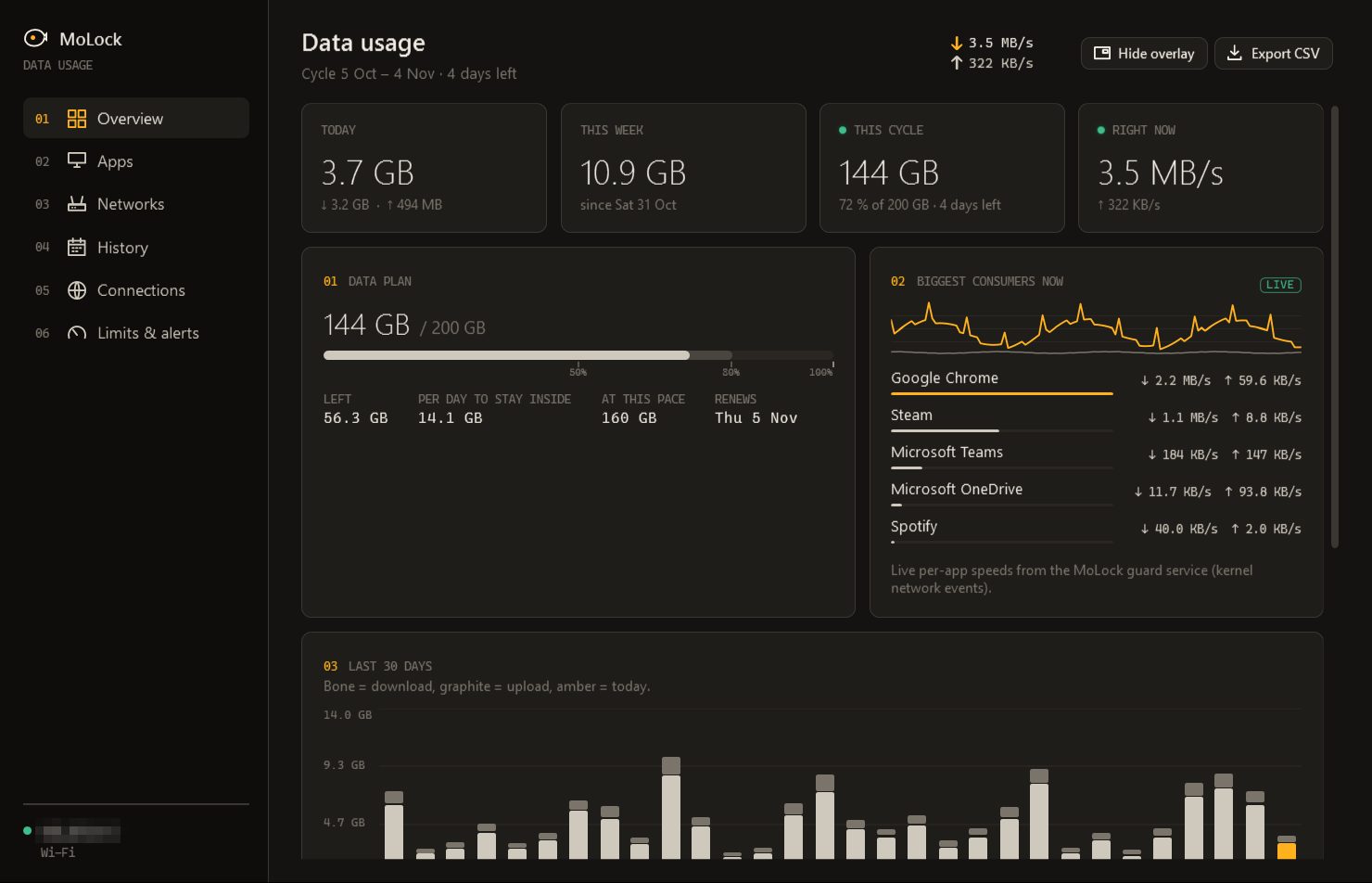
Two sources work together, and it helps to know which is which:
- Totals come from the network adapters’ own counters, the ones that carry your internet traffic. They are exact while MoLock is running.
- Per-app numbers come from Windows’ own data-usage records, the same ones behind Settings → Network → Data usage. Windows keeps those for about 30 days; MoLock imports them on the first run and then keeps its own copy for 400 days, only on your PC.
For each day, MoLock takes the larger of the two in each direction, so the hours when MoLock was not running are not lost. Every network is counted apart: your home Wi-Fi, an office cable, a mobile modem and a phone hotspot, which MoLock recognises by the typical addresses and names phones use, or by the adapter when you tether over USB. A VPN is counted once, on the connection that actually carries it, not twice.
Live per-app speeds, the “Biggest consumers now” list, come from MoLock’s guard service. Without it, per-app numbers still arrive, about once a minute, from Windows’ records.
Your plan, your renewal day, your daily budget
Numbers mean little without a limit to compare them to. On the Limits & alerts page you describe your package once, and from then on every screen speaks in terms of your plan.
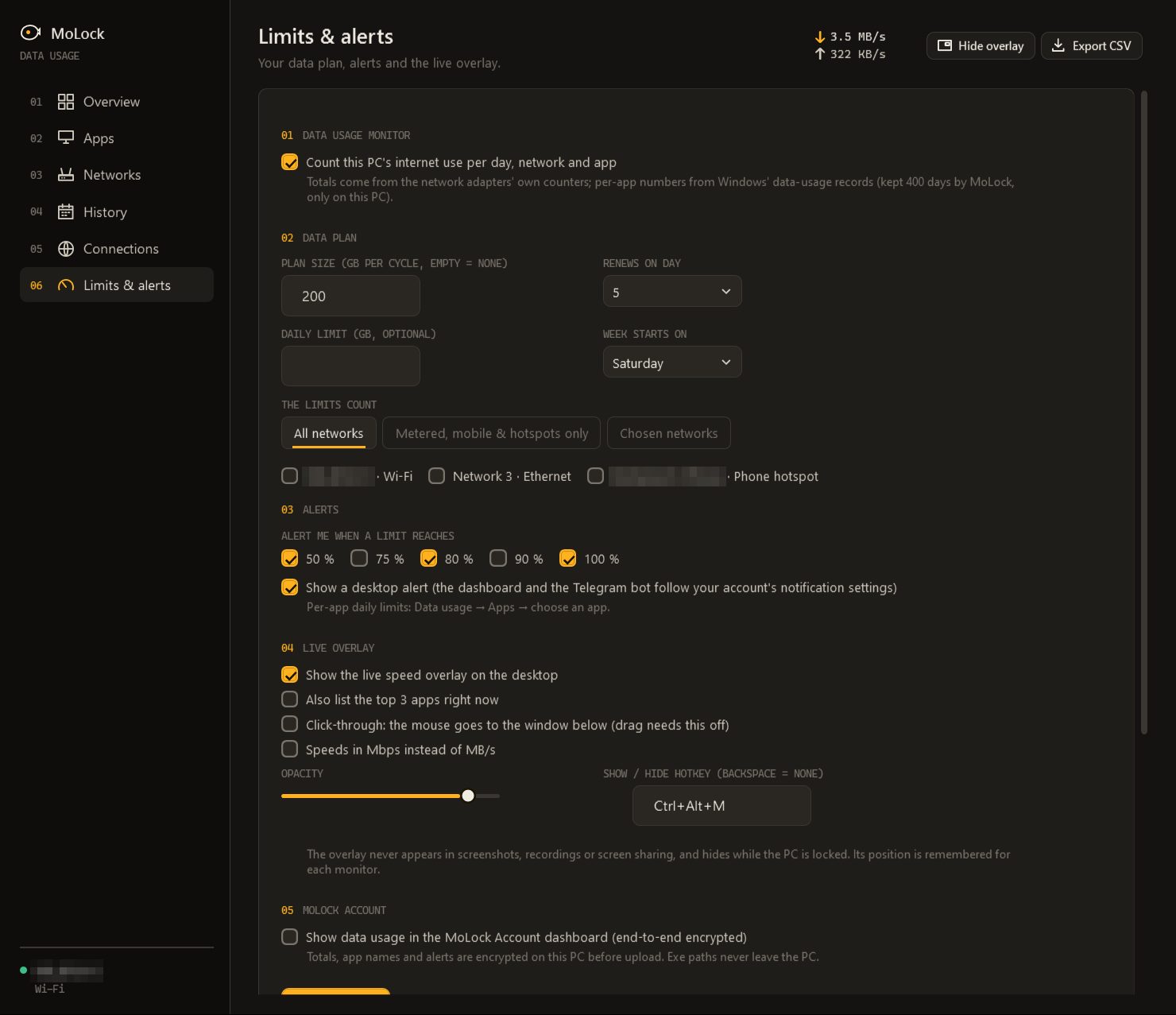
- Enter your plan size. Type the gigabytes your package includes per cycle. Leave it empty if you have no cap and only want to watch.
- Pick the renewal day. Choose the day of the month your package renews, 1 to 31. In short months, 29, 30 and 31 simply mean the last day.
- Decide which networks count. All networks; only metered, mobile and hotspot connections; or networks you choose, such as the hotspot on your phone but not the office cable.
- Choose your alerts. 50, 80 and 100 % are ticked by default; 75 and 90 % are there too. Add an optional daily limit if you like a firmer rhythm.
- Glance at the plan bar. The Overview now shows what is left, per day to stay inside, where you will land at this pace, and the day it renews.
“Per day to stay inside” is the number most people end up watching. It divides what is left by the days left, so on a good day it rises and on a heavy day it falls, and you can adjust before the last week, not during it. If the pace points beyond your plan, a calm suggestion tells you by how much and what daily amount would bring you back.
Alerts appear as a desktop notification, once per step per cycle. If your PC is linked to a MoLock Account, the same alerts can reach your dashboard and the Telegram bot, following the notification settings you already use.
Find the apps that eat your data, and rein them in
The Apps page lists every program that used the internet, biggest first, for today, this week, this cycle or 30 days. Choose one and you see its own chart, its daily average, its speed right now and how its traffic was split between your networks.
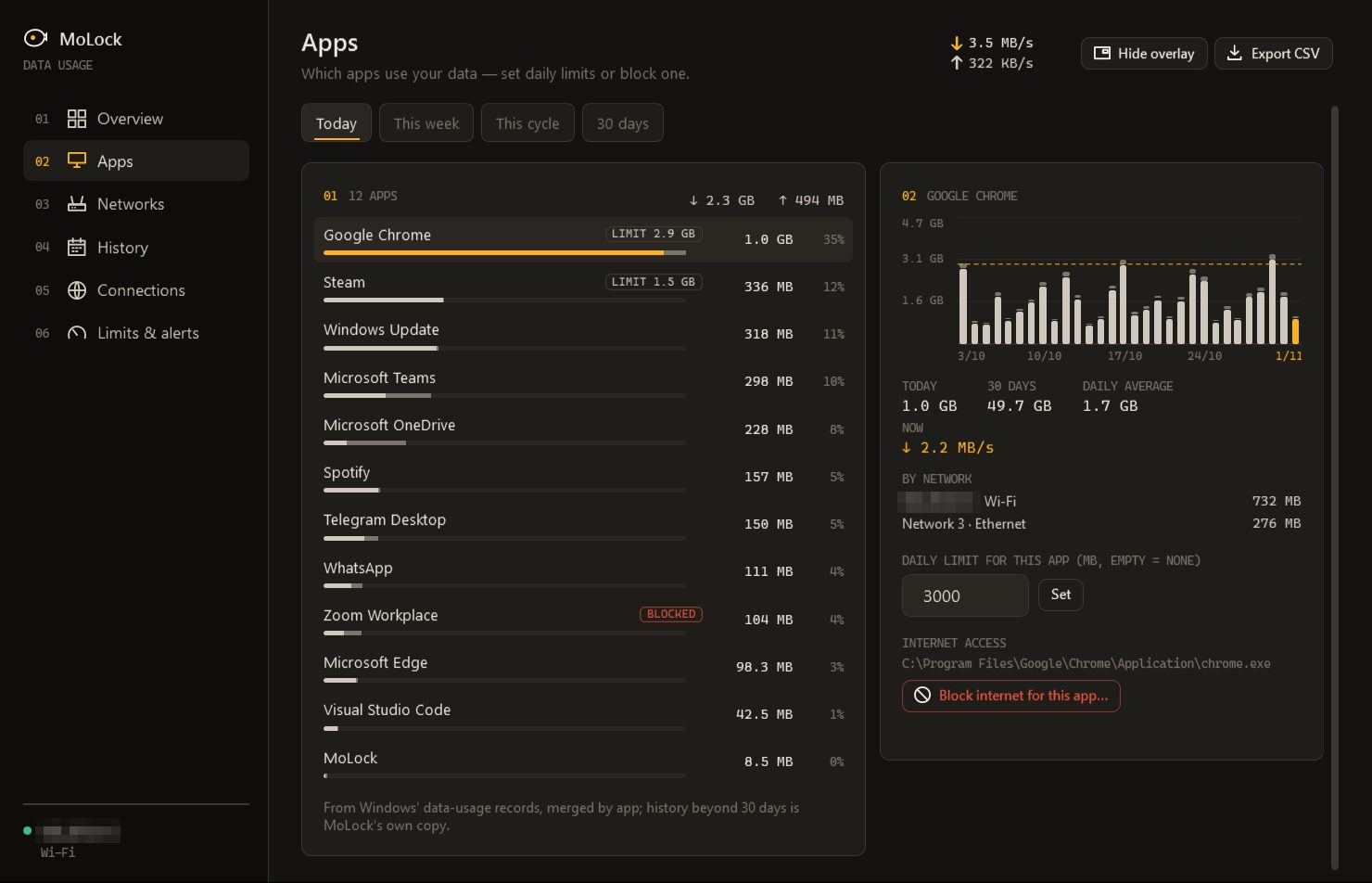
From there you have two tools, one gentle and one firm.
- A daily limit for one app. Type a number of megabytes. When the app passes it, you get one alert that day, saying how much it used against its limit. Nothing is cut off; you decide.
- Block internet for this app. MoLock adds an ordinary Windows Firewall rule that stops that one program from reaching the internet and the local network until you press Unblock. With the guard service installed there is no prompt; without it, Windows asks for administrator permission once.
Some things cannot be blocked, on purpose. MoLock never blocks itself or the parts of Windows that keep the PC’s networking alive, and store apps or system services that Windows reports without a program file cannot be blocked by program. The page says so plainly instead of pretending.
The live meter: one glance, never in the way
Sometimes you do not want a window, you want a gauge. Turn on the live overlay and a small meter sits in a corner of the screen: download and upload speed right now, today’s total, and how much of your plan is used.
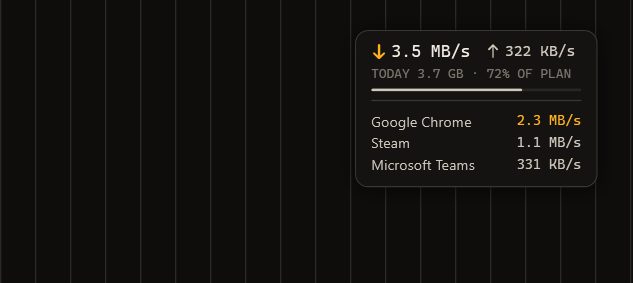
- Top 3 apps, optional, so you can see at once which program is pulling right now.
- Click-through, so the mouse passes to the window underneath and the meter never steals a click. Turn it off when you want to drag it somewhere else.
- Opacity to make it as quiet as you like, and speeds in MB/s or Mbps.
- A hotkey to show or hide it, Ctrl+Alt+M by default. Its position is remembered for each monitor.
Two details matter for privacy. The meter never appears in screenshots, recordings or screen sharing, so a video call does not show your usage to everyone in it. And it hides while the PC is locked, so a locked screen stays a locked screen.
Connections: who each app is talking to
The Connections page answers a more curious question: right now, which app is talking to which server? Each line shows the app, the address it is connected to, the server’s name where one is known, and whether the connection is active, opening or closing. A filter finds an app, a name or an address in a second.
Where it can, MoLock suggests who runs a server and roughly where, but only from the name the server itself publishes for its address. No paid lookup service and no location database are used, nothing about your connections is sent anywhere, and the page is honest that these guesses can be wrong or empty. It is a good companion to seeing who is on your Wi-Fi: one shows the devices on your network, the other shows where your own PC’s traffic goes.
History, export and your dashboard
The History page keeps the long view: a calendar of every day, coloured by how much you used, your past billing cycles side by side, and the last 90 days as a chart. Click any day to see which apps used what on that day.
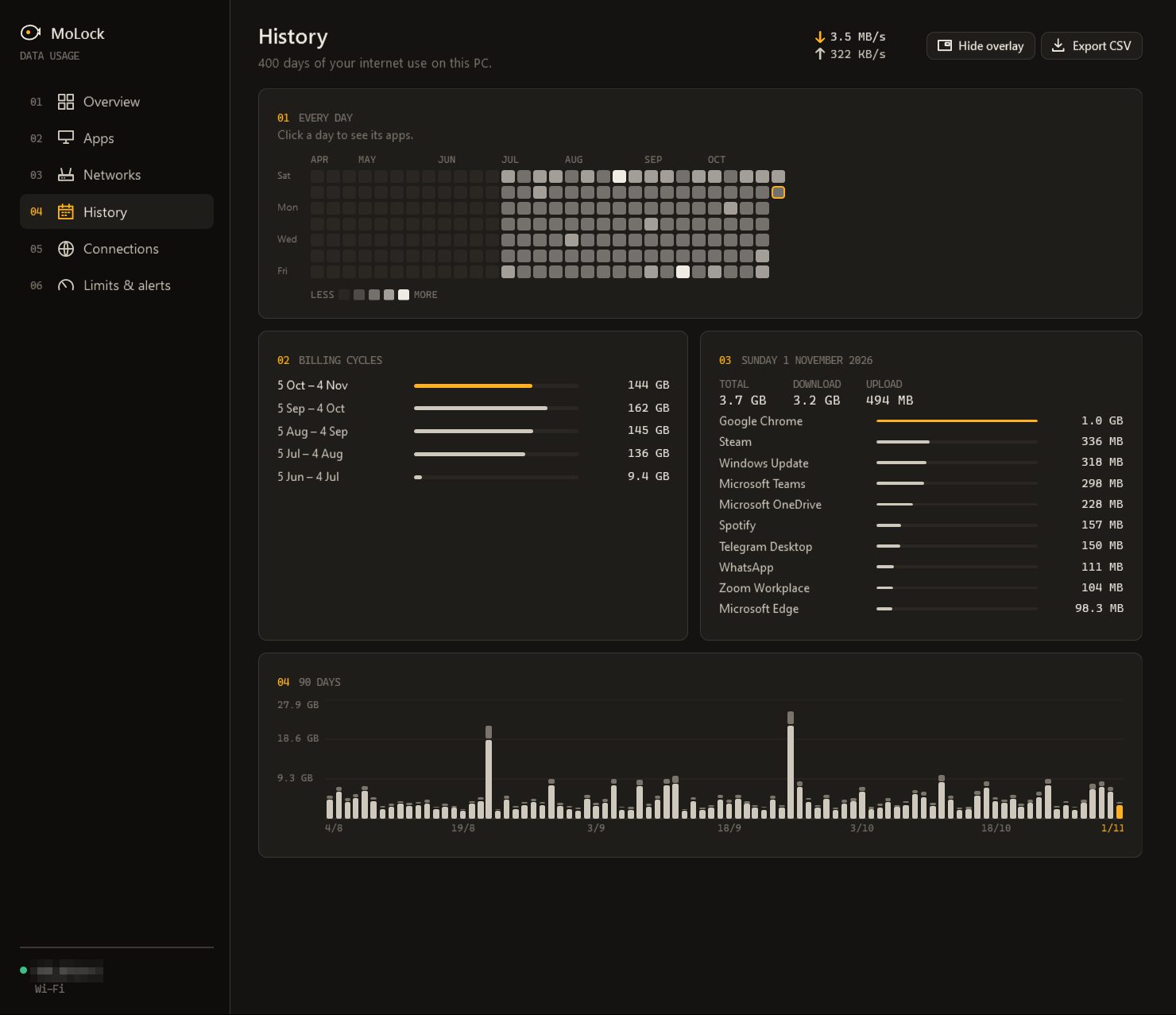
Need the numbers somewhere else, for a household budget or to compare with your provider’s statement? Export saves your usage to a spreadsheet file you can open in Excel or any spreadsheet program.
If your PC is linked to your account, you can also tick Show data usage in the MoLock Account dashboard. Totals, app names and alerts are then encrypted on your PC before upload, and only your signed-in browser can open them; program paths, which contain your Windows user name, and your connection lists never leave the PC. From the dashboard you can see today, the cycle against your plan and your top apps, change the plan settings, and block or unblock an app remotely. Read more about how this works on the privacy page.
Practical ways to use less data
Seeing the numbers is half of it. The Data saver card on the Overview turns them into suggestions when something stands out, and most of them come down to a few habits worth knowing anyway.
- Mark capped connections as metered. In Windows, open the network’s properties and turn on “metered connection”. Windows then holds back many large downloads and syncs on that connection. MoLock points this out when you are on a phone hotspot that Windows still treats as unlimited.
- Tame Windows Update. Pause updates for a week near the end of a tight cycle, and in Delivery Optimization turn off downloads from other PCs on the internet, so your PC is not uploading updates to strangers.
- Pause cloud sync on a hotspot. OneDrive, Dropbox and similar apps can move gigabytes in the background. Pause them while you are on mobile data and let them catch up at home.
- Lower video quality. Video is usually the biggest user. Higher resolutions use several times more data per hour than standard quality; on a limited plan, choose a lower quality or the “data saver” option your streaming app offers, or download over unlimited Wi-Fi to watch later.
- Schedule game updates. Game launchers often download large updates automatically. Turn that off, or let it run on a night when you are on an unlimited connection.
- Stop automatic media downloads in messaging apps on mobile data, so every video in every group does not arrive by itself.
If you are trying to spend less time online as well as less data, screen time without guilt covers the gentler side of the same habit.
Honest limits
- It counts this PC only. Phones, televisions and other computers on the same router use your plan too, and MoLock cannot see their traffic. If this PC shares its own connection as a Windows mobile hotspot, devices connected to it are counted here.
- Your provider’s meter is the one that bills. Providers count in their own way and round differently, so expect small differences. Use MoLock to see where the data goes and to stay well inside the plan, not to argue over the last few megabytes.
- Totals include local copies. The adapter counters also see traffic inside your home, such as copying files to another PC over Wi-Fi.
- Hotspots are recognised by their usual signs. A phone hotspot with an unusual setup may appear as ordinary Wi-Fi; you can still choose it by name in “Chosen networks”.
- Server names are guesses. The Connections page can only show what a server says about itself.
Within those limits, the monitor does one job well: it turns a vague worry about the internet bill into a number you can act on, on your own PC. See everything on one screen on the Data usage page.