Get help with your PC safely: one-time support links
Someone you trust can look at your screen and help, without an account, without installing anything and without getting the keys to your PC. Here is how support links work, and the few rules that keep scammers out.
Mahmoud Mohamed · 9 min read
The phone call you should never trust
It usually starts with a call, a pop-up or a message. A friendly voice says they are from "Windows support", your bank or your internet provider. Your PC has a virus, they say, or your account has been hacked, and they can fix it right now. All you need to do is install a small program and read them a code.
From that moment, a stranger is sitting at your PC. Remote-access tools are useful and legitimate, which is exactly why scammers like them: once installed and approved, many of them give full control of the mouse and keyboard, access to your files and an easy way back in later. People are walked into their online banking "to check for damage", asked to buy gift cards "to cancel a refund", or left with a program that keeps running long after the call has ended.
The pattern never changes: they contact you first, they create urgency, and they ask you to install something or open something for them. Real companies do not phone you out of the blue about a virus on your computer, and they never need you to hand over control to prove it.
Real help is something you ask for. A support link only exists because you created it.
What makes a MoLock support link different
Sometimes you genuinely need a second pair of eyes: a son helping his father through a settings screen, a colleague checking an error message, a friend who understands printers. MoLock 3.1 adds support links for those moments. They were designed with the scam above in mind, so that the safe way is also the easy way:
- You start it, on your own PC. There is no code to read out and nothing a caller can trigger from their side. A link exists only after you create it from the MoLock icon in the tray.
- It lasts a short, fixed time. You choose 10, 30 or 60 minutes. When the time is up, sharing stops on its own.
- It works once. A support link is good for one session. Forwarded or reopened later, it leads nowhere.
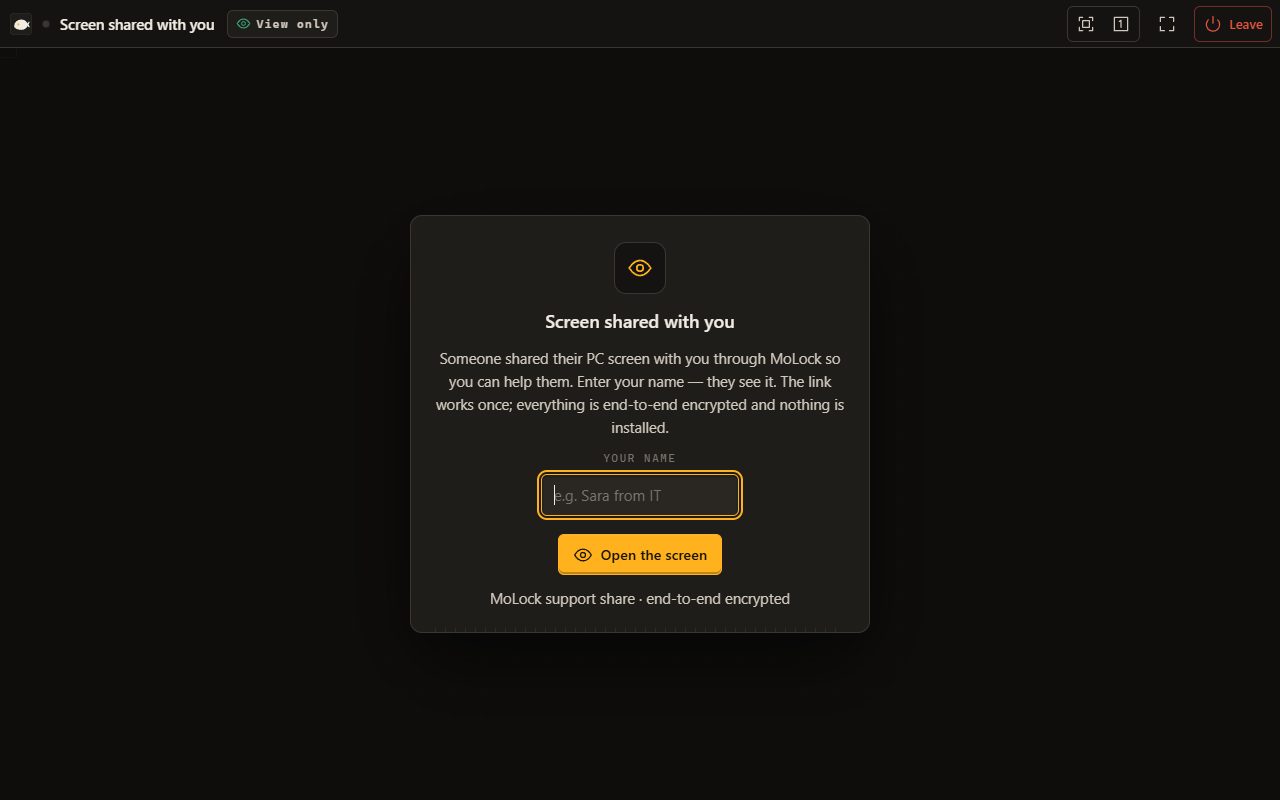
- Your helper installs nothing. They open the link in a browser and type their name. No account, no download, nothing left behind on their device or on yours.
- Looking is the default; touching needs your yes. The helper sees your screen. Anything more is up to you, one request at a time.
A support link is a close relative of MoLock Remote, the feature you use to reach your own PC from your phone. Remote is for you, with your account and all of its powers. A support link is for someone else, for a few minutes, with far fewer powers.
Sharing your screen, step by step
Two things need to be in place first: your PC must be linked to your MoLock Account, and Remote must be turned on for it. If you have not done that yet, it takes a minute, and you only do it once.
- Open the tray menu. Right-click the MoLock icon next to the clock and choose Share my screen for support…
- Choose how long. Pick 10, 30 or 60 minutes. Choose the shortest that will do; you can always make a new link.
- Decide about control. Leave the link view-only, or tick Let them ask to control my mouse and keyboard (I'm asked every time).
- Create the link and send it. MoLock makes a one-time link that starts with 7ot.app/support/. Send it in a private chat to the person you already decided to ask.
- Your helper joins. They open the link, type their name and see your screen. Your PC shows that name straight away.
Create a one-time link for the person who helps you — no account needed.
- View onlyThey see the screen, nothing more
- Let them ask for controlI'm asked every time
7ot.app/support/#k7Qm…Copy link
End-to-end encrypted · files, clipboard and unlocking are never available to a helper
The account owner is notified about support sharing too, so a link made on a family PC does not go unnoticed. And to keep the feature from being misused, creating too many links in a short time is refused. If you see that message, wait a little and try again.
View-only first, control only when you say yes
By default, your helper can only look. They see what is on your screen, live, and can tell you where to click. For most problems that is all it takes, and it means nothing happens on your PC that you did not do yourself.
When a problem is easier to fix with hands on the mouse, you can allow more, but only in advance and only one step at a time. If you ticked Let them ask to control my mouse and keyboard when you created the link, your helper can send a request. Each time they do, your PC asks you, and you answer yes or no. If you did not tick it, there is nothing for them to ask.
Some things are not on the list at all, whatever you tick and whatever anyone tells you:
- Files. A helper cannot take files from your PC or put files on it through a support link.
- Clipboard. What you copy stays on your PC.
- Unlocking MoLock. A helper can never unlock your MoLock lock screen.
- Recording. A support session cannot be recorded through MoLock.
Always visible, and one click to end
A support session never runs quietly. While it is live, your PC shows a small pill with the helper's name, the time left and a button, for example: Sara is watching your screen · 24:10 left · End sharing. The name is the one your helper typed, so if it is not the person you sent the link to, you know at once.
Control requestSara asks to control your mouse and keyboard
Allow this timeDeny
End sharing works the moment you click it. Your helper's view stops, any control you granted is gone, and the link cannot be used again. You never need to ask anyone to disconnect or wait for the timer to run out: the off switch is on your side of the screen.
Sealed end to end, with the key in the link itself
A support link looks like 7ot.app/support/# followed by a long run of characters. The part after the # is what matters: it carries the key that seals the session.
Browsers do not send the part of an address after the # to the server; it stays inside the browser that opened the link. So the key travels only inside the link, from you to your helper. Your PC seals the picture of your screen with it, your helper's browser opens it, and the MoLock service in between only carries sealed data it cannot read. It is the same end-to-end idea that protects MoLock Remote, explained step by step in How MoLock Remote keeps your screen private.
Smoother video in 3.1, with about a third of the data
MoLock 3.1 also changes how your screen travels, for support links and for your own Remote sessions. Until now, your PC sent the screen as a series of pictures, updating the parts that changed. That works everywhere, but scrolling a long page or playing a short clip meant a lot of pictures, and a lot of data.
Now, when your PC's graphics hardware can do it, MoLock turns the screen into a real video stream, using H.264 video, the same kind your browser already plays every day. The heavy lifting happens in the graphics chip, so your PC stays responsive, and the picture on the other side moves smoothly. The aim is the same sharpness with about a third of the data, which makes a real difference when your helper is on a phone or a slow connection.
Stream qualityHardware video
- Picture tiles (before)3×
- H.264 video (3.1)1×
≈ 1/3the data, same qualityAutofalls back to tilessame encryption
Design target; varies with the screen and network
If a browser cannot play the video, MoLock falls back automatically to the older picture tiles. Nobody has to choose a setting, and the stream stays inside the same end-to-end encryption either way.
The golden rules
A support link is safe by design, but the strongest protection is a handful of habits. They are worth sharing with parents and grandparents, who are the people these scams target most:
- Never share a link with someone who called you first. If a call, pop-up or message offers to fix your PC, hang up or close it. Then contact someone you know, using a number you already had.
- Only you decide to create a link. If anyone asks you to open MoLock and make a support link for them, that request is the warning sign.
- Send the link privately, to one person. Never post it in a group or read it out to a stranger.
- Choose the shortest time. Ten minutes is enough for most questions, and a new link is always one click away.
- Start view-only. Allow requests for control only when you need them, and say no to any request you did not expect.
- Check the name. If the pill shows a name you do not recognise, press End sharing.
- Never type a password, a bank code or a card number while someone is watching. A real helper does not need them.
- When in doubt, end it. End sharing costs nothing; you can always start again.
Honest limits, and where to go next
Support links were built to make the safe way the easy way, but they cannot think for you. These are the edges worth knowing:
- Your helper sees what you see. End-to-end encryption keeps the service out. It does not hide your screen from the person you invited, because showing it to them is the whole point. Choose that person carefully.
- Their device is theirs. MoLock does not record the session, but nothing stops someone from photographing their own screen. Show nothing you would not show them in person.
- It needs a linked PC with Remote on. Support links work only on a PC linked to a MoLock Account with Remote turned on. Nobody, MoLock included, can create one for you from the outside.
The support links page sums all of this up on one screen, and the Remote page covers reaching your own PC. If you are new to remote control, start with Control your PC from your phone. Curious who builds MoLock and why? Read about MoLock. And if you have an idea that would make support links better for your family, suggest it on the public roadmap: every suggestion gets a reply.