A password manager done right: inside MoLock Keys
Most accounts are not lost to clever hackers but to one password used in too many places. Here is how MoLock Keys fixes that habit without asking you to trust anyone with your passwords, and where its limits are.
Mahmoud Mohamed · 11 min read
The real risk is the password you reuse
Ask people how they keep their accounts safe and most will describe their password: long, with a capital letter, a number and a symbol. That matters, but it is rarely how accounts are actually lost. Accounts are lost because the same password, or a small family of variations on it, guards the email, the bank, the shopping site and a forum someone joined years ago.
Sites leak. Not always the big ones, and not always through a mistake anyone could have prevented, but lists of email addresses and passwords end up being copied and traded. Attackers then try each pair on other popular services, automatically and at enormous scale. It needs no skill and no guessing: if your forum password is also your email password, the forum's leak has just become your email's leak, and your email is the key that resets everything else.
The cure is boring and very effective: a different, random password for every account. Nobody can remember fifty of those, and nobody should try. That is the whole job of a password manager. It remembers, so you don't have to, and the one password you do keep in your head can finally be a good one.
One leak should cost you one account, not all of them.
A vault the server cannot read
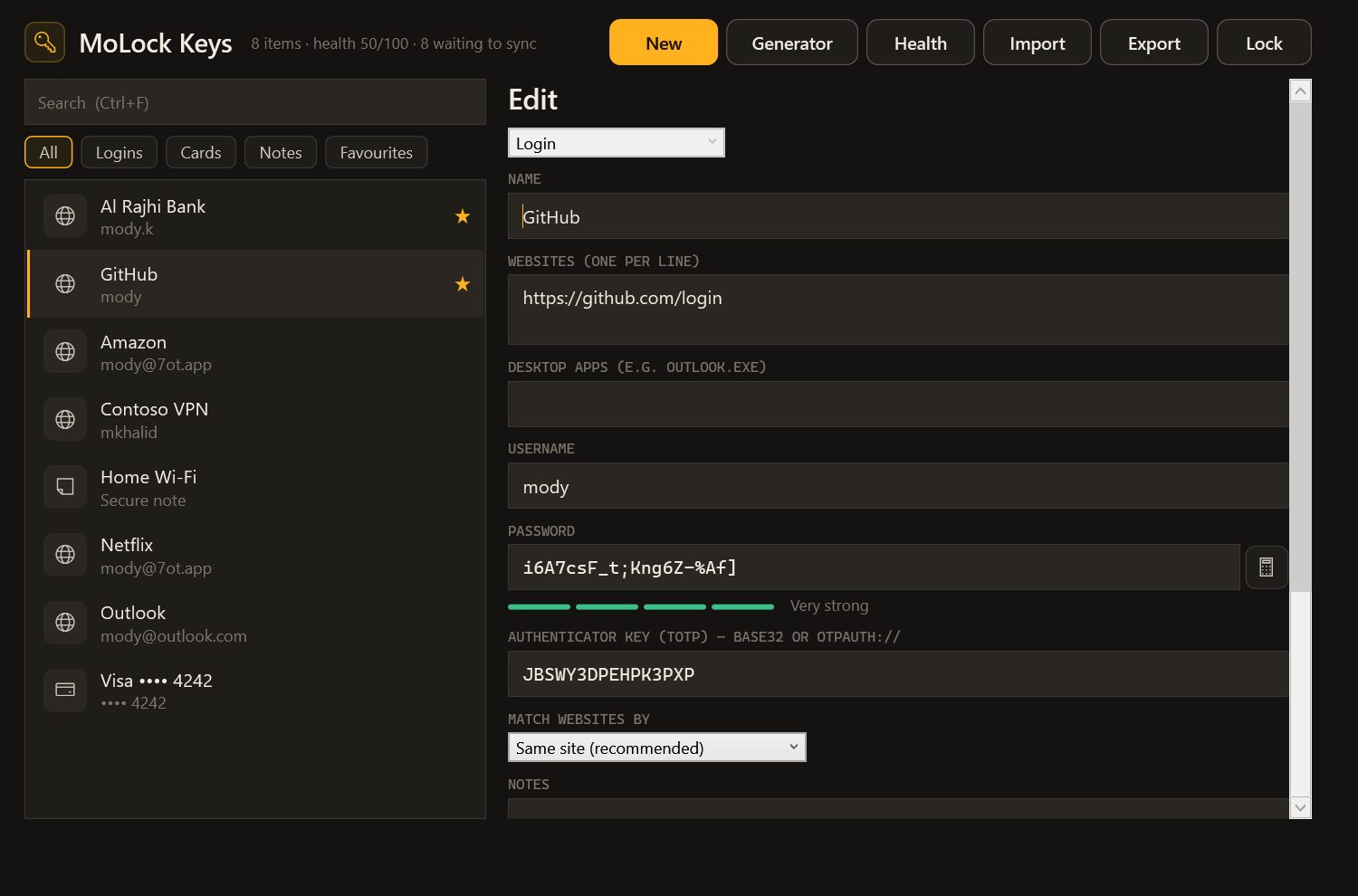
MoLock Keys lives inside the MoLock app on your PC. Each item is a login (a website or a desktop app, a username, a password, notes and, if you like, the key for one-time codes), a payment card or a secure note, with tags and favourites to keep a long list tidy.
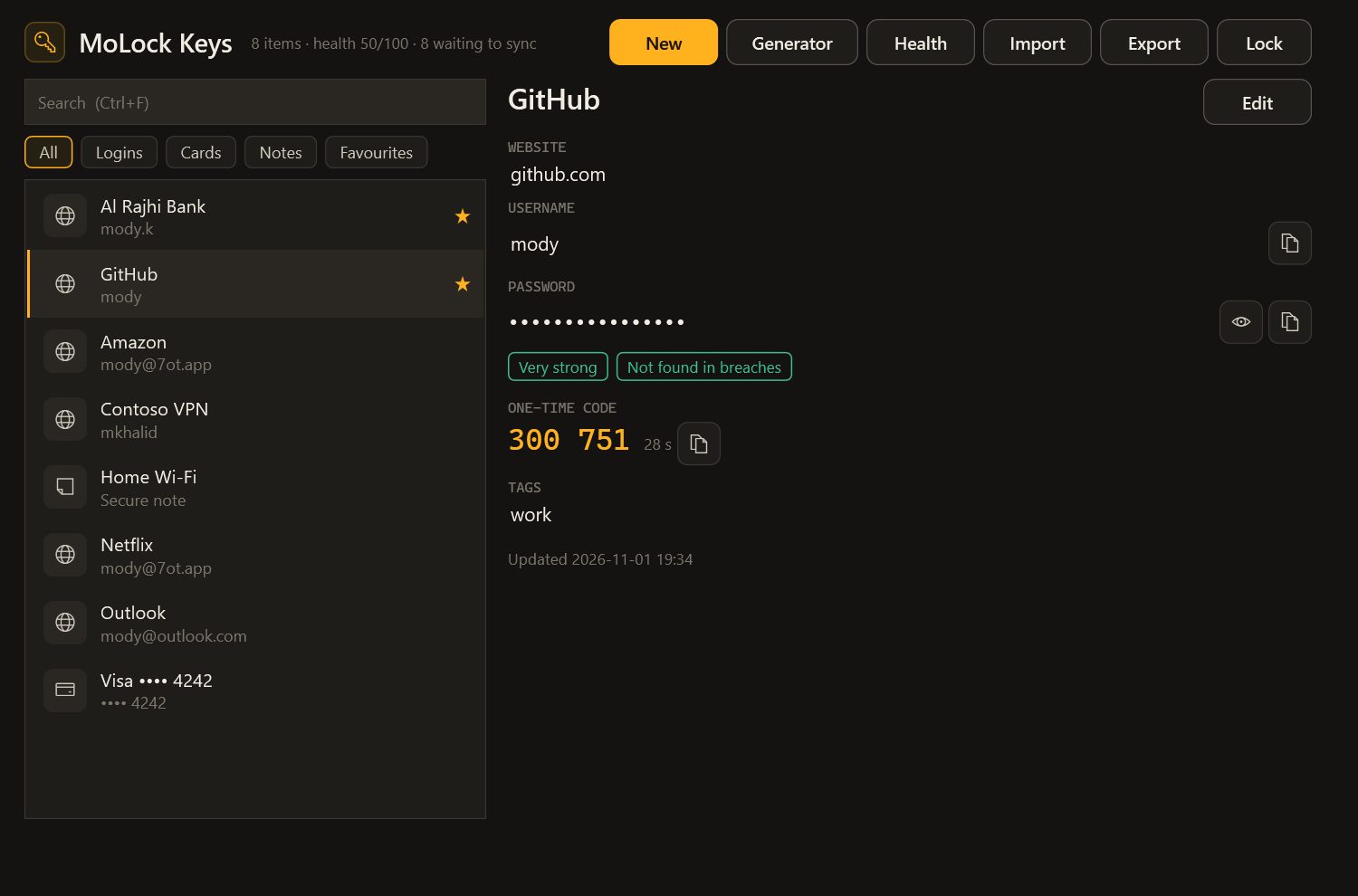
Every item is sealed on your PC before it is synced to your MoLock Account, with the same end-to-end encryption that protects the rest of your MoLock data. The service stores sealed boxes it cannot open. It can see how many items you have, when each one changed and how large it is; it cannot see a name, a website, a username or a password. The copy on your PC is kept sealed as well, inside a file that Windows protection additionally ties to your user account, so your passwords never sit on the disk in plain text. End-to-end encryption, in plain words explains the idea without the maths.
Unlocking takes your MoLock password, Windows Hello (face, fingerprint or Windows PIN) or a quick PIN of 4 to 12 digits. The quick PIN is a convenience, so it is deliberately fenced in: simple runs such as 1234 or 0000 are refused, five wrong tries switch it off until you unlock with your password or Windows Hello, and it only works for 72 hours after your last full unlock. Wrong passwords bring growing waits, up to 15 minutes, and the vault never opens while MoLock's lock screen is up.
Locking happens on its own. By default Keys locks after 10 minutes without keyboard or mouse input, and always within 12 hours of being unlocked. It also locks when MoLock locks, when Windows locks or goes to sleep, and when you press Lock in the browser or in your dashboard. While it is locked, no item is unsealed in memory; syncing carries on with the sealed copies.
In the browser: an extension that keeps nothing
The MoLock Keys extension for Edge, Chrome and Firefox spots login forms and offers to fill them from a small popover in MoLock's graphite and amber. What makes it different is what it does not do: it never stores your passwords. Each time it needs one, it asks the MoLock app on your PC, which answers only while the vault is unlocked, or asks you to unlock it first.
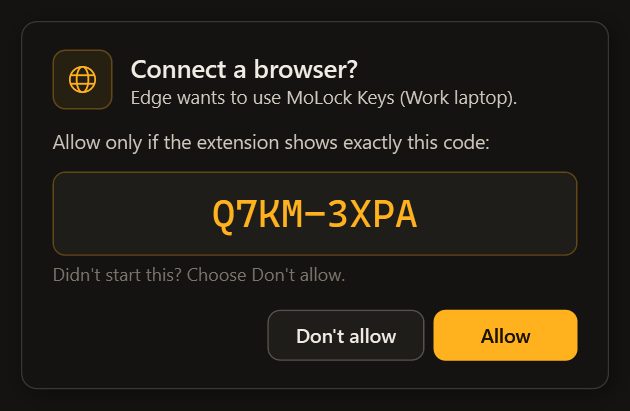
The first time, you pair the browser. Press Connect in the extension, and MoLock asks Allow this browser? while both sides show the same short matching code, such as ABCD-EFGH. Allow it only if the codes match; if you did not start this, choose Don't allow. From then on, the browser proves who it is with its own key every time it connects, and on your PC only the MoLock program itself is allowed to answer it.
- It fills only on the right site. A login fills only when the page matches the website saved with it: the same site by default, or, if you tighten an item, the exact host or a single address. A login saved for a secure page never fills into an insecure one. A look-alike phishing page simply gets nothing.
- The page cannot peek. The popover and the save bar are the extension's own pages laid over the site, so the site's scripts cannot read what they show.
- Save and Update. When you sign in with a password Keys does not know yet, it offers Save to MoLock?; when you change one, Update?. A captured password waits two minutes for your answer and is then dropped. Choose never for a site, and it stops asking.
- One-time codes too. If a login carries an authenticator key, the extension can fill the current code on the next screen.
In desktop apps: the chip and Ctrl+Alt+K
Plenty of passwords are typed outside a browser: a mail program, a VPN client, a game launcher, an office tool. When a password field gets focus in another app, Keys shows a small Fill with MoLock chip beside it. Click it, pick a login, and MoLock fills the username when the app allows it and types the password into the field for you.
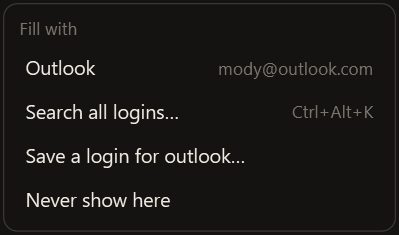
The chip never reads what you type. It does not appear over MoLock's own windows or over Windows sign-in and permission prompts, it stays out of screenshots and screen sharing, and it steps aside in a browser you have already paired. If an app does not need it, choose Never show here.
From anywhere, Ctrl+Alt+K opens a search palette. Type a few letters of a name, then press Enter to fill (only the password in a password field, otherwise the username, a Tab and the password), Ctrl+C to copy the password, Ctrl+B the username, Ctrl+T the one-time code, or Esc to close.
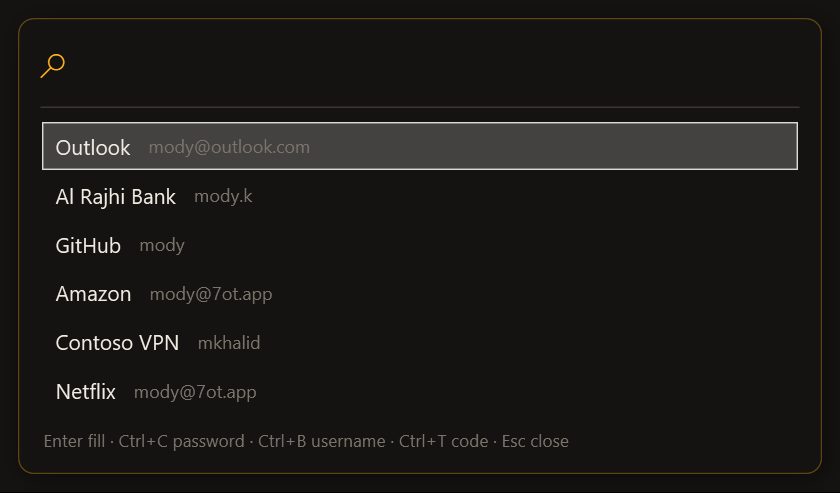
Copying is careful by design. Whatever Keys puts on the clipboard is cleared after 20 seconds if it is still there (you can choose 5 to 120 seconds), and it is marked so that it stays out of Windows clipboard history, out of cloud clipboard sync and out of MoLock's own clipboard history.
Better passwords, and an honest health report
The password generator makes new passwords on your PC with a cryptographic random generator. Choose random characters for anything the manager will fill, or memorable words for the few you must type by hand, such as a Wi-Fi key or a TV sign-in, and tick Avoid look-alikes so that l, 1, I, O and 0 never trip you up. A strength meter rates every password from Very weak to Very strong as you type.
Then there is the question every careful person eventually asks: has this password already leaked somewhere? Checking that without handing your password to anyone takes a neat trick called k-anonymity. MoLock first turns the password into a fingerprint on your PC, a fixed-length code that cannot be turned back into the password. It sends only the first five characters of that fingerprint to a free public service that keeps a list of passwords seen in breaches. The service answers with every fingerprint on its list that starts with those five characters, a long list padded so that even its size gives nothing away, and the comparison happens on your PC. The service never learns your password, and cannot even tell which entry in that long list you were asking about.
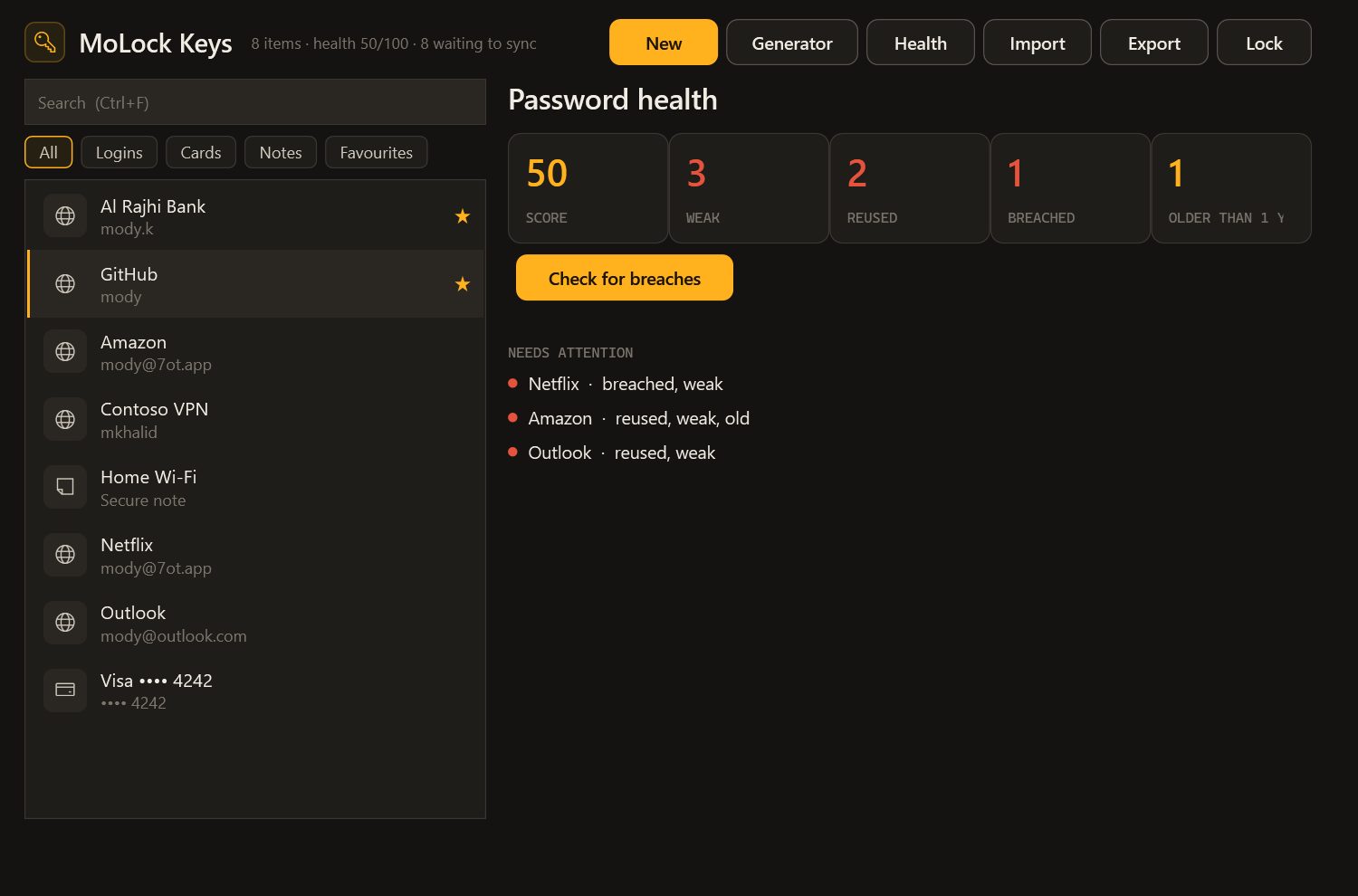
Password health brings it together. It lists passwords that are weak, reused (the same password on another login), breached (with how many breaches they appeared in) and older than a year, and turns them into one score from 0 to 100. Fix the worst first: anything breached, then anything reused on accounts that matter. Only the counts, never the passwords, also feed the Passwords part of MoLock's single Security health page, described in Ransomware protection, explained.
One-time codes, cards, notes and the web dashboard
Many accounts add a second step: a short code from an authenticator app that changes every 30 seconds. When a site shows you its setup QR code, it usually also offers the same thing as text, often under "can't scan it?". Paste that setup key into a login, and Keys shows the current code, the extension fills it, and Ctrl+T copies it.
That convenience has a trade-off worth knowing. With the code and the password in one vault, one vault holds both steps. For your main email and your bank, you may prefer to keep their codes in a separate authenticator on your phone. Either way, it is your call, and Keys does not push you one way.
Cards (holder, number, expiry and security code) and secure notes (a Wi-Fi key, recovery codes, the code for a door) are sealed exactly like logins.
Away from your PC, sign in at 7ot.app/me/keys/ to browse, search, add and edit your vault, with everything unsealed in your own browser and one-time codes ticking live. The dashboard also imports and exports, and can lock the vault on your PC with one press.
Switching in 10 minutes
Moving from your browser's built-in password list or from another manager takes one file and a few clicks. Keys recognises exports from Chrome, Edge, Firefox, Bitwarden and LastPass.
- Export your old passwords. In your browser's password settings, or in your old manager, choose to export passwords and save the CSV file.
- Import into Keys. In the Keys window, or at 7ot.app/me/keys/, choose Import and pick the file. Keys tells you how many items it added and how many duplicates it skipped.
- Delete the export file. It holds every password in plain text. Delete it, and empty the Recycle Bin.
- Connect your browser. Add the MoLock Keys extension, press Connect and allow it in MoLock when the codes match. Then turn off your browser's own offer to save passwords, so two helpers do not compete.
- Choose how you unlock. Turn on Windows Hello or set a quick PIN, so that unlocking stays quick enough to use every time.
- Open Password health. Change breached passwords first, then reused ones, starting with your email.
The honest limits
- The PC app does the work. The extension is only a messenger, so filling needs MoLock running and the vault unlocked. There is no autofill on phones; on a phone, open 7ot.app/me/keys/ in the browser and copy what you need.
- The extension may need to be added by hand. If it is not yet listed in your browser's add-on store, the Keys settings explain how to add it.
- Not every app plays along. The chip works in most Windows apps, but programs that draw their own fields, some games for example, may not show it. The Ctrl+Alt+K palette still lets you copy.
- It cannot rescue an infected PC. Malicious software already running as you can watch your screen and your keyboard; no password manager defeats that. Keep Windows up to date and let the ransomware shield watch your files.
- A clean breach check is not a guarantee. It only knows breaches that have been made public.
- Nobody can recover your vault for you. Because the service cannot read it, it cannot read it back to you either. Keep your MoLock password safe; the copy on your PC is not lost if you forget your account password.
- The free plan syncs 100 items. Beyond that, extra items stay on your PC without syncing; Premium removes the limit.
Questions people ask
Can anyone at MoLock see my passwords?
No. Items are sealed on your PC before they are synced and are only unsealed on your PC or in your own signed-in browser. The privacy policy lists the little the service does see, such as the number of items and when they changed.
What if my laptop is stolen?
The vault locks with MoLock, with Windows and after a few idle minutes, and the file on disk is sealed. From your dashboard you can lock it again remotely, and Lost mode takes care of the rest of the PC.
Do I have to use the browser extension?
No. The chip, the palette and the dashboard work without it. The extension simply makes the web as quick as everything else.
Everything above is on one screen on the MoLock Keys page. Give it ten minutes, and the next leak in the news will be someone else's problem rather than yours.