Safer installs: Program Files and a launch password
A security app is only as strong as the place it lives in and the door that opens it. MoLock 3.0 moves into a protected folder, checks every update, and puts a password on its own front door.
Mahmoud Mohamed · 7 min read
- Welcome
- Install location
- Password
- Account & email
- Ready
For everyone on this PCC:\Program Files\MoLockProtected
- Desktop shortcut
- Start menu
- Ask for the password when MoLock opensRecommended
- Your personal dataStays in your Windows profile
One administrator approval now; updates after that are silent and verified
InstallBack
Why where an app lives matters
Until now, MoLock installed inside your own user folder. That is common for modern apps: it needs no administrator approval, and installing feels effortless. But it has a quiet weakness. Any folder that belongs to you can also be changed by any program running as you, including one you did not mean to run: a booby-trapped download, a malicious browser add-on, a "free" tool that does more than it says.
For most apps that hardly matters. For an app whose job is to stand between your PC and whoever sits down at it, it matters a great deal. A security tool whose own files can be swapped or edited without a single warning is a lock whose hinges are on the outside.
The Program Files folder is different. Windows protects it: ordinary programs can read from it, but changing, replacing or deleting anything inside needs administrator approval. That is why MoLock 3.0 moves there.
A lock is only as good as its hinges, so MoLock 3.0 moves its own into a protected folder.
What the 3.0 installer does
The new setup installs MoLock for the whole PC rather than for one Windows account. In practice, that means:
- One approval, once. Windows shows its familiar "Do you want to allow this app to make changes to your device?" prompt when you install. Approve it, and you will not be asked again for routine updates.
- A Start menu entry and a Desktop shortcut, so MoLock is easy to find.
- A proper entry in Windows' list of installed apps, where it can be repaired or removed like any other program.
- Your data stays yours. Your settings and personal data live in your own Windows profile, not in Program Files. Program Files holds the app itself; your profile holds what is yours.
- Welcome
- Install location
- Password
- Account & email
- Ready
For everyone on this PCC:\Program Files\MoLockProtected
- Desktop shortcut
- Start menu
- Ask for the password when MoLock opensRecommended
- Your personal dataStays in your Windows profile
One administrator approval now; updates after that are silent and verified
InstallBack
Upgrading from an earlier version
If MoLock is already on your PC, you do not have to uninstall anything. The 3.0 setup migrates the existing installation automatically, moving the app from your user folder to Program Files. Your settings were already in your profile, so they simply carry on. Get the installer from the download page; the secure install page explains each step of the wizard.
Silent updates, checked before they land
A protected folder raises a fair question: if changing Program Files needs an administrator, does every update now bring an approval prompt? No.
MoLock's protective background service, the same layer that already watches for tampering, installs updates on your behalf. Because that service runs with the rights Windows gives to system services, it can replace MoLock's files in Program Files without asking you each time. You keep getting updates as quietly as before.
Quiet does not mean careless. Before a single file is applied, MoLock checks it against a digital fingerprint listed in its signed update information. If a file has been altered, damaged in transit or swapped for something else, the fingerprint will not match, and the update is refused. Only files that match exactly are ever installed.
Latest updateUp to date
- Update 3.0.1 downloaded
- Signature valid · every file's fingerprint matches
- Installed by the guard service — no admin prompt
- Start-up integrity check of the app's files
Any file that doesn't match the signature is rejected — never installed
The arrangement is deliberate: silent for you, demanding for everyone else. A program that wanted to slip something into MoLock would need administrator approval to touch the folder directly, and it could not forge files that pass the fingerprint check.
A password on MoLock's own front door
Locking the screen protects your PC when you are away. But what about the MoLock window itself? Settings, alerts, the vault and remote access all start there. If someone could simply open it while you are at the coffee machine, they could switch off the very protections meant to catch them.
MoLock 3.0 closes that door. When protection is on, opening the MoLock window asks for your password, whichever way someone tries:
- the Desktop shortcut;
- the Start menu;
- Settings from the tray icon;
- launching MoLock a second time while it is already running.
MoLock is protected
Enter your password to open Settings
●●●●●●
2 wrong tries · 3 left
- Intruder photo saved
- Owner alerted: bot · push · email
Open
Protection is on by default once setup is finished. You can change it in Settings, but on any PC that other people can reach, we strongly suggest leaving it on. For you, it costs one password entry when you want to change something. For anyone else, it is a wall.
When someone gets it wrong
A wrong password at the launch screen is not just rejected. MoLock treats it as what it may well be: someone trying to get in.
- The attempt is logged, so you can see later when it happened.
- An intruder photo is taken with the camera, if you have that feature switched on.
- You are alerted on the channels you have chosen in your notification preferences: the dashboard, the Telegram bot, push notifications on your phone, and email.
- After several wrong tries, MoLock locks the door for a while, so guessing becomes slow and pointless.
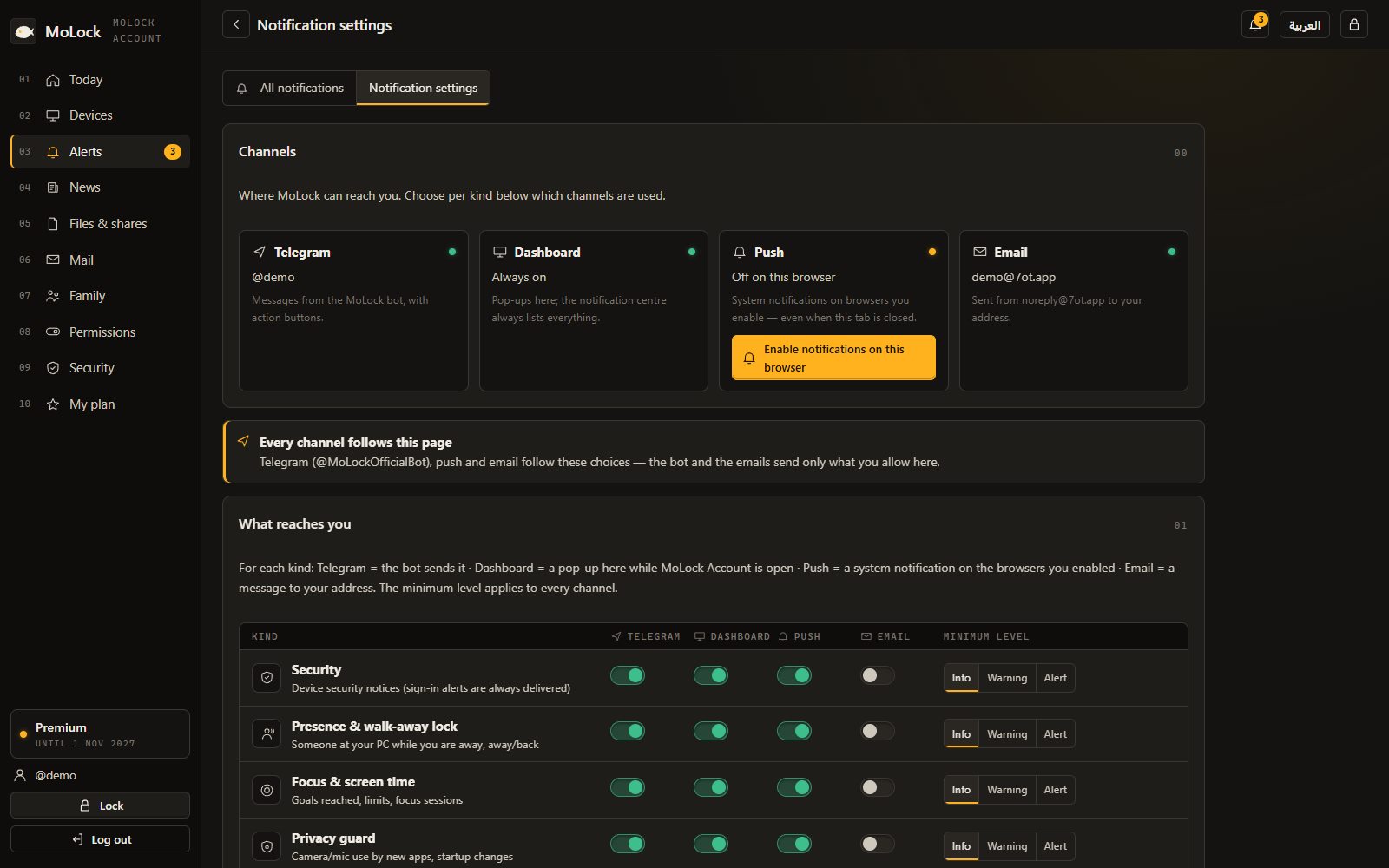
Choosing your channels takes a minute on the notifications page. A good rule is to pick at least one that reaches your phone, so a wrong guess at home reaches you at work. If you already use the bot to approve unlocks, approving an unlock from your phone shows how the same alerts come with instant buttons.
Quiet protection you will not notice
Two more safeguards in 3.0 work entirely in the background.
MoLock checks its own files
When it starts, MoLock runs an integrity self-check: it compares its own files against a list of fingerprints signed with the same key as its updates. A file that has been changed since installation stands out immediately. Combined with the protected folder, this makes quietly tampering with MoLock much harder.
Settings that cannot be edited behind its back
MoLock's settings are now protected against tampering. They are sealed to your Windows account and stamped, so if someone edits them outside MoLock, for example to switch off an alert, MoLock notices that the settings were not changed by MoLock and does not quietly accept them.
Two practical fixes
Bigger files on the vault drive
The encrypted vault drive used to inherit a Windows default that stopped File Explorer from handling files larger than about 50 MB on it. The 3.0 installer raises that limit to 4 GB, so large videos and archives can go straight into the vault from File Explorer.
The Windows 11 right-click menu
On Windows 11, the first right-click menu is reserved for apps that are digitally signed by their publisher; other apps appear one step further down, under "Show more options". MoLock 3.0 is ready to place its tools, including the new converter, in that first menu, and will do so when the signed edition is available. Signing needs a certificate that MoLock's owner plans to obtain; until then, the MoLock menu stays under "Show more options", working exactly as before.
The honest limits
- An administrator can still change anything. Program Files keeps out programs running as an ordinary user. It does not stop someone who has, or tricks you into giving, administrator approval. Do not approve prompts you did not expect.
- The launch password is only as strong as your password. A birthday or "1234" will not survive a determined guess, lockout or not.
- Signing is not here yet. The first-level Windows 11 menu arrives with the signed edition, not before.
- Security is layers. MoLock protects the screen and itself; Windows updates, a good antivirus and careful habits still matter. The everyday privacy habits guide covers the rest.
A checklist for a safer PC
- Install or upgrade to 3.0. Approve the one prompt, and let the setup move your existing installation to Program Files.
- Choose a strong MoLock password. Long and unique beats short and clever. It now guards both the lock screen and the MoLock window.
- Keep launch protection on. It is on by default after setup; leave it that way on any PC others can reach.
- Turn on intruder photos. A face is more useful than a log line when you want to know who tried.
- Pick your alert channels. In the dashboard's notification preferences, choose at least one channel that reaches your phone.
- Use a standard Windows account day to day. Keep the administrator account for installing software, and treat unexpected approval prompts with suspicion.
- Let updates flow. They are silent and verified, so there is no reason to postpone them.
Everything else that is new in this release is on the what's new list, and Introducing MoLock 3.0 tells the whole story.