Secure sign-in, no hassle: passkeys and one-tap approval
Passwords are tiring and codes are fiddly, and a convincing fake page can collect both. MoLock 2.9 adds passkeys and one-tap approval, so the safest way to sign in is also the quickest.
Mahmoud Mohamed · 8 min read
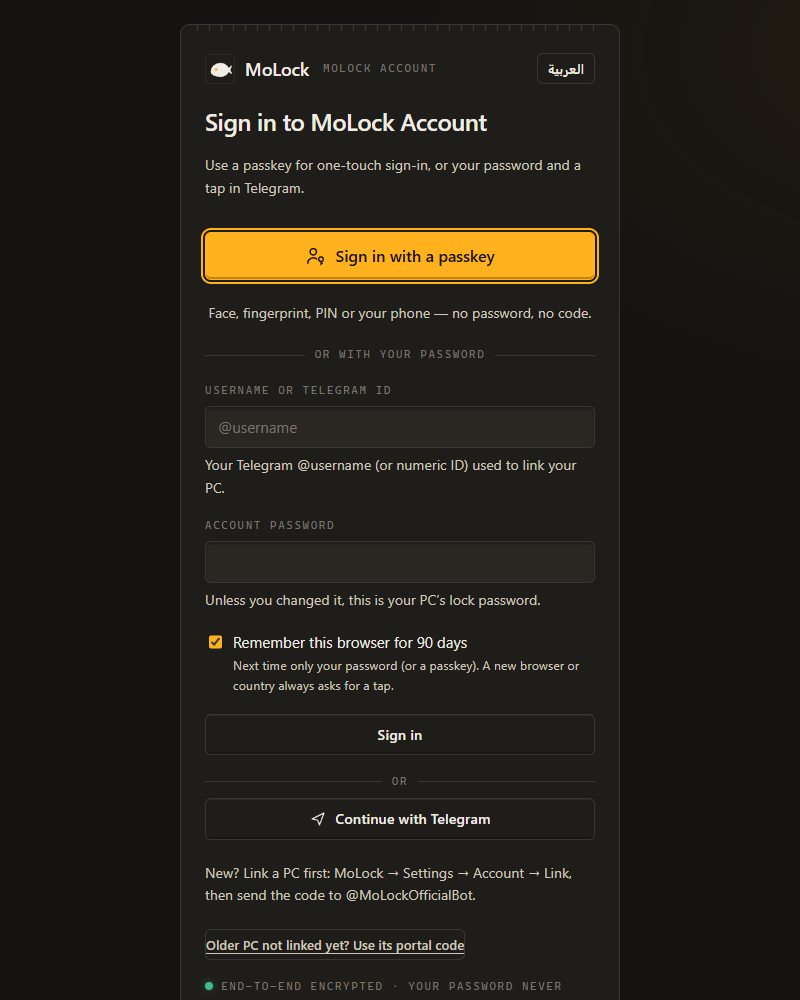
Why passwords and codes are both tiring and phishable
Signing in has become a small ritual: type a password you hopefully remember, wait for a code, switch apps, copy six digits, switch back before they expire. Each step was added for a good reason, and together they still have a weakness that is easy to miss: everything you type can be typed into the wrong place.
That is how phishing works. A message links to a page that looks exactly like the real one, at an address that is almost right. You type your password; the person behind the page forwards it to the real site at once. The real site sends you a code, you type that into the fake page too, and it is forwarded as well. You did everything right, and someone else is now signed in. A second step makes stolen passwords far less useful, but a code you type is still a code you can be tricked into typing.
The fix is not a longer password or a shorter code. It is a way of signing in where there is nothing to type and nothing that would work anywhere else. That is a passkey.
What a passkey is, in plain words
A passkey is a pair of keys created on your device for one website. Think of a padlock and its key. The MoLock site keeps the padlock, which is the public half and is safe to store anywhere. Your phone or PC keeps the key, the private half, and the private half never leaves your device.
When you sign in, the site sends a fresh challenge, different every time. Your device asks you to prove it is you — with your fingerprint, your face or your device PIN — and then answers the challenge with the private key. The site checks the answer with its padlock. Nothing reusable crosses the internet: no password, no code, no secret that could be recorded and replayed.
Three consequences follow, and they are the reason passkeys are worth the two minutes they take to set up:
- Phishing-resistant by design. Your browser only offers the passkey to the site it was created for. A lookalike page at a different address simply never gets an answer, however convincing it looks. You don't have to notice the fake; the browser does.
- Nothing worth stealing on the server. The service holds only padlocks. A padlock cannot open anything on its own.
- Your fingerprint stays with you. Your face or fingerprint is checked by your own device. MoLock never receives it.
Signing in with your fingerprint, face or PIN
On the sign-in page, choose Sign in with a passkey. Your browser shows its own prompt; touch the sensor, look at the camera or enter your device PIN, and you are in. There is no password field and no code to wait for.
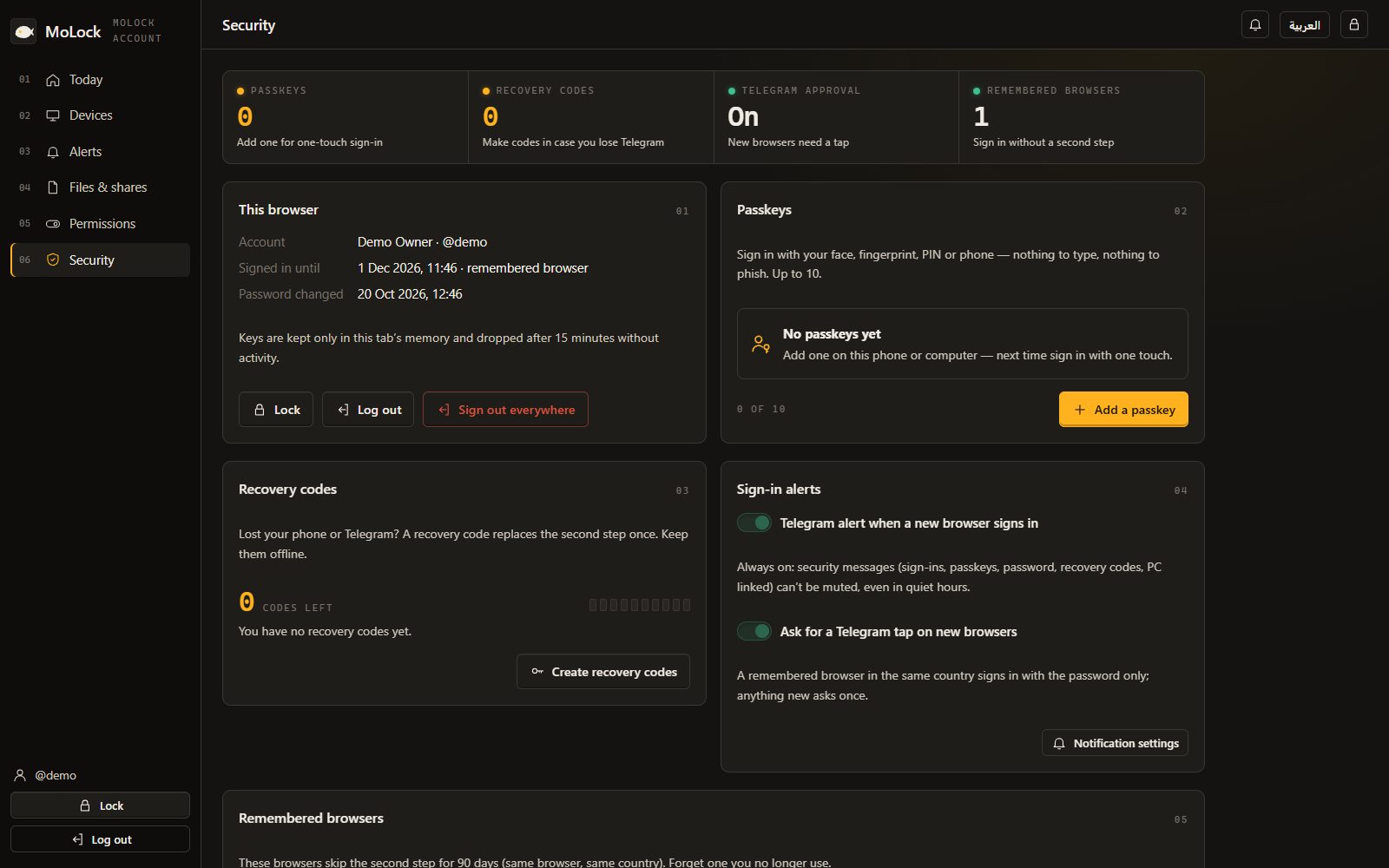
You can register up to 10 passkeys, give each one a name — "Pixel phone", "Office laptop" — and remove any of them from the Security page. Two is a sensible minimum: one on your phone and one on the PC you use most, so losing one device never locks you out. Depending on your phone, its own password manager may also keep the passkey in sync across your other devices; that is handled by your phone, not by MoLock.
One-tap approval on Telegram
Passkeys are the strongest option, but not every browser or every situation suits one. If you sign in with your password, the second step no longer means copying a code. The official bot sends you a message such as:
🔐 Sign-in request — Chrome on Windows · Cairo, Egypt · 12:04
with two buttons, ✅ It's me and ⛔ Not me. Tap the first, and the browser you are signing in on continues by itself; you don't even need to switch back to it to type anything. If Telegram is slow to deliver or you prefer the old way, the 6-digit code is still there as a fallback.
- 🔐 Sign-in request
Chrome on Windows · Cairo, Egypt · 12:04
If this isn't you, tap Not me.
Fallback code: 482913✅ It's me⛔ Not me - ✅ Approved — signed in from a new browser.
The details in the message are what make the tap meaningful. Read them before you tap. If you are signing in from your laptop in Cairo and the request says another browser in another country, that is not you.
What "Not me" does
The request only appears after the correct password has been entered. So a request you didn't make tells you something important: someone has your password. Pressing ⛔ Not me blocks that attempt on the spot, records it as a failed sign-in in your activity, and offers you Change password straight away. Take the offer.
Remembered browsers, and when MoLock asks again
On your own phone or laptop, being asked for a second step every time is just friction. When you sign in, tick remember this browser. For the next 90 days, that browser will not ask for the second step. A new browser or a sign-in from a new country asks again, because those are exactly the moments that deserve a second look. Your remembered browsers are listed on the Security page, next to your passkeys and recovery codes.
Only tick the box on devices that are yours. A shared family computer, a work PC or a café laptop should never be remembered.
A second check only for what matters
Being signed in should let you work without interruptions. A few actions are different, because they are exactly what someone with a borrowed session would try first. For these, MoLock asks you to confirm it's you once more:
- changing your password or removing a passkey;
- unlinking a PC;
- exporting or deleting your data;
- ending all remote sessions;
- creating new recovery codes.
Once you have confirmed, you are not asked again for 15 minutes, so tidying up your security settings in one sitting does not mean confirming at every click.
Recovery codes: your spare key
Phones get lost, Telegram accounts get reinstalled, laptops die. Recovery codes make sure none of that locks you out of your account. You get 10 codes, each one usable once, and they are shown only once, when you create them.
Where you keep them matters more than anything else about them:
- Offline is best. Print them or write them down and keep the paper with your important documents at home.
- Not on the same phone. A photo of your recovery codes in the gallery of the phone you might lose is no spare key at all.
- A password manager is fine, if you use one and it is protected by something other than this account.
- Cross off each code you use, and when you are down to a few, create a new set.
The best time to find your recovery codes is before you need them.
Linking a PC with a QR code
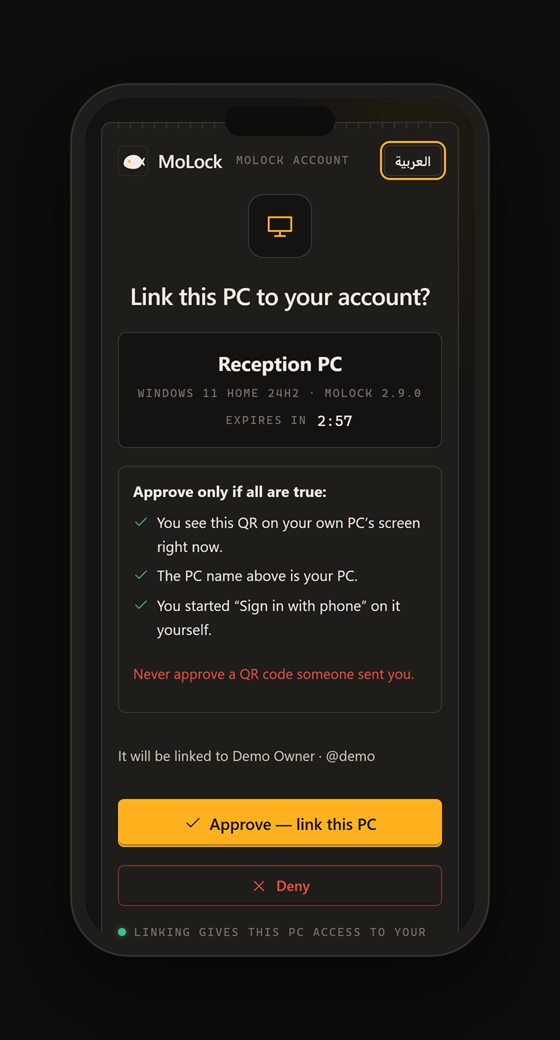
The same thinking applies to adding a PC to your account. Instead of typing a link code, the MoLock app on the PC can show a QR code, valid for 3 minutes. Scan it with your phone, where you are already signed in to your account, approve, and the PC is linked. Your phone is the proof, so nothing is typed on the PC. The link codes you may already know still work if you prefer them.
Alerts you can't miss, and a dashboard that leads
MoLock 2.9 is built "dashboard first". Your account dashboard is the one place where every feature has its page, its history and its settings, and the Telegram bot follows the dashboard rather than the other way round. In notification preferences, you decide for each kind of message whether it goes to the bot, whether it shows on the web, and the minimum level — info, warning or alert — that reaches you. Quiet hours, for example 23:00–07:00, let only alerts through at night, and you can silence even those.
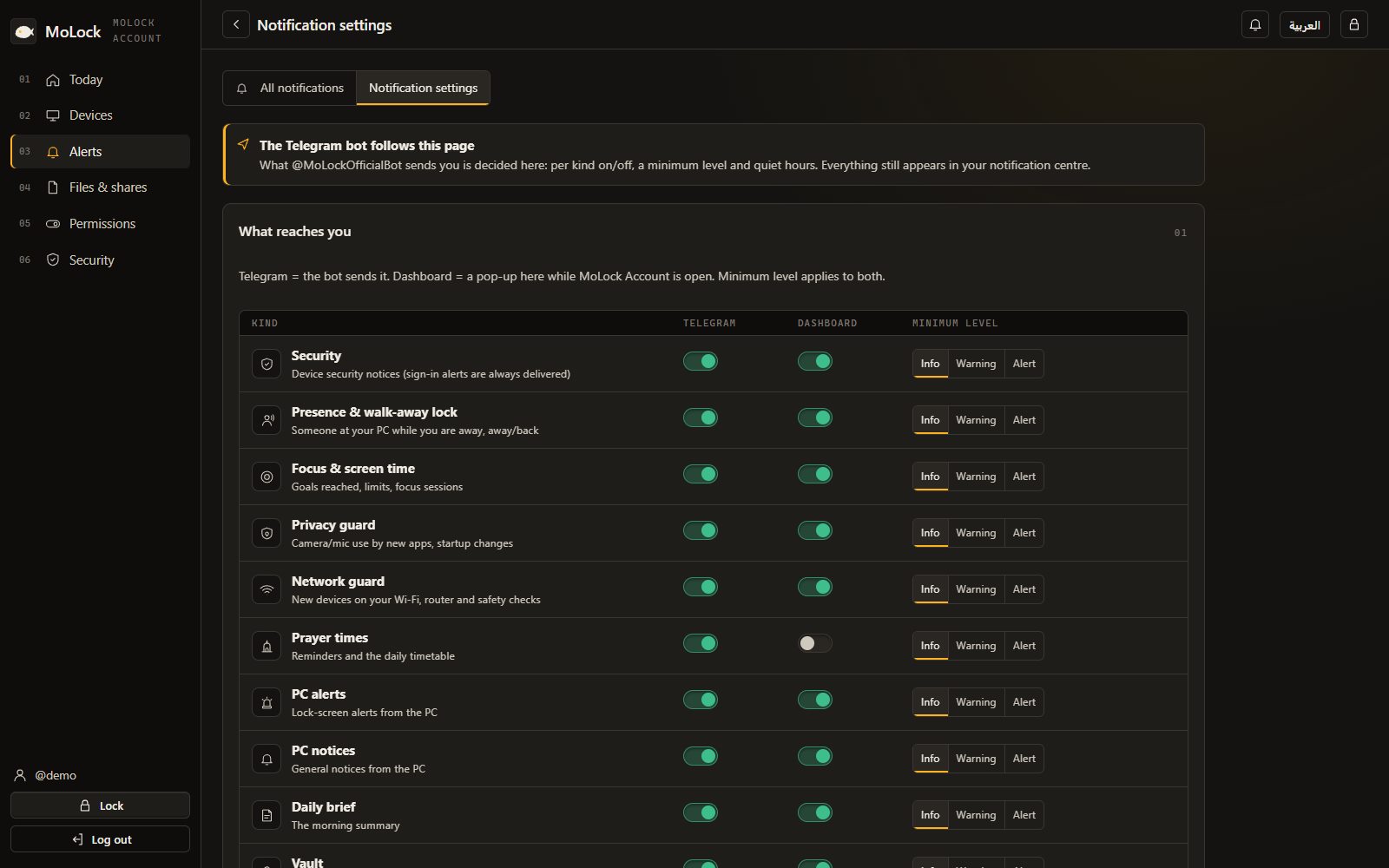
Security messages are the exception, on purpose. Sign-ins from a new browser, approval requests, passkey changes and similar messages are always delivered, quiet hours or not. A sign-in at 3 a.m. that you didn't make is precisely the message you want to wake up to.
How to set it up
- Sign in to your account. Open the MoLock Account and sign in the way you do today.
- Add your first passkey. On the Security page, choose to add a passkey, confirm with your fingerprint, face or PIN, and give it a clear name.
- Add a second one. Repeat on your other main device, so one lost phone never locks you out.
- Create your recovery codes. Print them or write them down, and put them somewhere safe and offline.
- Remember your own browsers only. Next time you sign in on your own phone or laptop, tick "remember this browser".
- Check your notifications. In the dashboard, review notification preferences and quiet hours. Security messages will reach you regardless.
For how MoLock keeps the data behind that sign-in unreadable to the service, read end-to-end encryption, in plain words. To use the same one-tap habit for your PC itself, see approving an unlock from your phone.